November 13, 2026 · 13 min read
On-Device Captions: What They Are and How to Caption a Whole Room
On-device captions run on one phone for one listener. Learn how they work, how to turn them on, and how to put live captions on every phone in your room.

On-device captions are captions your phone or computer creates itself, from audio it is playing or hearing, without sending that audio to a server. They are built for one person using one device. If you run a church service, a conference session or a multilingual event, you need captions on every attendee’s phone. Live Caption AI does that: you run it on a phone or laptop, attendees scan a QR code, and they read live captions on their own phones. No app to install. No account. No hardware. No stenographer.
This guide explains how built-in on-device captions work, how to turn them on, and where they fit. Then it shows how to caption a room full of people on a budget.
TL;DR
- On-device captions are generated on your own phone or PC. Google says Live Caption captions are processed locally, never stored, and never leave your device.
- Built-in tools like Android Live Caption, iPhone Live Captions and Windows live captions caption what one device plays or hears, for the person holding it.
- To give a whole audience captions, use a speaker-side tool. Live Caption AI shows captions on every phone in the room through a QR code.
- Specialized vocabulary is where captions fail first. Live Caption AI offers Medical, Worship & Ministry and Finance & Earnings models plus up to 100 Custom Terms.
- The Professional plan is $19.99 a month. Live translation into one of 29 languages per session is available.
Table of Contents
- What on-device captions are
- How to turn on on-device captions
- What on-device captions cover
- Why a room needs a different setup
- Where on-device captions work best, and where a room-wide tool takes over
- Names and jargon decide caption quality
- Translation for multilingual rooms
- Privacy, transcripts and what happens to the audio
- Cost: how to caption an event without a stenographer budget
- A setup checklist for your next event
- Our view: captions belong to the room, not just the device
- Put captions on every phone in the room
- FAQ
- Sources
What on-device captions are
An on-device caption is speech turned into text by software running on the hardware in your hand. The audio does not travel to a cloud service first.
Google’s Live Caption is the best-known example. With one tap, it automatically captions speech on your device in videos, podcasts, phone calls, video calls and audio messages. Google’s research team describes it as a combination of three on-device deep learning models: one for speech recognition, one for punctuation, and one for sound events.
Apple and Microsoft built their own versions:
- iPhone: Apple says that with Live Captions on, the iPhone transcribes spoken audio in apps or from dialogue around you.
- Windows: Microsoft says audio and captions never leave your device and are not shared with the cloud or with Microsoft.
- Chrome: captions are created on the device, never stored, and never leave it.
The appeal is clear. Captions appear in real time, and the audio stays on the device.
How to turn on on-device captions
The steps differ by device. These are the ones the manufacturers publish.
Android
- Press a volume button.
- Tap More under the volume controls.
- Tap Live Caption, then Done.
You can also search for Live Caption in Settings. Under Settings > Accessibility > Live Caption, you can manage languages, profanity, sound labels and the caption box, per Google’s help page. On a Galaxy phone, the path runs through Accessibility and then Hearing Enhancements.
The first time you use it, you need Wi-Fi to download the default language pack. After that, Google says it does not use mobile data or an internet connection.
iPhone
Apple’s Live Captions lives in Accessibility settings. Once it is on, you can tap Live Captions and then Microphone to transcribe an in-person conversation, or tap iPhone Audio to transcribe what the phone is playing. It requires an iPhone 11 or later and is not available in all languages, countries or regions.
Apple also tells call participants when a call is being transcribed. With the 1 Hour setting for Keep Call Captions, everyone on the call hears a brief announcement at the start.
Windows 11
Live captions arrived in Windows 11 version 22H2. Microsoft’s page lists support for English in the United States and several other English variants, plus languages including French, German, Italian, Japanese, Korean, Portuguese and Spanish. On Copilot+ PCs, it can also translate speech from over 40 languages into English.
What on-device captions cover
Built-in captions are designed around the media and conversations on one device. Google lists videos, podcasts, calls and audio messages. Microsoft says only speech is captioned: applause and music are not detected, and sung lyrics are not reliably captured.
Language and device support depends on the model:
| Platform | Typical coverage | Where to check |
|---|---|---|
| Android Live Caption | Pixel and selected Android phones, from English only on older Pixels to 15 languages on newer ones | Google Accessibility Help |
| iPhone Live Captions | iPhone 11 or later, in supported languages and regions | Apple Support |
| Windows live captions | Windows 11 22H2 or later, with a list of supported languages | Microsoft Support |
This is great for the person who owns the device. It answers a personal question: “Can I read what this phone is playing?”
Event organizers and church staff ask a different question: “Can everyone in this room read what the speaker is saying?” That is a broadcast job, not a personal one.
Why a room needs a different setup
Picture a Sunday service with 200 people. Some are hard of hearing. Some speak Spanish at home. Some are visiting and sit in the back where the sound is thin.
If each person had to find the right accessibility setting, hold the phone near a speaker and hope the captions keep up, you would not have an accessibility plan. You would have 200 separate experiments.
The cleaner approach is to caption at the source. One device captures the speaker. Everyone else just reads. That is how Live Caption AI works:
- The speaker starts a session on a phone or laptop.
- A QR code appears.
- Attendees scan it and read live captions in their phone’s browser.
There is nothing for attendees to install and no account for them to create. You do not rent hardware or book a stenographer. The number of phones is not a cost line, because every phone in the room can read along.
Where on-device captions work best, and where a room-wide tool takes over
Use built-in captions for personal listening: a video someone is watching, a call they are on, a podcast on a commute.
Use Live Caption AI when the speaker is in front of a group. Google’s own guidance says Live Caption works best with clear speech and low background noise. A captioning session that starts at the speaker’s microphone puts the audio source as close to the words as it can be, rather than leaving every listener to capture the room’s sound on their own.
It also changes who is in control. With built-in captions, each listener manages their own settings. With a speaker-run session, the organizer decides when captioning starts and what vocabulary it knows.

Names and jargon decide caption quality
Caption accuracy is not one number. It depends on who is talking, how, and about what.
UVic’s systems team points out that speech recognition software is often trained on native US and UK English speakers using common terminology. It can struggle with accents, specialized terminology and noisy or reverberant spaces. Their advice is that machine captions may need editing to be useful.
That matches what happens in a sanctuary or a conference hall. Names of people, books of the Bible, drug names, product names and earnings terms are exactly where generic captions slip.
Live Caption AI addresses this before the session starts:
- Worship & Ministry model for sermons and services.
- Medical model for healthcare-related talks and training.
- Finance & Earnings model for investor calls and financial presentations.
- Custom Terms: up to 100 names, places and terms the speaker types in before going live.
A practical routine for a speaker:
- List the names and unusual words in tomorrow’s talk.
- Enter up to 100 of them as Custom Terms.
- Pick the model that fits the subject.
- Run a short test sentence so you know the captions are flowing before the audience arrives.
Ten minutes of prep is all it takes.
Translation for multilingual rooms
Many events have two or three language groups, and AV companies run into this constantly. Built-in captions on a phone caption what that phone hears. Windows can translate on Copilot+ PCs, and Chrome’s Live Translate sends captions to Google for translation. Those are personal viewing tools.
Live Caption AI translates for the whole room. The speaker picks one source language and one target language from 29 options per session. Viewers can switch between the original text and the translation on their own phones.
Translation uses in-app credits. The published one-off packs are:
| Credit pack | Price |
|---|---|
| 30 credits | $6.99 |
| 60 credits | $11.99 |
| 120 credits | $19.99 |
Prices are as published on the Live Caption AI pricing page.
Privacy, transcripts and what happens to the audio
Privacy is the best reason people like on-device captions. Live Caption AI gives you a clear answer too:
- Session audio is never stored.
- Every session’s transcript is saved automatically to the speaker’s account.
- Transcripts are readable only by the speaker.
- Speakers can delete their transcript from History.
From a saved transcript, you can export TXT, SRT, JSON or PDF, and AI summaries are included. A church can post a sermon summary. An organizer can send a recap to attendees. A trainer can keep notes for the next session.
Cost: how to caption an event without a stenographer budget
Human captioners are priced per event or per hour, and you book them ahead. For a church that meets weekly, or an organizer with a full calendar, that adds up fast.
Live Caption AI’s published plans:
- Free: basic on-device captions.
- Professional: $19.99 a month with unlimited captioning.
- Business: from $199 a month.
The Professional plan is the usual fit for a single church or a small events team. Check the pricing page for what each tier unlocks.
An organization can use Live Caption AI as part of its ADA effective-communication plan. It is an AI captioning tool. It is not a certified or human-reviewed service, and it does not make an organization ADA-compliant on its own. It is also not designed for courtroom or clinical use.
If you are comparing tools more broadly, the guide on choosing the right captioning app walks through the criteria.
A setup checklist for your next event
- Decide who is the speaker device. A phone or laptop near the person talking.
- Enter your Custom Terms. Names, places, product names, scripture references.
- Choose the model. Worship & Ministry, Medical or Finance & Earnings.
- Pick a translation language if you have a second language group in the room.
- Put the QR code on a screen or printed sign. Tell people at the start: “Scan to read along on your own phone.”
- Save and share the transcript afterward. Export it as TXT, SRT, JSON or PDF.
For events in medical, legal and professional settings, see the professional settings page.
Our view: captions belong to the room, not just the device
We built Live Caption AI around one idea: captions should reach everyone in the room, not just the person who knows where the accessibility setting is.
On-device captions on a phone are a good thing. They show that speech-to-text has become part of everyday devices. But a speaker standing in front of a congregation or a conference needs the captions to travel from the speaker to every seat.
That is why we use a QR code. Anyone can scan it. There is no app to install, no account to create, no hardware to rent and no stenographer to book. The captions show up on the phone people already hold.
We also put the effort where captions usually fail: names and terms. Our Medical, Worship & Ministry and Finance & Earnings models, plus up to 100 Custom Terms you type in before going live, are there so your speaker’s words come through the way they were said.
Session audio is never stored. Transcripts are saved to the speaker’s account, readable only by the speaker, and the speaker can delete them from History.
Ryan
Put captions on every phone in the room
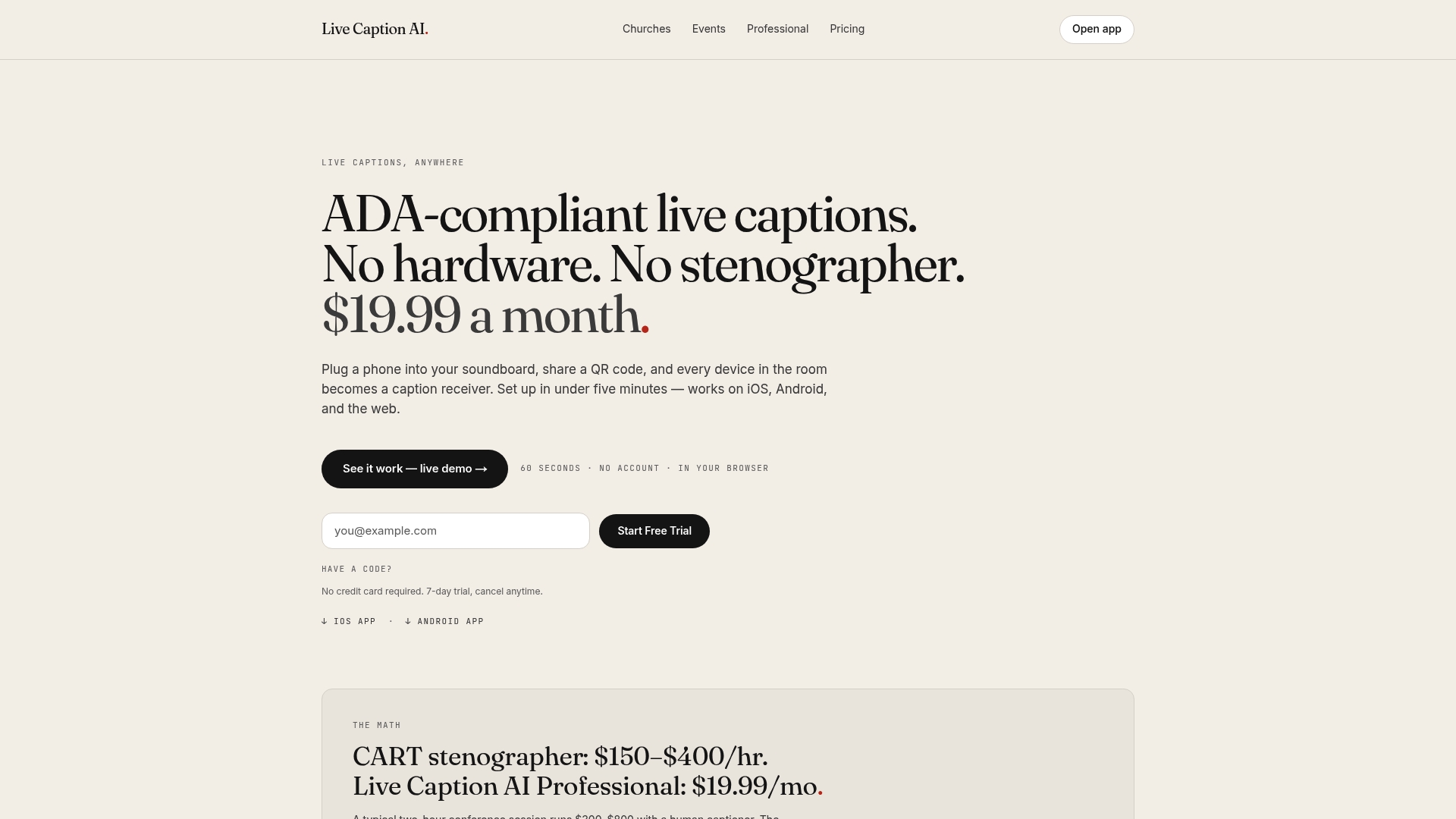
If you came here for the on-device setting on your own phone, the steps above will get you there. If you came because you run a service, a class or an event, Live Caption AI puts live captions on every phone in the room through a QR code. The Professional plan is $19.99 a month with unlimited captioning, and translation reaches one of 29 languages per session.
FAQ
How do I turn on captions on my phone?
On Android, press a volume button, tap More, then tap Live Caption and Done. You can also search for Live Caption in Settings. On iPhone, open Accessibility settings and turn on Live Captions. The exact menus vary by phone model and software version.
Do on-device captions need an internet connection?
Google says Android Live Caption does not use mobile data or an internet connection once it is set up. You do need Wi-Fi the first time to download the default language pack. Microsoft says Windows live captions are also generated on the device.
Can on-device captions caption a live speaker for a whole audience?
Built-in captions are made for the person using the device. For a group, the speaker runs Live Caption AI and attendees scan a QR code to read captions on their own phones. Nobody has to install an app or create an account.
Does Live Caption AI store my audio?
No. Session audio is never stored. The transcript is saved automatically to the speaker’s account, only the speaker can read it, and the speaker can delete it from History.
Can Live Caption AI translate captions?
Yes. The speaker picks one source language and one target language from 29 options for each session. Viewers can switch between the original captions and the translation on their own phones.
Sources
- Live Caption: Caption media & calls on your device, Google Accessibility Help
- On-Device Captioning with Live Caption, Google Research
- Manage captions and translations in Chrome, Google Accessibility Help
- Use live captions to better understand audio, Microsoft Support
- Get live captions of spoken audio on iPhone, Apple Support
- Automatic captions & transcription, UVic Systems