November 5, 2026 · 13 min read
Live Captions for In-Person Events: A Practical Setup Guide
Add live captions to an in-person event: how attendees read them on their phones, what to prepare, how ADA rules fit in, and what it costs with Live Caption AI.

Looking for in-person event captions as in live, on-screen text of what the speaker is saying, not Instagram captions? You can put them on every attendee’s phone with a QR code. The speaker runs Live Caption AI on a phone or laptop. Attendees scan, then read along. No app to install. No account. No hardware to rent.
This guide covers how live captions work in a room, how to set them up, how to prepare names and terms, how to handle translation, and where the ADA fits in.
TL;DR
- Live captions turn speech into text as it happens. At an in-person event, attendees can read them on a big screen, or on their own device.
- With Live Caption AI, attendees scan a QR code and read captions on their own phones. The Professional plan is $19.99 a month.
- Accuracy depends on preparation. Send speaker names, agendas, acronyms and technical terms ahead of time. In Live Caption AI, add up to 100 Custom Terms.
- The ADA asks organizations to communicate effectively and provide auxiliary aids when needed. Live Caption AI is an AI captioning tool. It is not certified or human-reviewed, and it does not make an organization ADA-compliant on its own.
- Live translation covers one of 29 languages per session.
Table of Contents
- What live captions at an in-person event actually are
- How attendees read captions on their own phones
- Who uses in-person captions, and why
- Set up captions in seven steps
- Placement, seating and lighting
- Get the words right: accuracy and preparation
- What the ADA says about captions at events
- Live translation for multilingual events
- What captions cost
- Perspective: why we built captions around the phone
- Start captioning your next event
- FAQ
- Sources
What live captions at an in-person event actually are
Live captions are text of the spoken words, shown while the person is still talking. In a room, there are two common ways to deliver them.
- A shared display. Text appears overlaid on the main presentation, on a separate wall, projector screen, or LED board.
- Personal devices. Each person reads the text on a computer, tablet or smartphone. Many people prefer this because they can sit anywhere, enlarge the text, and read at their own pace.
Traditionally, the text comes from CART (communication access real-time translation). In that service, a transcriber types the speech into a computer and it is projected or sent to devices. AI captioning does the same job with speech recognition instead of a typist, and it can start in minutes.
Both approaches share one setup idea: the audience needs a way to see the text. That is where a QR code helps.
How attendees read captions on their own phones
With a CART provider, attendees typically open a website address supplied by the provider. Colgate recommends sharing that address in advance by email, or showing the captions on a large screen at the event.
Live Caption AI keeps the same idea and removes the typing of a URL:
- The speaker opens Live Caption AI on a phone or laptop and starts a session.
- A QR code appears.
- Attendees scan it with their camera.
- Captions show up on their phones, live.
That is it. No app for attendees to install. No account to create. No stenographer to book. No hardware to rent.
Put the QR code where people will see it: on the first slide, on printed programs, on table cards, on a sign at the door. Repeat it at the start of each session. Anyone who walks in late can still join.
There is no cap on how many devices can watch, because each person uses their own phone. Viewers can also switch between the original text and the translation, if you turned translation on.
For a step-by-step walkthrough, see our guide to adding phone QR captions to events.
Who uses in-person captions, and why
Captions help more people than most organizers expect. Here are the rooms where we see them used most.
- Churches. Sermons, announcements and songs. The Worship & Ministry model is built for names, scripture terms and church vocabulary.
- Meetings and town halls. Staff meetings, board meetings, public sessions.
- Classes and workshops. Instructors speak fast, and terms are new to students.
- Conferences and community events. Big rooms, hard acoustics, many speakers.
- Multilingual gatherings. Attendees who speak another language can read the translation.
People who are deaf or hard of hearing are the people for whom captions matter most. But anyone in a loud room, anyone far from the stage, and anyone who speaks English as a second language can follow along better with text in front of them.
Set up captions in seven steps
Good captions start before the event. Work through this list about two weeks out, then again the day before.
- Decide how people will see captions. Phones via QR code, a screen, or both. Offering both covers more preferences. The FCC’s accessibility handbook notes that attendees’ preferences vary: some use captions, some use CART or interpreters, some combine them.
- Choose the right vocabulary model. Live Caption AI offers a Medical model, a Worship & Ministry model and a Finance & Earnings model. Pick the one closest to your content.
- Collect the words. Speaker names, place names, product names, acronyms. Official guidance on working with captioners says to send speaker names, agendas, technical vocabulary and acronyms well in advance. The same habit helps AI captioning.
- Load Custom Terms. Type up to 100 names, places and terms into Live Caption AI before you go live.
- Check the network and the mic. The speaker’s device needs a connection and a clear audio source. Test with the real microphone, in the real room.
- Place the QR code and any screen. Make sure everyone can see it. See the next section.
- Run a short test session. Scan the code from the back row and read a few sentences.
Placement, seating and lighting
Captions only work if people can read them while also seeing the speaker. The National Association of the Deaf says seating and lighting must be arranged so captioning displays are clearly visible and unobstructed for attendees who are deaf or hard of hearing. It also points to the need for a clear line of sight between viewers, the captions and the program.
In practice:
- Reserve a few seats near the front with a good view of the stage and any caption screen.
- Do not dim the room so far that people cannot see their phones or the speaker’s face.
- Keep the screen out of the glare of stage lights and windows.
- Put the QR code on more than one surface. Slides, tables, the program.
- Tell people captions are available. Say it at the welcome and put it on the registration page.
Get the words right: accuracy and preparation
Speech recognition has a hard time with names and specialized terms. A generic engine hears a pastor’s name or a drug name and guesses. This is the main reason we built vocabulary models and Custom Terms.
What affects the quality of live captions in a room:
- Audio quality. A close, clean microphone beats a phone across the room.
- One speaker at a time. Overlapping speech is hard for any captioner, human or AI.
- Pace. Fast speakers are harder to follow.
- Vocabulary. The right model and your Custom Terms cover this.
- Delay. Live text trails the speech by a moment. Speakers who pause between ideas give readers time to catch up.
A few habits make a visible difference:
- Share the agenda and slide deck with the speaker’s captioning setup ahead of time. Colgate’s guidance also suggests sending presenter names and referenced materials so spellings come out right.
- Say acronyms in full the first time.
- Spell out uncommon names once.
- Ask speakers to repeat audience questions into the microphone.
Some researchers are exploring collective access, where hearing participants help correct speech recognition errors. You can borrow the idea informally: invite attendees to tell a volunteer about a recurring error, and add that term to your Custom Terms for the next session.
What the ADA says about captions at events
In the United States, the ADA requires title II and title III entities to communicate effectively with people with communication disabilities and to provide auxiliary aids and services when needed. Real-time captioning is on the list of aids for people who are deaf or have hearing loss.
Here is how that fits with what we offer:
- Live Caption AI can be one part of an organization’s effective-communication plan. It is not, by itself, a compliance guarantee. It is an AI captioning tool, not a certified or human-reviewed service, and it does not make an organization ADA-compliant on its own.
- The right aid depends on the situation. The NAD advises that automatic speech recognition is generally unreliable for accessibility and that qualified human captioners are typically needed for effective communication. State guidance on CART says that when someone requests CART, AI-generated captions are not the same service.
- So if an attendee asks for a human captioner or CART, arrange it. Then use Live Caption AI for everyone else in the room, so the full audience can follow along without further setup.
For a plain-language walkthrough of how to document your approach, read our ADA effective communication toolkit. Not sure what your event needs? Ask your organization’s legal counsel or ADA coordinator.
One more point for medical, legal or other high-stakes settings. Live Caption AI is not built or certified for courtroom or clinical use. We do not offer HIPAA compliance or Business Associate Agreements. For general sessions in those fields, such as staff training or public talks, the Medical model helps with terminology. Our professional settings page explains where it fits.
Live translation for multilingual events
A room often includes people who speak another language. Live Caption AI translates into one of 29 languages per session. The speaker picks one source language and one target language. Viewers can switch between the original and the translation on their own phones.
What that means for planning:
- Choose your target language before the event. If your audience speaks two other languages, you would run separate sessions, since each session has one target language.
- Translation is text. Attendees read it on their phones. There is no translated audio.
- Add Custom Terms for names and places so they stay consistent in both languages.
- Tell people on the sign. “Scan for captions in English and Spanish” works better than “scan for captions.”
Translation uses in-app credits. Credit packs are a one-off purchase: 30 credits for $6.99, 60 credits for $11.99, or 120 credits for $19.99. See the pricing page for the current details.
AV companies running multilingual conferences can use the same QR flow across rooms, with one session per room.

What captions cost
Costs depend on the method. Human captioners are booked per event or per hour, and their rates vary by provider, so ask providers for quotes. Hardware-based setups add equipment rental.
Live Caption AI is a subscription:
| Plan | Price | Notes |
|---|---|---|
| Free | No published price | Basic on-device captions |
| Professional | $19.99 per month | Unlimited captioning |
| Business | From $199 per month | For larger organizations |
Credit packs for translation are separate and one-off (see above). Prices were read from our site in September 2026. Check the pricing page for the current plans.
For a church that meets weekly, or a team that hosts events every month, one flat monthly price is easy to budget. No per-event booking. No equipment.
Perspective: why we built captions around the phone
We started from a simple observation. People already carry a screen they can read, adjust and hold at the angle they like. So we put captions there.
A QR code is the whole onboarding. No app to install, no account to create. A visitor at a church, a student in a lecture, an attendee at a conference can scan and read within seconds. That matters most for the person who never wants to ask for help in front of a crowd.
We also think vocabulary is where captions earn trust. A caption that garbles a name loses the reader. That is why we offer Medical and Worship & Ministry and Finance & Earnings models, plus up to 100 Custom Terms that the speaker types in before going live. Spend ten minutes on your terms and the difference shows.
We are clear about what Live Caption AI is: an AI captioning tool that puts live captions on every phone in the room, at a price a small church or a community group can afford. When a person needs a human captioner, book one. For everyone else in the room, we make captions a thing you can switch on today. Session audio is never stored.
Ryan
Start captioning your next event
Live Caption AI puts live captions on every phone in the room. The speaker runs it on a phone or laptop. Attendees scan a QR code. No hardware. No stenographer. No app to install.
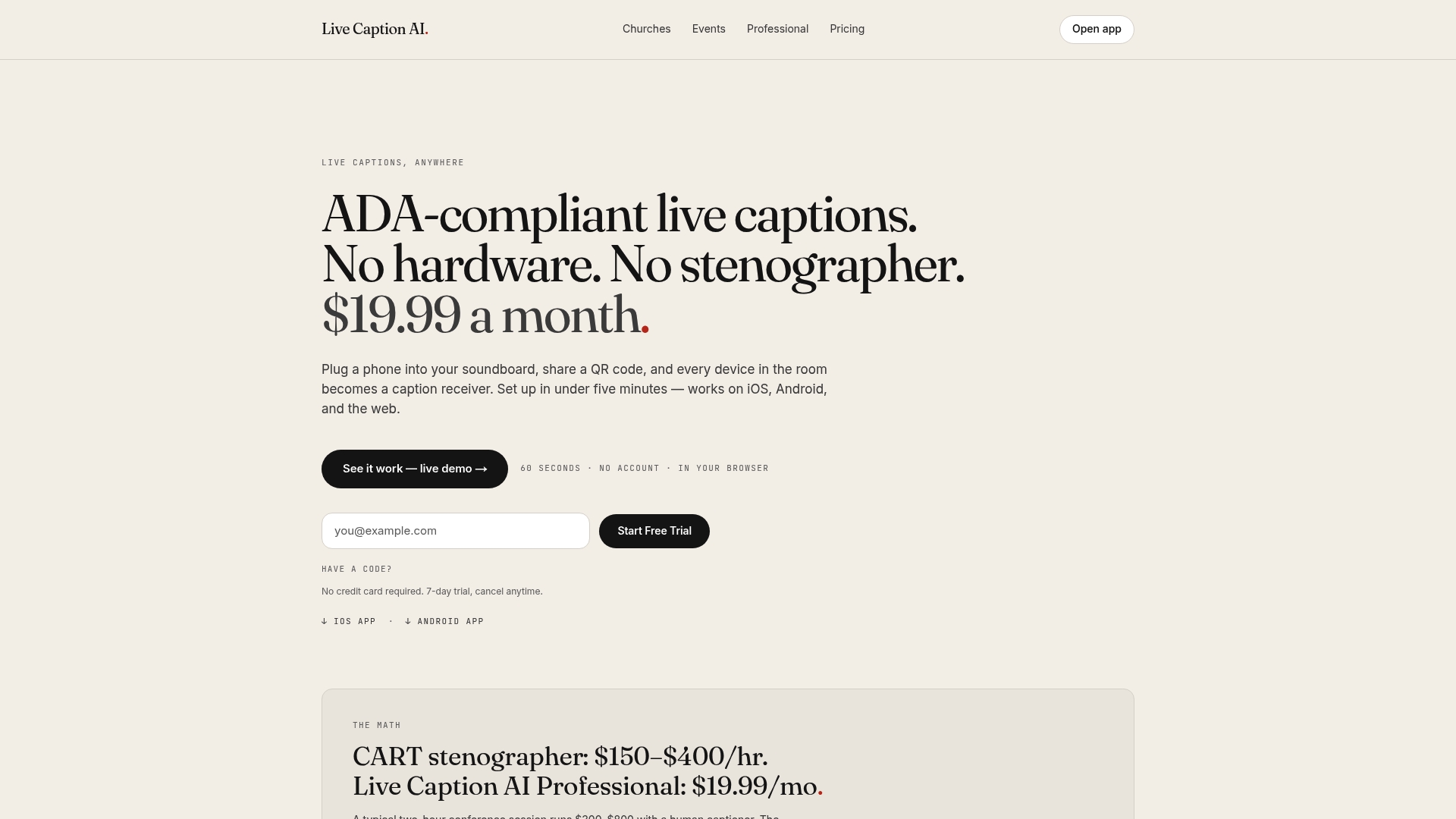
The Professional plan is $19.99 a month with unlimited captioning. You can export transcripts as TXT, SRT, JSON or PDF, and AI summaries are included. Pair it with the vocabulary model that fits your event.
FAQ
What are in-person event captions?
They are live text of what speakers say, shown while they speak. At an in-person event, the text can appear on a screen, on attendees’ phones, or both. Live Caption AI uses a QR code so attendees read captions on their own phones.
Do attendees need to install an app?
No. With Live Caption AI they scan a QR code and the captions open on their phone. No app and no account are needed.
Can I save a transcript after the event?
Yes. Transcripts can be saved and exported as TXT, SRT, JSON or PDF, and AI summaries are included. Session audio is never stored, and Live Caption AI offers no audio recording or playback.
Does Live Caption AI meet ADA requirements by itself?
No tool does that alone. The ADA requires effective communication, and the right aid depends on the person and the setting. Live Caption AI can be one part of your plan, and it is not a certified or human-reviewed service.
Can I caption an event in more than one language?
Each session has one source language and one target language, chosen from 29 languages. Viewers can switch between the original and the translation. For a second target language, run a second session.
Sources
- Tech-Captions-CART, Center for Hearing Access
- Arranging CART Services, Colgate University
- ADA Requirements: Effective Communication, ADA.gov
- FCC Section 504 Handbook, 4th edition
- Festivals and Concerts guidance, National Association of the Deaf
- Best Practices for Working with a Communication Access Real-Time Translation provider, New York State
- EvolveCaptions: Empowering DHH Users Through Real-Time Collaborative Captioning, arXiv