November 9, 2026 · 16 min read
AV Captioning Workflow: From Speaker Audio to Phone Screens
Build an AV captioning workflow that works: audio, network, vocabulary prep, monitoring, translation and when to book a human captioner. Step by step.

An AV captioning workflow has five steps: get clean audio, prepare vocabulary, run the captioning source, deliver captions to the audience, and watch it all live. Most failures come from the first two steps, not the software. This guide walks through each step the way an AV team would run it, and shows where Live Caption AI fits.
TL;DR
- Clean audio from the speaker’s microphone matters more than any setting. Fix the audio first, then everything else.
- Send speaker names, acronyms and key terms ahead of time. Prepared vocabulary is the cheapest accuracy gain you have.
- Give the captioning device a stable network and a backup. Give attendees a way to read captions on their own phones.
- Assign one person to watch the captions during the event, with a plan for audio and connection trouble.
- AI captions suit many events. Large public events, or an accommodation request, may call for human CART. Decide before the event, not during it.
Table of Contents
- What an AV captioning workflow looks like
- Step 1: Get the audio right
- Step 2: Prepare names and vocabulary
- Step 3: Choose the captioning source
- Step 4: Deliver captions to the audience
- Step 5: Network and equipment
- Step 6: Monitor, correct and recover
- Translation in the workflow
- Perspective: why we built for the phone in the room
- Put it to work with Live Caption AI
- A one-page workflow you can copy
- FAQ
- Sources
What an AV captioning workflow looks like
A workflow is the chain of handoffs between a person speaking and a person reading. Every link can fail, so it helps to name them.
- Source audio. The microphone, mixer or soundboard feed that carries the speaker’s voice.
- Preparation. Speaker names, terminology, slides and the run of show, sent before doors open.
- Captioning engine. Software, or a human captioner, that turns speech into text.
- Delivery. How the text reaches the audience: a screen on stage, a stream overlay, or attendees’ own phones.
- Monitoring. A named person who watches the output and acts when something drifts.
The rest of this guide takes them in order. You can run a small event with one person covering all five. A conference needs a different person on each.
Step 1: Get the audio right
Captions can only be as good as what the engine hears. A speaker three feet from a laptop microphone in an echoing room produces worse text than a speaker with a headset mic in the same room.
A practical checklist:
- Put a microphone close to every speaker, including audience Q&A. Questions from the floor are the most commonly missed audio.
- Keep one speaker per microphone at a time where you can. Overlapping voices hurt any captioner, human or AI.
- Do a sound check with the captioning device running, not only the house speakers. What sounds fine in the room can still be quiet or distorted at the captioning source.
- Reduce background noise: HVAC, music beds and video playback at the same volume as the speaker.
The National Court Reporters Association’s scheduling guide for captioning events shows what professional captioners ask for on site. That includes access to room audio or the soundboard, a power source, and a wired or dedicated network connection. The same list is a good template for an AI workflow. If a human captioner would need it, your software does too.
Step 2: Prepare names and vocabulary
This is the step teams skip, and it is where captions go wrong. General speech-to-text guesses at unusual names, product terms, scripture references, drug names and acronyms. Giving it the words in advance removes most of those guesses.
Virginia Tech’s accessibility office advises event planners to send materials at least two business days in advance. Their list is a good one to copy:
- Technical vocabulary
- Speaker names and short biographies
- Slide decks or other presentation materials
- The program or script
The same page says enhanced automatic captions that use preprogrammed vocabulary hold an accuracy rate of at least 95%. That is Virginia Tech’s figure for its own service, not a promise for every tool. It does show why preparation is worth the time.
How to build a vocabulary list
- Pull every proper noun from the run of show: speakers, sponsors, venues, product names.
- Add acronyms and how they are said aloud. “ADA” is easy. Your internal project codename is not.
- Scan the slides for terms a newcomer would misspell.
- Cut the list to what the speaker will actually say. A short, accurate list beats a long, padded one.
In Live Caption AI, the speaker types these into Custom Terms before going live. You can add up to 100 names, places and terms. If your event is specialized, pick a vocabulary model first: Medical, Worship & Ministry, or Finance & Earnings. Then layer your Custom Terms on top for the names that model could not know.
Step 3: Choose the captioning source
You have two broad choices, and each has a place.
Human captioners (CART). A trained captioner, often a court-reporter-trained stenographer, writes the text in real time. Penn State’s accessibility office explains that CART needs a captioner who can produce captions fast enough to be useful during the event. You book them in advance, brief them, and give them an audio feed.
AI captioning. Software turns speech into text on a phone or laptop. It needs no booking and costs far less. Accuracy depends on audio quality and preparation.
We are an AI captioning tool. We are not a certified or human-reviewed service, and we do not make an organization ADA-compliant on our own. What we do is put live captions on every phone in the room, quickly and affordably.
When to consider human captioning
SUNY Empire State College’s guidelines take a clear position. They say autogenerated captions from platforms like Teams or Zoom are not considered accurate enough to provide effective communication access under the ADA and Section 504. They say CART should be provided when someone requests it as a reasonable accommodation. They also say to provide it proactively for large meetings, events streamed over the internet, and events open to the public. Routine department meetings and informal calls do not need it unless someone asks.
Use that as a planning rule:
| Situation | Reasonable starting point |
|---|---|
| Weekly staff meeting, class session, small group | AI captions for everyone who wants them |
| Worship service with a regular congregation | AI captions on attendees’ phones, plus a plan for requests |
| Large public event or livestream | Decide early whether to book human CART |
| A person asks for a specific accommodation | Talk to them about what works for them, then provide it |
The last row matters most. Under the ADA, the right aid depends on the situation. ADA.gov explains that Title II entities (state and local government) and Title III entities (businesses and nonprofits serving the public) must communicate effectively with people who have communication disabilities. The right aid depends on the nature, length, complexity and context of the communication, and on the person’s usual way of communicating. A tool does not settle that question for you. The conversation with the person does.
Step 4: Deliver captions to the audience
There are three common ways to get text in front of people.
- Stage or room screens. Everyone sees the captions. They need a display, a cable run, and space in the room design.
- Stream overlay. Captions are burned into or attached to a video feed. This needs a streaming workflow and its own tools.
- Personal devices. Attendees read on their own phones. This is the lowest-friction option for many rooms.
With Live Caption AI, the speaker runs it on a phone or laptop and attendees scan a QR code. They read captions in a browser. There is no app to install, no account to create, no hardware to rent and no stenographer to book. Put the QR code on your opening slide, on table cards and on the door signage. Say once, out loud, what it is for.
Personal devices have a real benefit beyond convenience. People can adjust the text to their own eyes, sit anywhere in the room, and read without announcing a need. SUNY Empire State College’s guidelines note that many people do not think to request CART because they have come to expect it at public events. They also list stigma, lack of medical documentation and fear of denial as barriers to asking. Offering captions to everyone, by default, lowers those barriers. The same guidelines point out that captions help people with learning disabilities, ADHD and autism, as well as people who are Deaf or hard of hearing.
If you already run an event page or accessibility statement, link the captions there too. Our guides on web accessibility statement examples for live events and WCAG requirements for live captions show what to say and what the standard asks for.
Step 5: Network and equipment
The equipment list for AI captioning is short, but each item deserves a check.
- A captioning device. A phone or laptop, plugged into power for long sessions.
- An audio path to that device. The microphone or room feed the device listens to.
- A stable internet connection for the captioning device.
- Guest Wi-Fi or mobile data that can handle the number of attendees reading captions.
EventWiFi’s October 2026 guide on conference connectivity recommends giving a remote captioning laptop a stable wired link on its own network. It also recommends a backup path, and treating the audio link like a video call at about 1.5 Mbps each way, with 1.5 to 2 times headroom. That guide is written for remote human captioning at conferences, but the logic carries over. The captioning device should not compete with a hundred attendee phones for the same connection.
A simple network plan:
- Put the captioning device on its own connection, wired if you can.
- Keep a second path ready: a mobile hotspot is enough for a small room.
- Test attendee access from the back row, on both Wi-Fi and mobile data.
- Write the fallback on a card: who switches networks, and how.
Step 6: Monitor, correct and recover
Someone has to own the captions during the event. Name them in the run of show. At a small event, this can be the speaker’s helper or the AV volunteer. At a larger one, give it a dedicated seat near the sound desk.
The monitor’s job is to watch for four problems.
Audio problems
Signs: captions stop, lag far behind, or fill with nonsense. First check the microphone: is it muted, dead or switched off? Then check the level and whether another sound source took over. Fix the audio before touching any caption setting.

Connection problems
Signs: captions freeze for everyone at once. Check the captioning device’s network first, then switch to the backup path. If only one attendee has trouble, their phone connection is the likelier cause. Point them to the QR code again.
Repeated errors
If one name is wrong every time, note it. Add it to Custom Terms before the next session. Do not try to fix words mid-talk. Readers use context to cover a stray error, and a flood of corrections costs more than it saves.
Audience feedback
Ask a few attendees in the first five minutes whether the captions are readable. Say it from the stage: “If the captions are lagging or hard to read, tell any of our helpers.” Then act on what you hear.
After the event, save the transcript. Live Caption AI lets you export transcripts as TXT, SRT, JSON or PDF, and AI summaries are included. Session audio is never stored. Review the transcript to build next time’s vocabulary list. Doing this after every event is what turns a first attempt into a reliable workflow.
Translation in the workflow
If your audience speaks more than one language, translation adds one more decision. In Live Caption AI, the speaker picks one source language and one target language per session, from 29 available. Viewers can switch between the original text and the translation on their own phones.
Two plans help:
- Choose the language pair from your registration list. Pick the most requested target. One target language is available per session, so look at the data before you decide.
- Expect a little delay. Translation takes a moment on top of transcription. Tell speakers to pace themselves and pause between ideas.
Vendor accuracy and delay numbers vary a lot, and most are not independently tested. Judge your own sessions by what attendees can read. Ask whether captions keep up with the speaker, whether names are right, and whether translated lines make sense in context.
Perspective: why we built for the phone in the room
We built Live Caption AI around a simple observation. Most captioning workflows fail at the handoff to the audience, not at the transcription.
A stage screen helps the people who can see it. A stenographer helps the events that can book one. Most churches, classes and community events can do neither on a regular basis. Almost everyone in those rooms already carries a phone.
So we put the captions there. The speaker runs the app, attendees scan a QR code, and the text appears. No hardware. No stenographer. No app to install. We think that is the most practical way to make captions a default instead of a special request.
We are also clear about what we are. We are AI captioning. We are not human-reviewed, and we do not make an organization ADA-compliant by ourselves. Many teams use us as one part of their effective-communication plan, alongside a process for accommodation requests. That plan is yours to write, and we are glad to be part of it.
The best workflow is the one you will run every week. For a lot of rooms, that is a speaker, a good microphone, a prepared term list and a QR code on the wall.
Ryan
Put it to work with Live Caption AI
The Professional plan is $19.99 a month with unlimited captioning. It includes the vocabulary models, up to 100 Custom Terms, translation into one of 29 languages per session, exportable transcripts and AI summaries. The Business plan starts from $199 per month. There is also a Free plan, and one-off translation credit packs: 30 credits for $6.99, 60 for $11.99 and 120 for $19.99.
Small rooms can start with the Free plan and move up when they need cloud features. Compare all of the options on the pricing page.
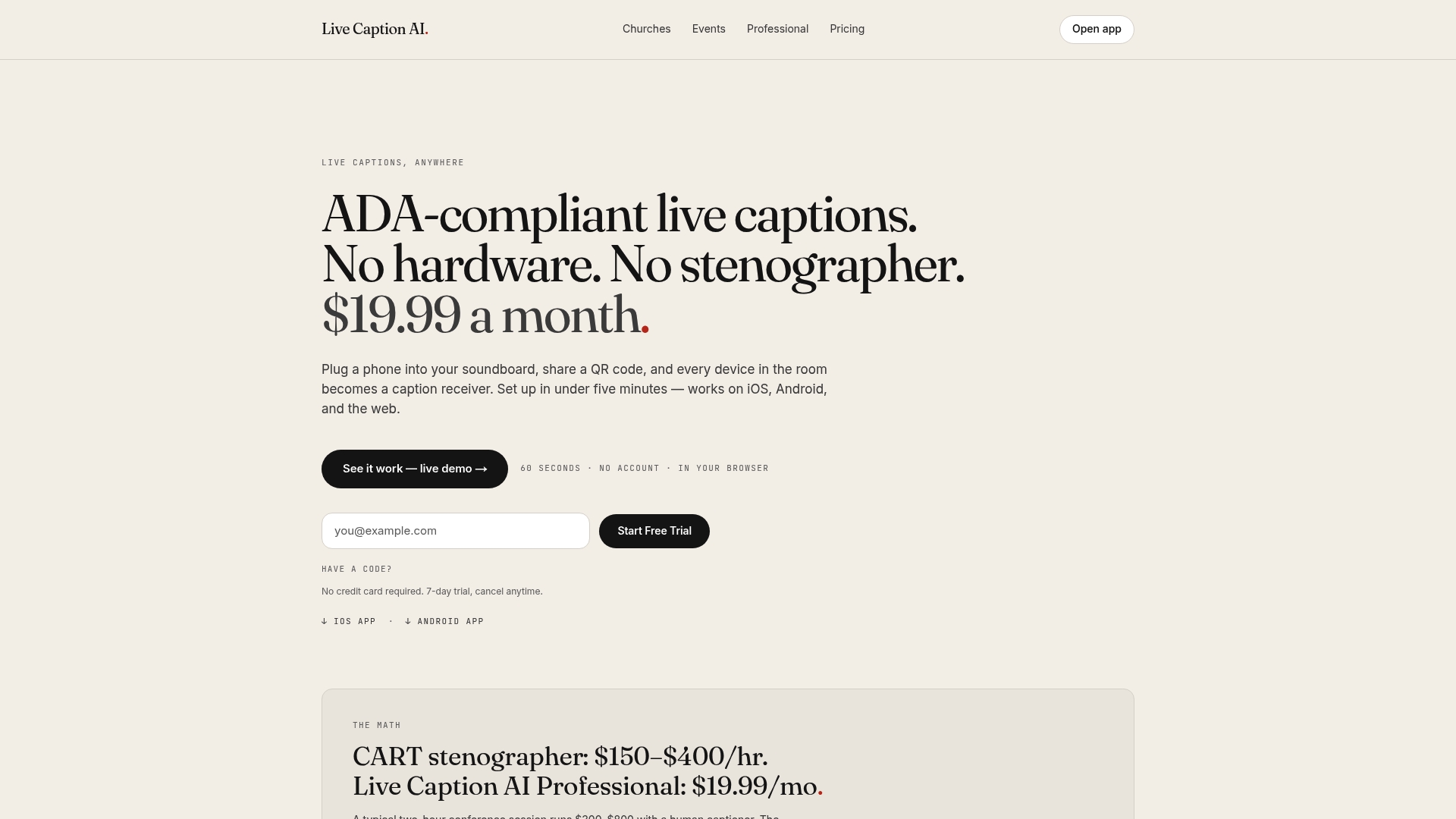
If your events run in the cloud or hybrid, our guide to cloud live transcription via QR shows how the setup looks in practice.
A one-page workflow you can copy
Use this template for each event.
One week before
- Decide who owns captions on the day.
- Collect speaker names, acronyms, slides and the run of show.
- Build the vocabulary list and load it as Custom Terms.
- Choose a vocabulary model if the event is medical, ministry or finance related.
- Decide whether anyone has requested an accommodation, and how you will meet it.
Two business days before
- Confirm the language pair if you are translating.
- Test the network at the captioning position and from the back row.
On the day
- Sound check with captions running.
- Put the QR code on the first slide, on table cards and at the door.
- Announce the captions once, aloud.
- Monitor audio, connection and readability.
After
- Export the transcript.
- Note any repeated errors and add them to the next list.
- Ask for feedback and write down what changed.
FAQ
Do attendees need to install anything to read captions?
No. With Live Caption AI, attendees scan a QR code and read captions in their phone’s browser. There is no app to install and no account to create.
Can AI captions replace a human captioner at every event?
Not always. Some institutions advise providing CART proactively for large public events and livestreams, and whenever someone requests it as an accommodation. AI captioning suits many everyday settings, such as classes, meetings and services. Decide for each event based on its audience and any requests you receive.
How far ahead should I send vocabulary and speaker names?
At least two business days ahead is a widely used rule, and one week is better. Virginia Tech’s accessibility office recommends sending technical terms, speaker names, bios, slides and the program in that window. With Live Caption AI, the speaker can type up to 100 Custom Terms before going live.
No tool does that on its own. Live Caption AI is an AI captioning tool that can be part of your effective-communication plan. The ADA asks you to communicate effectively based on the situation and the person’s needs, so keep a clear process for accommodation requests.
Can I translate captions into several languages at once?
No. Each session has one source language and one target language, chosen from 29 options. Viewers can switch between the original text and the translation.
Sources
- Scheduling a CART/Captioning Event, National Court Reporters Association
- Captioning and Transcripts, Virginia Tech TLOS
- Live Captioning CART Guidelines, SUNY Empire State College
- Live Captioning in Higher Education, Accessibility at Penn State
- ADA Requirements: Effective Communication, ADA.gov
- Live Captioning at Conferences: Internet and WiFi Needs, EventWiFi