October 31, 2026 · 15 min read
RTMP Captions: How to Add Live Captions to a Stream
RTMP carries video, not captions. Learn how live captions reach a stream, how to show them on a projector, and the simple QR option for in-room audiences.

An RTMP stream does not create captions. RTMP is only the pipe that carries your video from an encoder to a platform. Captions have to come from somewhere else: a caption encoder, a provider that sits in the signal path, or a platform’s own caption feature. If your real goal is captions for people sitting in the room, you may not need RTMP at all.
This guide covers both paths. First, how captions get into an RTMP workflow. Second, how to get captions in front of an in-person audience, including the projector question, without building a broadcast rig.
TL;DR
- RTMP moves audio and video to a server or platform. It generates no captions on its own.
- For a stream, captions are embedded in the video, sent as a separate caption feed, or added by a service that enriches the signal before it reaches the platform.
- Open captions are burned into the picture. Closed captions can be switched on and off, but they need a player that supports them.
- For a room full of people, a QR code that opens live captions on each person’s phone avoids cables, projectors and encoders.
- U.S. organizations should plan captions around the ADA’s effective communication rule, and ask what each person actually needs.
Table of Contents
- What RTMP is, and what it is not
- Three ways captions get into an RTMP workflow
- Closed captions, open captions and sidecar files
- Showing captions on a projector
- Captions for the room: skip the stream, scan a QR code
- What U.S. organizations should know about accessibility
- Troubleshooting captions that are missing, late or out of sync
- Which setup fits you
- Our view: start with the audience, not the protocol
- Try it for your next event
- FAQ
- Sources
What RTMP is, and what it is not
RTMP stands for Real-Time Messaging Protocol. Today its most common job is live ingest: an encoder publishes a feed to a server or streaming platform over TCP, and the platform then delivers it to viewers by another route. If you have ever pasted a stream URL and stream key into OBS or a hardware encoder, you have used RTMP.
That is the whole job. RTMP does not listen to the speaker. It does not transcribe. It does not know what a caption is, though it can carry caption data that something else produced.
So “RTMP captions” usually means one of three things:
- Captions that travel inside the RTMP video stream.
- A caption feed that runs next to the stream and is merged by the platform or a provider.
- A caption service that asks you to send it an RTMP stream so it can listen and add captions.
Knowing which of the three you need saves hours of troubleshooting.
Three ways captions get into an RTMP workflow

1. Captions embedded in the stream
Captions can ride inside the video itself. Twitch documents two routes: embedding them in the video stream following the ATSC A/72 standard, or sending them through RTMP as onCaptionInfo script data. YouTube takes a similar approach. It accepts embedded 608/708 captions from your encoder, and it currently supports one caption track.
The catch: your encoder has to be able to produce or accept caption data. Many basic software encoders cannot.
2. A separate caption feed
Some platforms accept captions sent separately, for example over HTTP, while the video arrives by RTMP. YouTube lists this as the second option, sending captions from supported software over HTTP POSTs. This is flexible, but it means two things must stay in sync: the video path and the caption path.
3. A provider that enriches the signal
Vimeo’s help center describes the options for adding live captions to an event. You can use Livestream Studio with an SDI input that already contains captions, use other software or encoder plugins that generate captions, or use a third-party provider that adds captions to the RTMP signal before it reaches the platform.
The third route is the one most teams end up with. You point your encoder at the provider, the provider adds captions, and the provider forwards the stream on. It works well. It also adds a hop, a cost and one more thing that can fail on show day.
Closed captions, open captions and sidecar files
The terms get mixed up in streaming. The Library of Congress’s digitization guidelines separate them cleanly:
- Closed captions are timed text that viewers can turn on or off in a supported player. They may be embedded in the video or delivered as a sidecar.
- Open captions are permanently part of the picture.
- Sidecar files are external, and they only work if the player supports them.
That comes from the Definitions for Key Accessibility Features published by the Federal Agencies Digital Guidelines Initiative in 2022. The same document says open captions are a good option when a platform lacks closed-caption functionality, or when physical constraints make turning captions on and off hard.
That second case is exactly the projector situation. A screen on the wall cannot offer a CC button. If captions are on that screen, everyone sees them.
Want more on the trade-offs? See our posts on open captions vs closed captions and the benefits of closed captions.
Showing captions on a projector
People searching for projector captions usually want one of two things. Either they are streaming a presentation and want captions burned into the output. Or they are in a room and want words on the big screen.
Projector captions from a stream
If the projector is fed by the same video mix that goes to RTMP, open captions are the simplest path. Whatever caption text appears in the mix appears on the projector and in the stream. Closed captions will not show on a projector unless the playback device decodes and renders them.
A typical chain looks like this:
- A caption source produces text from the speaker’s audio.
- A video mixer or software encoder overlays that text on the program output, or a hardware encoder embeds caption data.
- The output goes to the projector and to the RTMP destination.
Test the chain before the event with the same laptop, the same cables and the same room audio. Caption quality depends heavily on clean audio. A speaker’s lapel mic feeding the caption source will beat a room mic every time.
Projector captions as traditional real-time captioning
The ADA’s own guidance describes the classic setup. In real-time captioning, a transcriber types what is said into a computer that projects the words onto a screen. That is the model many event planners picture. It works, but it needs a person booked in advance, usually with a fee and a minimum, and a projector or screen everyone can see.
The tradeoff with a shared screen
A projector forces one caption layout on everyone. The text is large but fixed. People in the back may still struggle, and people who need captions get the same sightline problems as everyone else. A shared screen also takes real estate from slides.

That is why many venues now put captions on personal devices instead.
Captions for the room: skip the stream, scan a QR code
Here is the point we keep coming back to. If your audience is in the room, RTMP is a detour. The speaker’s voice does not need to become a video stream, travel to a platform, return, and be decoded. The audience just needs words, quickly, on something they can hold.
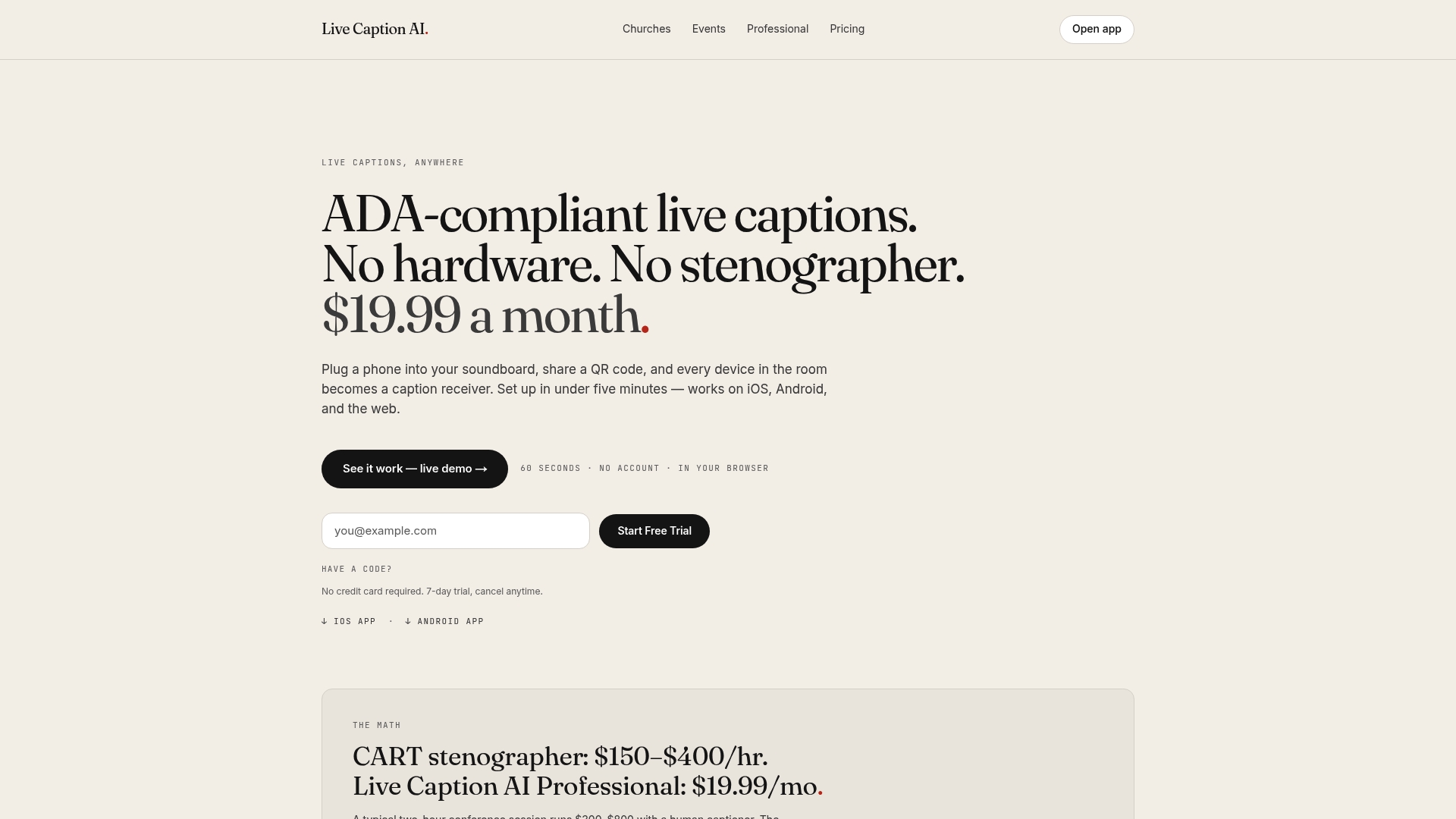
That is how Live Caption AI works:
- The speaker runs Live Caption AI on a phone or laptop.
- Attendees scan a QR code and read live captions on their own phones.
- No app to install. No account to create. No hardware to rent. No stenographer to book.
Each person can read at their own distance, in their own seat. It is a plain, practical setup, and it takes minutes rather than a production crew.
To be clear about what it is and is not: Live Caption AI is an AI captioning tool. It is not a certified or human-reviewed service. It does not connect to RTMP, OBS, Zoom, Teams or Google Meet. If you need captions inside a broadcast stream, you need an encoder or provider built for that, and the sections above show how those work. If you need captions for the people in front of you, a QR code gets you there faster.
Getting names and terms right
Generic speech-to-text stumbles on proper nouns and specialist words. Live Caption AI offers:
- A Worship & Ministry model, for church services.
- A Medical model.
- A Finance & Earnings model.
- Custom Terms: up to 100 names, places and terms the speaker types in before going live.
Before a service or event, type in the speaker names, the venue, the product names and any unusual words. It takes a few minutes and it noticeably helps on the words your audience cares about most.
Translation and transcripts
Live translation goes into one of 29 languages per session. The speaker picks one source language and one target language, and viewers can switch between the original and the translation. That suits a congregation with a second-language group, or an event with an international crowd.
After the session you can save the transcript and export it as TXT, SRT, JSON or PDF. AI summaries are included. Session audio is never stored.
What U.S. organizations should know about accessibility
If your event is open to the public, or you run a church program, school session or business meeting, accessibility rules may apply. The ADA requires covered entities to provide aids and services when needed for effective communication. Under the Department of Justice’s guidance, title II entities must give primary consideration to the aid the person requests, subject to stated exceptions. Title III entities are encouraged to consult with the person.
The same page says real-time captioning, also called CART, may be an auxiliary aid for people who are deaf or have hearing loss. And the right aid depends on the situation: the nature, length, complexity and context of the communication, plus the person’s usual method of communication.
In practice that means:
- Ask people what they need before the event, and say how to request it.
- Match the aid to the setting. A one-hour sermon and a two-day medical conference are not the same communication.
- Keep a record of what you offered and why.
Live Caption AI can be part of an organization’s effective-communication plan. It does not make an organization ADA-compliant on its own, and it is not an ADA certification. The tool is one piece. Your process is the rest. For more on how organizations think about web accessibility and effective communication obligations, that is a good place to look at the wider picture, and our own post on ADA compliant event captions using cloud live transcription covers the QR approach in more depth.
A note on sensitive settings: do not treat any AI captioning tool as a certified solution for courtroom or clinical use. If a person with a disability asks for a specific aid in those settings, talk to your counsel or compliance lead about what is required.
Troubleshooting captions that are missing, late or out of sync
Most caption problems come from the same few places. Work down this list.
Captions never appear on the stream
- Check that the platform’s caption setting is switched on. On YouTube, closed captions must be enabled in the stream settings and the right input selected.
- Confirm your encoder is actually sending caption data, not just video.
- Check the caption format. Embedded 608/708 and HTTP-posted captions are different routes. Mixing them up is the most common cause.
- Remember that viewers must turn closed captions on in the player.
Captions are delayed
Delay stacks up. Speech goes to the caption source, then to the encoder, then through RTMP ingest, then through the platform’s processing, then to the viewer. Every hop adds time. Cut hops where you can. For an in-room audience, a direct feed to phones removes the stream path entirely.
Captions are out of sync with the video
If the captions arrive after the video, some encoders and providers let you delay the video slightly to match. If captions run ahead, check whether a second caption source is competing with the first. Test with a clock on screen so you can measure the gap instead of guessing.
Captions are wrong on names and jargon
This is a vocabulary problem, not a pipe problem. Feed the system the words in advance. With Live Caption AI, that means Custom Terms and the right model for your setting.
The projector shows nothing
If you expect captions on a projector and see none, you are probably relying on closed captions. Those need a decoder. Switch to open captions in the mix, or give the audience captions on their phones.
A quick pre-event checklist
- Test the audio path, with the real microphone.
- Run five minutes of a typical speaker and read the captions out loud.
- Add names, places and terms.
- Print the QR code on a slide, a bulletin insert or a table card.
- Tell the audience where to scan, in the announcements and in the printed program.
Which setup fits you
| Situation | Best fit | Why |
|---|---|---|
| Broadcasting to YouTube or Twitch | Embedded or HTTP caption feed, or a caption provider | The platform needs caption data in a format it accepts |
| Stream plus a screen in the room | Open captions in the video mix | Everyone sees the text, no player needed |
| In-person audience, any room size | QR code to phones | No hardware, no app, each person reads on their own screen |
| Multilingual in-person event | QR code with live translation | Viewers pick the original or the translation |
| Legal or clinical proceedings | Consult counsel on required aids | Not a place for an uncertified AI tool |
Our view: start with the audience, not the protocol
We hear a lot of requests that start with a protocol. Someone has read that they need RTMP captions, or projector captions, and they begin building. Then it turns out that the people who needed captions were in row six, holding a phone.
Our view at Live Caption AI is simple. Captions should reach the person who needs them with the least friction possible. For a broadcast, that is a proper encoder workflow. For a room, it is a QR code. We built Live Caption AI for the second case: live captions on every phone in the room, with no hardware, no stenographer and no app to install.
We also think accuracy on your own vocabulary matters more than almost any other feature. A church whose pastor’s name is garbled every week will stop trusting the captions. That is why we offer Worship & Ministry, Medical and Finance & Earnings models and up to 100 Custom Terms, and why we never store session audio.
And we are plain about limits. Live Caption AI is an AI captioning tool. It is not certified or human-reviewed, and it does not replace your accessibility plan. It gives that plan a fast, affordable live captioning option.
— Ryan
Try it for your next event
The Professional plan is $19.99 a month with unlimited captioning. Business starts from $199 a month. There is also a Free plan, and one-off translation credit packs: 30 credits for $6.99, 60 for $11.99 and 120 for $19.99. See the full details on the Live Caption AI pricing page, or read about live captioning for professional settings.
No hardware. No stenographer. Just a QR code.
FAQ
Does RTMP include captions?
No. RTMP is a transport for audio and video, and it can carry caption data, but it does not create captions. You need a caption source, such as an encoder with caption support or a provider that adds captions to the signal.
Can I show live captions on a projector?
Yes. The simplest way is to put open captions in the video mix that feeds the projector, so the text is part of the picture. Closed captions need a decoder, which most projectors lack. You can also skip the screen and let people read captions on their own phones.
What is the difference between open and closed captions?
Open captions are permanently part of the video, so everyone sees them. Closed captions can be turned on or off in a player that supports them. Pick open captions when the screen offers no way to switch them on.
Does Live Caption AI work with RTMP or OBS?
No. Live Caption AI does not integrate with RTMP, OBS, Zoom, Teams or Google Meet. It is built for in-person audiences: the speaker runs it on a phone or laptop, and attendees scan a QR code to read captions on their own phones.
Is Live Caption AI enough for ADA compliance?
No tool is enough on its own. Live Caption AI can be part of an organization’s effective-communication plan, but it is not an ADA certification and is not human-reviewed. Ask attendees what they need, and keep records of the aids you offer.
Sources
- What Is RTMP? How the Live Streaming Protocol Works
- Live caption requirements, YouTube Help
- Guide to Closed Captions, Twitch Help
- Advanced workflow for manually captioning events, Vimeo Help
- Definitions for Key Accessibility Features for Digital Media, FADGI (2022)
- Effective Communication, ADA.gov (2014)
- ADA Requirements: Effective Communication, ADA.gov