October 14, 2026 · 11 min read
Offline Live Captions: Keep Audio Local, Check Your Hardware
Set up offline live captions on Windows, Mac, Android, or local tools. Compare model sizes, hardware demands, and keep speech off the cloud.

Yes, you can get offline live captions today. Windows 11, macOS on Apple silicon, Android, and open-source Whisper tools all caption speech on the device itself. The catch is a one-time language or model download and hardware strong enough to keep up. After that, your audio stays local, though speed, accuracy, and language choice depend on your device and model.
TL;DR:
- Whisper models range from about 75 MB to 2.9 GB, and older machines running only on a CPU can add several seconds of delay.
- Windows 11, Macs with Apple silicon, and supported Android phones work offline after language downloads, but hardware and language availability vary by platform.
- Local processing keeps audio and transcripts on the device only if the app does not export or sync files elsewhere, so check its settings.
- Test offline with the event’s audio source; choose a smaller model if captions lag, and use a close microphone to reduce errors.
- The QR code service offers translation into one of 29 languages per session and attendee phone access, but it requires internet.
Table of Contents
- How do offline live captions work on your device?
- How do you set up offline captions on Windows, Mac, Android, and local tools?
- What hardware and model sizes do you need?
- How can you improve accuracy and cut latency?
- Where do offline live captions make the most sense?
- How do you choose the right offline live caption solution?
- Why do offline captions matter for privacy and accessibility?
- What if attendees need captions on their own phones?
- When should you pick offline, and when a managed service?
- FAQ
- Sources
How do offline live captions work on your device?
Offline captioning is simple in outline. You download a speech model once, then the device runs it locally for every session. Microsoft states that Windows 11 Live Captions processes audio on-device, asks for consent, and downloads language files the first time you use it.
Here is what matters before you try any setup:
- One-time download. The internet is needed only to fetch the model or language pack. Practitioner guidance says Whisper model downloads range from about 75 MB to multiple gigabytes, and once cached the system can run fully offline.
- Local inference. The model runs on your CPU, GPU, or a neural engine and updates the transcript as you speak, first with partial text, then with the corrected final line.
- Two audio paths. You can capture the microphone, or capture system audio through a loopback so the tool hears what the computer plays. Each path needs its own setup.
- Privacy by design. Because processing is local, audio and transcripts do not leave the device, provided the tool does not export or sync files elsewhere.
That last point is the main reason people choose this route. Nothing gets uploaded, so there is no cloud copy to secure, delete, or explain to a compliance officer.
How do you set up offline captions on Windows, Mac, Android, and local tools?
Setup differs by platform, but the pattern repeats: enable the feature, accept the download, test with a short clip. Follow the steps for your device.
- Windows 11. Turn on Live Captions from the Accessibility settings (the shortcut is Windows key + Ctrl + L). Accept the prompt to download language files on first use. Microsoft notes you can include microphone audio in captions, and that system sound output takes priority. After the download, supported languages work offline.
- macOS on Apple silicon. Open Accessibility settings, choose Live Captions, and let the first-run language data download finish. Apple’s guide explains how to switch between computer audio and microphone input. Accuracy varies, and the feature is not available on all hardware or in every language.
- Android. Turn on Live Caption from the accessibility menu or the volume control. Google’s help page says the feature downloads language files on first use and works offline afterward for supported languages. Support varies by phone, and captions cover media and calls the device can hear.
- Open-source tools. Install a Whisper-based app such as LiveAudio, then pick a model size when it asks for the first download. LiveAudio generates real-time captions 100% locally after that download and can stream them to OBS over a localhost WebSocket. Projects like RealtimeSTT-based caption apps add system audio loopback on Windows, floating subtitle overlays, and CUDA acceleration, and they cache models in a local folder.
- Verify offline mode. Switch off Wi-Fi, play a short clip or speak a few sentences, and confirm captions still appear before you rely on them.
For tools that show captions in a floating window, Buzz Caption is one example of a local-model approach that avoids cloud APIs and data storage.
What hardware and model sizes do you need?
Model choice sets your disk use, speed, and accuracy. Larger models usually hear better but need more memory and compute. Typical Whisper sizes look like this:
- tiny.en: about 75 MB, fastest, best for weak hardware.
- small.en: about 460 MB, a good balance for laptops.
- medium: about 1.5 GB, noticeably better with accents and jargon.
- large-v2: about 2.9 GB, highest accuracy, wants a strong GPU.
Model downloads start around 75 MB, and after the first download the app can run entirely on your device with audio never leaving the machine.
Hardware decides latency more than almost anything else. Reporting on on-device captioning notes that Apple’s Neural Engine and modern NVIDIA GPUs with CUDA give near-instant captions, while CPU-only setups on older machines can add delays of several seconds. For interactive sessions on limited hardware, drop to a smaller model.
Also plan for power. Local inference keeps the processor busy, so laptops run warmer and drain batteries faster, and phones do the same. Plug in for long sessions and watch resource use in your task manager during a rehearsal.
How can you improve accuracy and cut latency?
Most caption errors start with bad audio, not a bad model. Fix the input first.
- Use a close, directional microphone. A headset or lavalier beats a laptop mic across a room.
- Route audio on purpose. Make sure the captioning app hears the speaker, not a mix of everything the computer plays.
- Download models early. Fetch language packs well before the event, then run a short rehearsal to check delay and accuracy.
- Match model to moment. Use a small model for fast live preview, and a larger one for a cleaned-up final transcript if your tool supports staged inference.
- List tricky names. Where the app accepts custom vocabulary, load speaker names, places, and terms ahead of time.
- Manage packs. Update or remove old language packs and models in the app’s settings so disk space stays free and you know which version you tested.
- Troubleshoot in order. If captions lag, try a smaller model. If they are blank, check which audio source is selected and whether the language pack finished downloading.
Pro Tip: Dedicate one machine with GPU acceleration to the caption engine when the dialogue is fast, so slides, video calls, and other apps do not compete for the same processor.
Where do offline live captions make the most sense?
Offline captions earn their place when the network is a risk, not a convenience.
Confidential meetings and briefings are the clearest case, because audio never has to reach a cloud service. Venues with weak Wi-Fi, or deliberately air-gapped rooms, are another. In-person classes, worship services, and small events can show captions on a shared display or local overlay, so everyone reads the same text. And when you play local video files in a room without internet, an on-device tool can caption the media directly. A Windows player such as Live Caption Player describes offline AI subtitles for exactly that job.

How do you choose the right offline live caption solution?
Run your options through this checklist before you commit.
- Language and dialect. Confirm your exact language is supported on-device, not just a close relative.
- Storage and updates. Compare model size to free disk space, and note whether updates mean re-downloading gigabytes.
- Audio capture. Check whether the tool can take system loopback or only the microphone, and whether it works with your meeting app’s audio routing.
- Latency and hardware. Decide how much delay is acceptable, then match it to a GPU or CPU you actually own.
- Privacy claims. Verify that processing is truly local and see whether transcripts are saved or exported.
- Setup effort. Decide between a one-time local setup and a managed service that simplifies access for attendees. If attendees speak different languages, bilingual workflow tools can complement captions, and our post on Otter alternatives for ADA-focused captioning covers the managed side.
Why do offline captions matter for privacy and accessibility?
On-device processing keeps audio and transcripts on your machine, so there is no cloud copy to store or leak. Microsoft’s own documentation says audio and captions stay local with Live Captions. The trade is real, though: models run from several hundred megabytes to multiple gigabytes, and the speed you get tracks your hardware, from near-instant on a GPU to noticeably delayed on an older CPU.

What if attendees need captions on their own phones?
Offline tools show captions on the machine running them. If your goal is for everyone in the room to read along on their own phone, we built Live Caption AI for that. It turns any phone into a caption receiver through a QR code, with no hardware and no stenographer, and attendees install nothing and create no account.
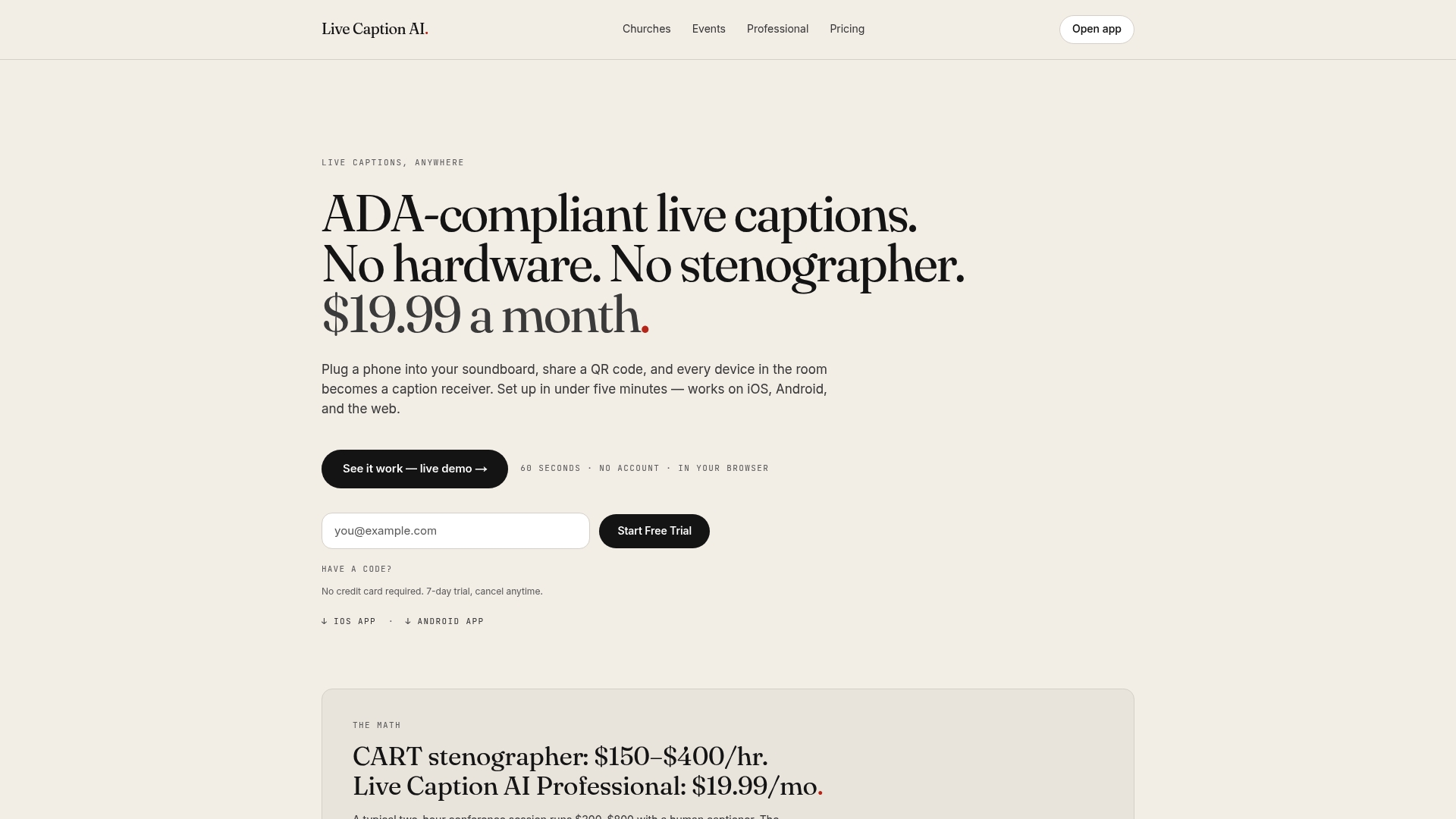
We offer Medical, Worship, and Finance vocabulary models, up to 100 Custom Terms of your own, translation into one of 29 languages per session, and exportable transcripts. Session audio is never stored. To be clear, Live Caption AI is an online service, so it does not replace an air-gapped, offline setup. It fits best when attendee access, translation, and tricky vocabulary matter more than running without a network. See our Professional plan for medical, legal, and professional settings, or check pricing: the Professional plan is 19.99 USD per month.
When should you pick offline, and when a managed service?
Our recommendation is simple. If absolute privacy and zero network dependence are non-negotiable, choose an on-device tool and rehearse on the exact hardware you will use at the event. If attendee convenience, translation, and specialized vocabulary matter and you have internet, a managed QR-based service is usually the easier path. Either way, test under real event conditions before you go live.
— Ryan
FAQ
Can live captions work without an internet connection?
Yes. Windows 11, macOS on Apple silicon, and Android can all caption on-device once you download the language files. Android’s help page says supported languages run offline after that first download.
How do I turn on live captions on my phone?
On Android, enable Live Caption from the accessibility settings or the volume panel, then accept the language download the first time. Captions then appear for media and calls the phone plays.
Do offline captions keep my audio private?
When the tool processes everything locally, audio and transcripts stay on your device. Check that the app does not export or sync transcripts, since that part depends on the tool you choose.
Is there a way to translate live captions?
Built-in offline captions mainly transcribe in the language spoken. For live translation, we offer translation into one of 29 languages per session in Live Caption AI, which is an online service.
Sources
- Live Caption: Caption media and calls on your device - Android accessibility Help
- Use live captions to better understand audio | Microsoft Support
- Openwhispr
- Get captions of spoken and computer audio on Mac - Apple Support