October 1, 2026 · 11 min read
Organizers: Teams Live Events Captions, Phone QR and 85–90% Accuracy
Practical accessibility playbook for event organizers: enable Teams live events captions, preselect translation languages, know the 85–90% ASR limits, and...

Microsoft Teams supports live captions in both regular meetings and live events, and turning them on takes seconds. Organizers enable captions when scheduling an event through Meeting options. Attendees flip them on anytime from meeting controls. CART human captioning is also available for sessions that need near-perfect accuracy, and saved transcripts require a separate step: enabling live transcription.
TL;DR:
- Automatic captions in Teams provide 85 to 90 percent accuracy, but they are not reliable enough for legal, medical, or official public hearings without human CART support.
- To enable captions for live events, organizers must preselect languages in Meeting options, especially when catering to multilingual audiences, as attendee choices are limited to pre-enabled languages.
- Attendees can turn on or customize captions privately through the menu, but if they need higher accuracy or specialized terminology, they should rely on CART or custom vocabulary models.
- Teams Premium raises translation language caps from six to ten, while license restrictions at the tenant level may limit caption features in regulated industries.
- Saving accurate transcripts requires enabling live transcription beforehand; live captions are ephemeral and deleted after the session unless explicitly saved.
Table of Contents
- How to enable captions for a live event or town hall
- How attendees turn on captions in a Teams meeting
- Who controls what: producers versus attendees
- Supported languages and how translation works
- Saving a transcript versus relying on live captions
- How accurate are Teams captions, and when to use CART
- Where Live Caption AI fits alongside Teams captioning
- What actually matters here
- Get phone-based captions and custom vocabulary with Live Caption AI
- Where to check official rules and licensing details
- Sources
- FAQ
How to enable captions for a live event or town hall
Setting up captions for a Teams live event takes a few clicks, but the order matters. Do it before the event starts, not during.
- Open the event details and go to Meeting options.
- Scroll to Captions and toggle them on for the event.
- Under Engagement, enable Translate attendee captions if you expect a multilingual audience.
- Pick the spoken language for the event and preselect up to six translation languages (ten with Teams Premium).
- During the event, use producer controls to manage Attendee live captions and My live captions separately. Attendees get a notification if you change caption settings mid-event.
If the Captions option is missing, the cause is usually tenant-level admin settings or a government cloud restriction. Check with your IT team before assuming the feature doesn’t exist. This is a common snag for organizations in regulated industries, and it’s worth resolving ahead of time rather than during a live town hall with people watching. Preselecting languages at scheduling time, per Microsoft’s live event captions guidance, is the single most important step for multilingual audiences, since attendees can only choose from what you’ve already turned on.
How attendees turn on captions in a Teams meeting
Attendees control their own captions independently of the organizer’s settings. On desktop, the path is simple:
- Click More actions in the meeting toolbar.
- Select Language and speech.
- Choose Show live captions.
On mobile and web, the control lives in a similar menu, though the exact labels shift depending on app version. Once captions are on, desktop users can customize the look: font size, color, number of visible lines, and caption position on screen. These settings live in the same Language and speech menu and persist across meetings.
Changing the spoken language or turning on Translate to lets you read captions in a different language than what’s being spoken, though this depends on licensing and whether the organizer preselected translation for the meeting, according to Microsoft’s meeting captions guide.
Turning on captions is private. Nobody else in the meeting sees that you’ve enabled them, so there’s no social friction to using the feature.
Pro Tip: If captions look choppy or lag, check your own network connection first. Teams processes speech in near real time, but a weak connection shows up as delayed or garbled text before anything else.
Who controls what: producers versus attendees
Live events split caption control between two roles, and knowing the difference avoids confusion during a broadcast.
- Producers enable or disable attendee captions for the whole event, preselect which translation languages are available, and toggle their own My live captions view separately from what attendees see.
- Attendees turn their own captions on or off, pick from the language list the producer enabled, and get a notification whenever the producer changes caption settings mid-event.
- Licensing affects what’s possible. Teams Premium raises the translation language cap from six to ten, and some Copilot-linked features depend on tenant-level licensing that varies by organization.
The short version: producers set the menu, attendees pick from it. If a language you need isn’t there, it’s a producer-side fix, not something an attendee setting can override.
Supported languages and how translation works
Teams draws from a wide spoken-language list for live events. Organizers choose the event’s spoken language from more than 50 available languages, and separately preselect which translation languages attendees can switch between.
- Attendees can view captions in up to six languages beyond the spoken language for live events.
- Teams Premium raises that cap to ten preselected translation languages.
- In regular meetings, the in-meeting Translate to option works similarly but depends on what the organizer has enabled.
Setting the correct spoken language matters more than most organizers realize. Speech recognition performs noticeably better when it’s not guessing at the language being spoken, so this one setting change can clean up caption quality before a single word is said.
Saving a transcript versus relying on live captions
Live captions in Teams are temporary. Once the meeting ends, that caption text is gone unless you took a separate step beforehand.
- Before the event or meeting, enable live transcription in Meeting options, not just captions.
- After a live event, go to Calendar → Live event resources → Transcripts to find and download the saved file.
- Transcripts can include multiple languages depending on what was enabled during the session.
A saved transcript includes speaker attribution and timestamps when those features are turned on, giving you a searchable record rather than text that vanished the moment the call ended, per Microsoft’s transcription documentation. Teams deletes caption data by default once a session closes, so this step isn’t optional if you need a record later.
How accurate are Teams captions, and when to use CART
Automatic captions in Teams are genuinely useful, but they have a ceiling. In practice, automated speech recognition runs around 85 to 90 percent accuracy, which often falls short for deaf and hard-of-hearing attendees who need every word right.
For meetings where accuracy isn’t optional, legal testimony, medical dictation, official public hearings, use CART (Communication Access Realtime Translation) captions instead. CART connects to Teams through the CART Captions API, and a live human captioner types in near real time, overriding automatic captions once connected. Organizers need to invite the captioner and set up the CART link ahead of time, so plan logistics before the meeting, not during it.
A few changes improve automatic caption accuracy without adding cost:
- Announce that captions are available at the start of the session, per Microsoft’s accessibility guidance.
- Use a certified microphone and keep background noise low.
- Set the correct spoken language before the session starts.
- Share slides and handouts in advance so attendees aren’t relying on captions alone.
Pro Tip: Run a quick AV check that mirrors the actual room setup, same mic distance, same background noise, before a live event. Captions that look clean in a quiet test room often degrade once a real audience and real room acoustics are added. For more on preparing a room for hybrid audiences, see this guide on conference room setups for hybrid teams.
Phone-based caption receivers, where attendees scan a QR code to get captions on their own device, can also widen reach for people who’d rather not rely on a shared screen or a single captioned feed.
Where Live Caption AI fits alongside Teams captioning
Teams covers a lot of ground, but some events need more than its built-in captions offer. Live Caption AI turns any phone into a caption receiver through a QR code, no hardware, no stenographer, which matters for rooms where not everyone is looking at the same screen or using the same device.
It also adds something Teams doesn’t: vocabulary models built for Medical, Worship, and Finance settings, plus your own Custom Terms for jargon generic speech-to-text tends to miss. Translation into one of 29 languages per session extends reach further than Teams’ built-in translation caps, and session audio is never stored, which matters for sensitive settings like clinics or legal proceedings. For organizers who’ve hit the limits of Teams’ native captioning, especially around device reach or specialized terminology, this is the kind of gap it’s built to close. Details are on the pricing page.

What actually matters here
Most advice about live captioning focuses on the setup checklist, and that’s useful, but it misses the bigger issue: accuracy expectations. Organizers turn on captions, see 85 to 90 percent accuracy, and assume that’s close enough. For a casual team meeting, it probably is. For a public hearing, a medical consultation, or a deposition, it isn’t, and treating automatic captions as a substitute for human captioning in those settings is a real accessibility failure, not a minor gap.
The setup steps matter less than the judgment call about which situation you’re actually in. A five-minute checklist gets you working captions. Knowing when those captions aren’t good enough, and routing to CART or a specialized vocabulary model instead, is the harder and more important skill. If you only take one thing from this: decide your accuracy bar before the event starts, not after someone tells you they missed half of what was said.
— Ryan
Get phone-based captions and custom vocabulary with Live Caption AI
If your events need captions on every phone in the room, not just one shared screen, Live Caption AI gives attendees their own caption feed through a QR code scan.
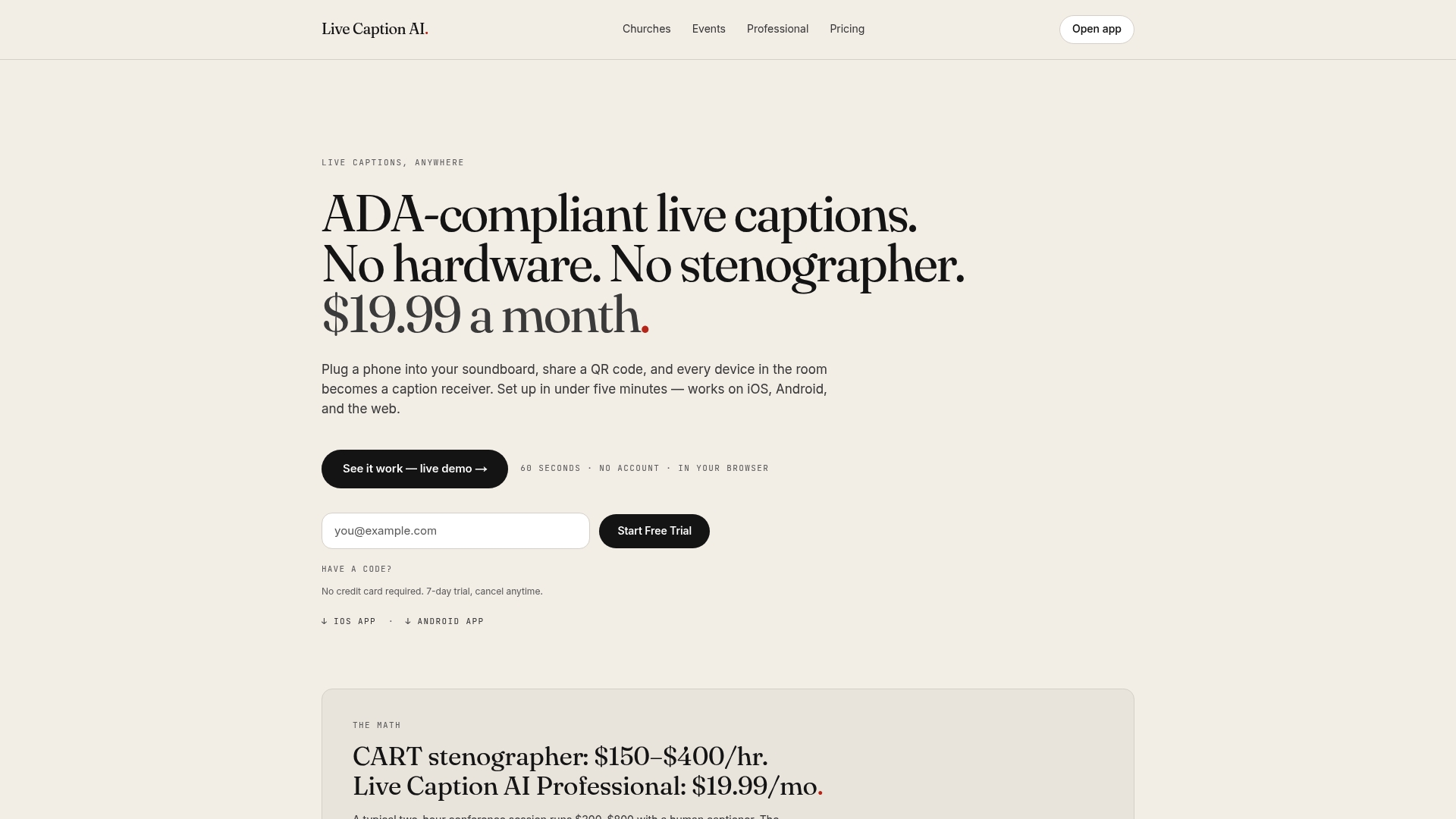
- No hardware or stenographer required to get started.
- Vocabulary models for Medical, Worship, and Finance settings, plus Custom Terms for your own jargon.
- Translation into one of 29 languages per session.
Check the Free, Professional, and Business plans and pick the tier that fits your next event.
Where to check official rules and licensing details
For license-specific limits, supported language lists, and API references, go straight to Microsoft’s own documentation rather than relying on secondhand summaries.
- Live captions in live events
- Live captions in meetings
- CART human-generated captions
- Accessibility tips for inclusive meetings
Tenant settings and government cloud restrictions vary, so confirm availability with your IT admin before promising captions to an audience.
Sources
- Use live captions in a live event in Microsoft Teams
- Use live captions in Microsoft Teams meetings
- Use CART captions in a Microsoft Teams meeting (human generated captions)
- Accessibility tips for inclusive Microsoft Teams meetings and live events
FAQ
How do I turn on subtitles during a Teams live event?
Organizers enable captions in Meeting options before the event starts, then producers control Attendee live captions during the broadcast itself. Attendees turn on their own view from the caption icon once the event is live, choosing from whatever languages the producer preselected.
How do I turn on live captions in Teams?
In a regular meeting, click More actions, then Language and speech, then Show live captions. The setting is personal, so turning it on only affects what you see, not what other attendees see.
What is the difference between a transcript and live captions in Teams meetings?
Live captions appear on screen in real time and disappear once the meeting ends, since Teams deletes caption data by default. A transcript is a saved, downloadable record with timestamps and speaker attribution, but only if the organizer enabled live transcription before the session.
Will people know if I show live captions on Teams?
No. Turning on live captions is a private setting that only changes what appears on your own screen. Nobody else in the meeting or event gets a notification that you’ve enabled them.