October 13, 2026 · 9 min read
Event Hosts: Broadcast Captions to Phones, Test QR 15–30 Minutes Early
Help churches, educators, and meeting hosts send live captions to attendees’ phones with a QR code or link, test the setup, and plan for ADA and WCAG.

Yes, you can broadcast live captions from a speaker’s phone or laptop straight to every attendee’s phone, using a live caption feed delivered through a QR code or a short link. We built Live Caption AI around exactly this setup: no app to download, no hardware to rent. It also plugs neatly into an organization’s plan for meeting the ADA effective communication requirement.
TL;DR:
- Choose AI for routine sermons, lectures, and staff meetings; use a trained CART captioner when audio is poor or errors carry legal or medical consequences.
- Keep captions updating in under 30 seconds, and test the link and QR code on both iPhone and Android about 15 minutes before doors open.
- Feed the captioning device clean audio, disable sleep settings, check venue internet, and keep a charged mobile hotspot ready as a backup.
- Treat AI captions as one accessibility measure, not proof of ADA compliance; add assistive listening or ASL interpretation when the audience needs them.
- Load speaker names and specialized terms before the event; Live Caption AI also supports translation into 29 languages per session.
Table of Contents
- What a phone-delivered caption feed actually looks like
- Setting up live captions step by step
- Pre-event checklist: test these items 15 to 30 minutes before start
- How phone captions fit into ADA and WCAG guidance
- Practical lessons from running captioned events
- Explore Live Caption AI for same-day phone captioning
- FAQ
- Sources
What a phone-delivered caption feed actually looks like
Picture a single screen that updates itself. A speaker talks into a phone or laptop microphone, speech-to-text software turns that audio into text, and the text publishes to a web address in near real time. Attendees never see software install screens or login prompts. They just open a page.
The delivery works in two simple steps:
- The speaker’s device generates a session link and a matching QR code.
- Attendees scan the code with their phone’s camera, and a browser tab opens showing scrolling captions, no app and no account needed.
Timing matters here. Caption viewports should update with less than 30 seconds of delay, according to W3C guidance on real-time captioning, and anything slower starts to break the connection between what’s said and what’s read. For privacy, we never store session audio on Live Caption AI, so nothing from the room lingers after the event ends.
Setting up live captions step by step
Before you touch a single setting, decide whether AI captioning fits the event or whether you need a human captioner. AI works well for sermons, lectures, and staff meetings. Communication Access Realtime Translation, or CART, with a live captioner, tends to be the better call when sound quality is rough or when a single wrong word carries real consequences, such as in legal or medical settings.
Once you’ve made that call, the setup itself is quick:
- Pick the device that will run the captioning software, usually the speaker’s own phone or a laptop near the podium.
- Sign into the captioning platform, or start the CART session if you’re working with a human captioner.
- Create the session and generate its unique URL.
- Generate the QR code tied to that URL.
- Print or project the QR code on signage, and paste the short link into the event program, chat window, or email reminder.
Pro Tip: Print the QR code large enough to scan from the back row, and keep a laminated backup copy near the sound booth in case the slide deck fails.
A few technical checks round things out. Confirm the captioning device has a clean audio feed, either plugged into the sound board or positioned close to a quality microphone. Disable the screensaver and any power-saving sleep mode on the display computer, since a locked screen kills the feed silently. Check venue internet speed ahead of time, and keep a mobile hotspot on standby as a fallback.

During the event itself, you’ll likely swap speakers or switch topics. Update custom terms or glossary entries between sessions so names and jargon land correctly, and turn on single-session translation in advance if part of the audience needs it, using a practical guide to AI for instructional design to improve accuracy. Our guide to adding live captions walks through booking timelines if you’re planning further out than a same-day event.
Pre-event checklist: test these items 15 to 30 minutes before start
Most caption failures trace back to something simple that nobody checked. Best practice guidance from New York State recommends testing the display URL and QR code roughly 15 minutes before the event starts, which gives enough time to fix a problem without delaying the audience.
- Open the caption link on both an iPhone and an Android phone, and confirm the text renders and scrolls smoothly on each.
- Sign in on the exact device that will run the live session, then disable the screensaver or sleep settings on that device.
- Confirm venue internet is working, and have a mobile hotspot charged and ready as backup.
- Load speaker names, acronyms, and specialized terms into the caption tool, or hand them to the CART captioner ahead of time.
- Set up visible QR code signage, make a short verbal announcement about how to access captions, and assign one staff member to help anyone stuck scanning.
Running through this list takes less time than fixing a dead feed mid-session in front of a confused room.
How phone captions fit into ADA and WCAG guidance
Live captions on phones aren’t just a convenience feature. Under the ADA effective communication requirement, public accommodations and public entities are required to provide auxiliary aids and services like real-time captioning for people who are deaf or hard of hearing. A QR-code caption feed is one practical way to meet that obligation at an in-person event.
W3C’s mobile accessibility guidance backs this up directly, noting that WCAG Success Criterion 1.2.4 requires captions for live audio content in synchronized media, and that this principle extends to mobile applications, not just desktop players.
A few practices keep the plan solid:
- Treat captions as one piece of a bigger accessibility plan, not the whole plan, by pairing them with assistive listening systems or ASL interpretation when the audience calls for it, as Mass suggests.
- Remember that AI captioning and human CART captioning serve different roles. AI handles volume and speed well; a trained captioner handles nuance and high-stakes accuracy.
- Offer transcript exports and translation into a session’s target language after the event, so captions keep serving people after the room empties out.
Practical lessons from running captioned events
QR-code delivery works because it removes friction. Nobody downloads anything, and nobody asks the front desk for a special device. Attendees who need captions, and plenty who just like reading along, get there in one scan.
The events that go smoothly share a pattern: captions get announced early, signage is impossible to miss, and one staff member is clearly assigned to help. Those practices can help attendees find and use the captions, even when the technology works perfectly.
— Ryan
Explore Live Caption AI for same-day phone captioning
We built Live Caption AI so any organizer can turn a phone into a caption receiver through a QR code: no hardware, no stenographer. Medical, Worship, and Finance vocabulary models plus your own Custom Terms, translation into one of 29 languages per session, and session audio is never stored.
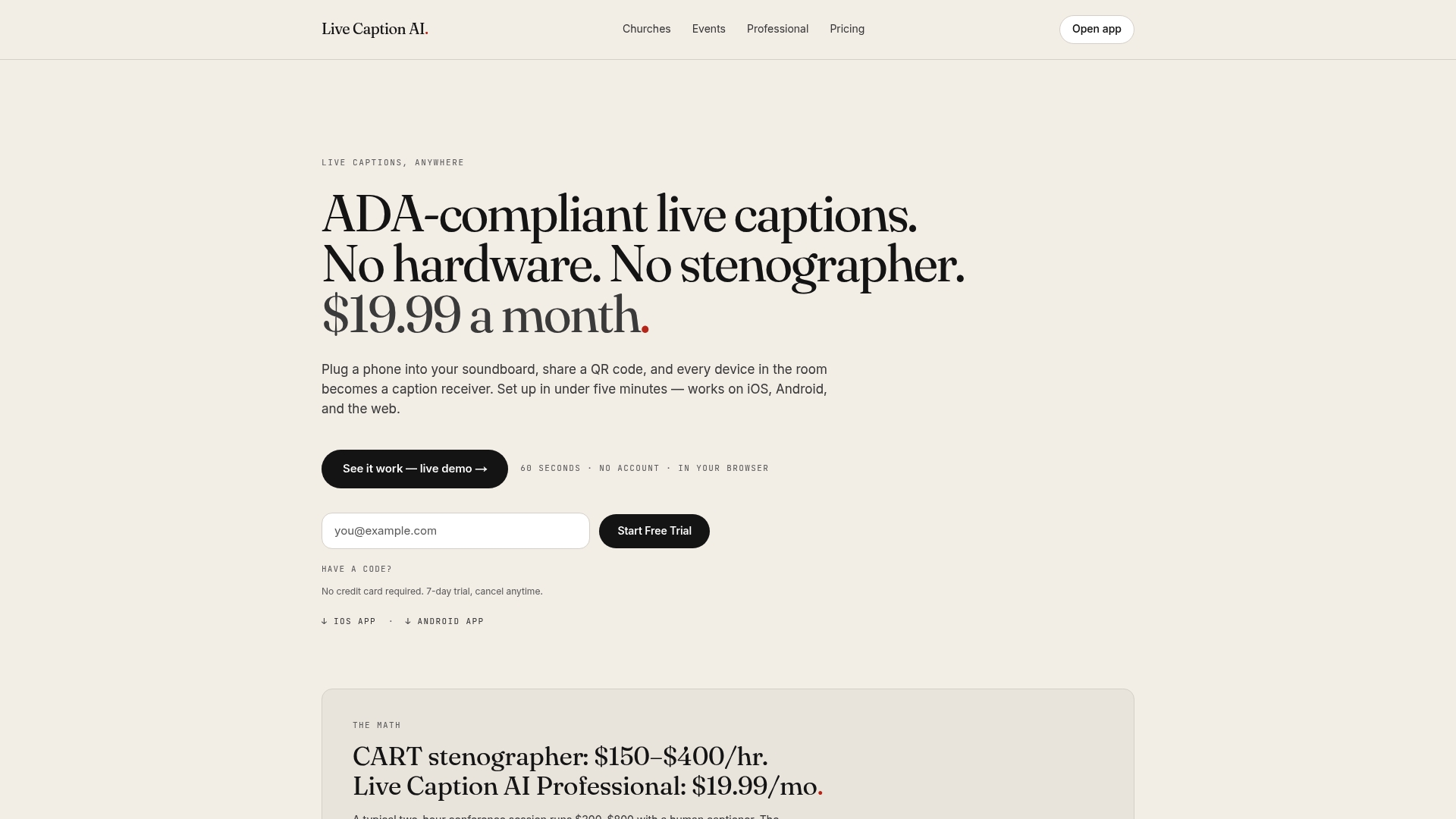
Specialized terminology is where generic speech-to-text usually breaks down, which is why we built separate models for Medical, Worship & Ministry, and Finance & Earnings settings, plus support for your own Custom Terms. When a session needs transcripts afterward, export to TXT, SRT, JSON, or PDF. The Professional plan runs $19.99 a month with unlimited captioning, and it’s worth noting we’re an AI captioning tool rather than a certified or human-reviewed service, so we don’t make an organization ADA-compliant on our own.
FAQ
Do attendees need to download an app to see captions?
No. Attendees scan a QR code, and captions open directly in their phone’s browser. There’s no app to install and no account to create.
What is the difference between AI captioning and CART?
AI captioning uses speech-to-text software and works well for everyday meetings, classes, and services. CART uses a trained human captioner in real time, which tends to deliver higher accuracy for complex or high-stakes content, such as legal proceedings.
How far in advance should we test the caption setup?
Test the caption link and QR code on both iOS and Android phones about 15 minutes before the event starts, confirming the display device’s screensaver is off and the internet connection is stable.
Can captions be translated into another language during the event?
With Live Caption AI, a speaker can select a translation into one of 29 languages per session, and attendees can switch between the original captions and the translation on their own phones.
Does broadcasting captions to phones satisfy ADA requirements on its own?
Captions help meet the ADA effective communication requirement, but AI captioning alone doesn’t certify full compliance. Many organizations pair captions with other access options, like assistive listening or ASL interpretation, as part of a broader accessibility plan.
Sources
- Ada
- W3
- Best Practices for Working with a Communication Access Realtime Translation (CART) Captioner | The State of New York