August 30, 2026 · 12 min read
AI Meeting Summaries: 4 Accessible Outputs Teams Actually Use
See the four AI meeting summary outputs teams rely on and how an accessibility first workflow fits events, regulated meetings, and hybrid...

AI meeting summaries transcribe spoken conversation and turn it into brief recaps, detailed narratives, action items, and formal meeting notes, cutting manual note-taking out of the workday. They help professionals, distributed teams, and event organizers who need a reliable record without assigning someone to type through the whole call. The trade-offs worth watching are accuracy in noisy rooms and how a vendor handles your audio and transcripts afterward.
TL;DR:
Voice capture method and microphone quality heavily influence transcript accuracy, especially in noisy or multi-speaker environments.
Speaker diarization can misattribute statements when voices are similar or overlapping, requiring manual verification for critical recordings.
Summarization approaches differ: extractive models quote verbatim, while abstractive models deliver more natural but slightly less precise summaries.
Privacy risks vary depending on storage policies, with sensitive meetings needing clear vendor policies on data retention, encryption, and compliance like HIPAA.
Successful adoption relies on testing in noisy conditions, integrating export options into existing workflows, and managing participant consent beforehand.
Table of Contents
What do AI meeting summaries produce?
Most tools generate four distinct outputs, and knowing the difference matters more than most buyers realize before their first pilot.
A Brief summary compresses a 45-minute discussion into a few sentences: the topic, the decision, the next step. A Detailed recap preserves the flow of the conversation, useful when someone missed the meeting and needs the reasoning behind a decision, not just the outcome. Action items pull out who owns what and by when, formatted so they can be copied straight into a task tracker. Meeting notes land somewhere in between, structured like a traditional agenda-and-minutes document but generated automatically.
Beyond the summary text itself, expect a few standard interface features:
-
Exportable files in TXT, SRT, JSON, or PDF, depending on whether you need plain text, captions, structured data, or a shareable document
-
A searchable transcript so you can jump to the exact moment a topic came up
-
Timestamps tied to each statement or action item
-
Highlight markers for decisions or flagged moments
-
Optional speaker labels, when diarization is turned on
There’s also a split in how tools capture the meeting in the first place. Some run live, captioning in real time as people talk. Others process a recording after the fact, which trades immediacy for the chance to run a heavier summarization pass. Capture mode itself varies too: a device microphone in the room, system audio pulled directly from a computer, or a file uploaded after the meeting ends. Notion’s AI Meeting Notes feature, for example, captures system audio directly and generates action items inside the workspace where the notes will actually get used.
How are AI meeting summaries generated from a transcript?
The pipeline behind an AI summary from transcript text has three stages, and each one introduces its own failure points.
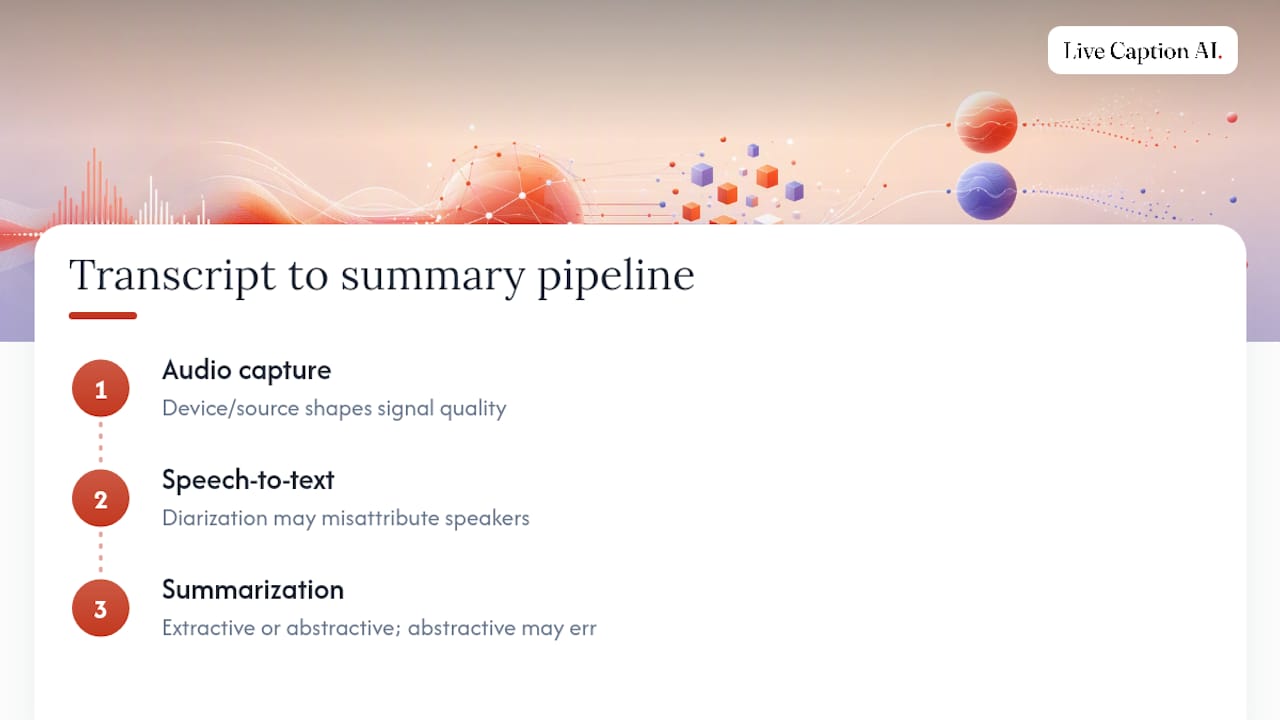
Capture comes first. Audio reaches the system through a device microphone, a system audio feed, or an uploaded file, and this choice shapes everything downstream. A laptop mic picking up a boardroom from six feet away captures a fundamentally different signal than a phone sitting in the center of the table. Weak capture means a weak transcript no matter how good the model is later in the chain.
Speech-to-text conversion comes next, and this is where diarization enters the picture. Diarization is the process of tagging who said what, and it works by analyzing voice characteristics to separate speakers. It’s a setting, not a promise. Overlapping speech, similar-sounding voices, or a speaker who moves around the room can all cause the model to misattribute a line, especially in group settings with five or more participants.
Summarization is the final stage, and vendors split between two approaches. Extractive summarization pulls the most important sentences verbatim from the transcript and stitches them together. Abstractive summarization, which most modern large language models use, rewrites the content in new language to compress meaning rather than just selecting highlights. Abstractive output reads more naturally but carries a higher risk of subtly restating something the speaker didn’t quite say. The prompt or template behind the summarization step also shapes the result heavily: a template built for legal depositions will surface different content than one built for a weekly stand-up, even from the identical transcript. Microsoft’s Copilot for Microsoft 365 leans on this kind of prompt-driven summarization to adapt output to context inside Teams.
How accurate are AI meeting summaries, really?
Accuracy in AI transcription services comes down to a handful of physical and technical factors, and most of them are under the meeting organizer’s control before the recording even starts.
Microphone quality and distance from the speaker are the biggest single drivers. Background noise, cross-talk, and heavy accents all degrade recognition further, and the effect compounds when more than one of these problems shows up at once. A quiet, single-speaker recording with a dedicated mic can hit near-flawless transcription; a loud conference room with a laptop mic and three overlapping conversations will not.
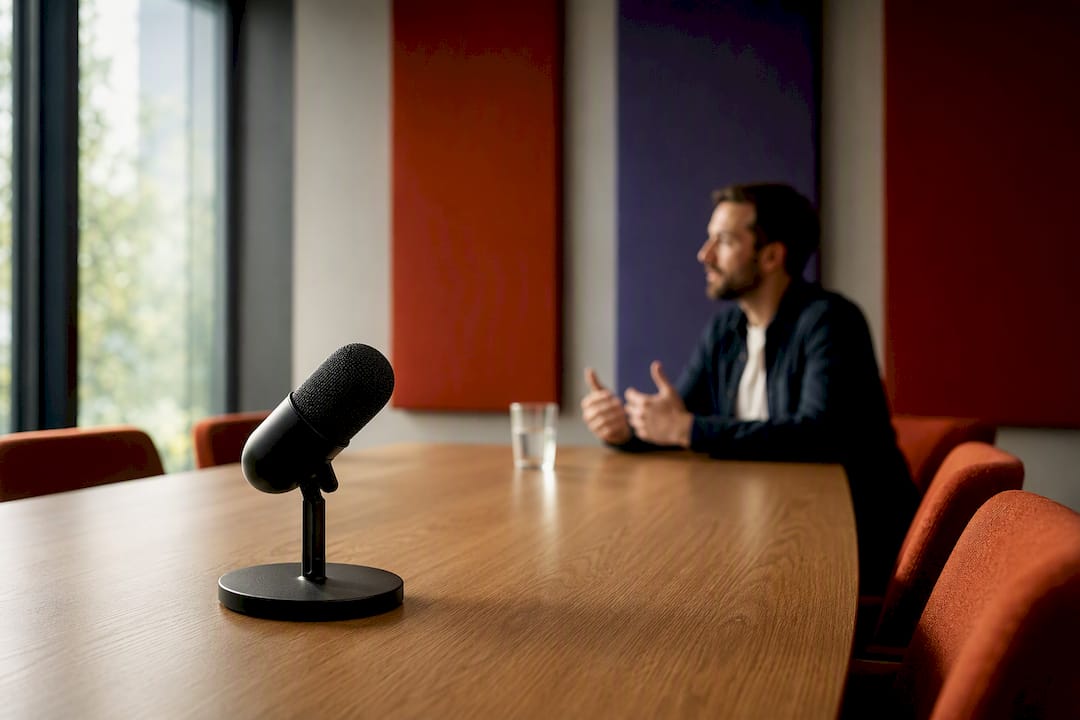
Speaker labeling deserves particular skepticism. Diarization is optional in most tools, and even when it’s switched on, it can misattribute lines, especially with similar voices or fast interruptions. Treat speaker labels as a helpful guess in anything you’d call a critical or compliance-sensitive meeting, and verify them against the recording before you rely on them for a formal record.
Before rolling a summary tool out across an organization, run a short test: record a sample meeting, check the output against a glossary of terms specific to your industry, and spot-check a few sections against what was actually said.
Pro Tip: Before your first real pilot, run one deliberately noisy test meeting, not just a quiet one. A tool that only gets tested in ideal conditions will surprise you the first time it hits a real conference room.
Quick fixes that move accuracy the most: use a dedicated microphone instead of relying on a laptop’s built-in mic, ask the room for quiet before recording starts, and load a glossary of company or industry terms ahead of the pilot if the tool supports it.
Is it safe to record and summarize sensitive meetings?
Before summarizing anything sensitive, medical, legal, or otherwise confidential, get clear answers to a specific set of questions rather than trusting a vendor’s marketing page.
Start with where the audio goes. Some tools process audio and discard it immediately, storing only the resulting transcript; others retain the raw recording in the cloud indefinitely. Ask directly which model a vendor follows, and ask who owns the resulting transcript once it’s generated, along with what export controls exist if you need to delete it later.
For regulated settings, healthcare and legal work in particular, ask specifically whether the vendor offers a HIPAA-capable deployment option and what that actually covers.
Consent is often the overlooked piece. In virtual meetings, a simple verbal notice at the start of the call covers most needs. In person, a visible sign or a QR code that discloses recording before someone joins the room does the same job without singling anyone out.
Before signing anything, run through this checklist:
-
What’s the data retention policy, and can you set your own retention window?
-
Is data encrypted at rest, not just in transit?
-
Does the platform support role-based access so only the right people can view a transcript?
-
Is a business associate agreement available if you need one?
-
Are admin logs available to track who accessed or exported a given transcript?
Live Caption AI’s own policies around transcription and data security walk through several of these questions in more depth if you’re building a formal vendor checklist.
How do you choose and pilot an AI meeting summary tool?
Picking the right tool comes down to matching a short list of decision criteria against how your team actually meets, not against a feature list.
-
Capture mode. Decide whether you need device mic capture, system audio capture, or file upload, based on where your meetings actually happen.
-
Domain accuracy. Test the tool against your own industry vocabulary, not a generic demo, since generic speech-to-text engines routinely miss specialized terminology.
-
Output types. Confirm the tool actually produces Brief, Detailed, Action Items, and Meeting Notes formats, not just a single generic summary.
-
Export options. Check for TXT, SRT, JSON, or PDF exports depending on whether your workflow needs plain text, captions, structured data, or a document.
-
Admin controls and price. Compare free tiers against paid plans, and check what’s gated behind a subscription.
Run a three-step pilot before committing to any plan: capture a real sample meeting, evaluate the summary output against a glossary of your organization’s own terms, then test whether the export format actually plugs into your existing workflow. Zapier’s roundup of the best AI meeting assistants notes that buyers consistently weigh collaboration features, analytics, and integration support when comparing tools, which lines up with what this three-step test surfaces quickly.
On pricing, expect free tiers to cover basic on-device captioning with limited exports, while paid plans unlock cloud processing, full export formats, and higher-volume usage. Zoom’s My Notes feature follows a similar pattern, gating many summary and action-item features behind its paid Workplace plans.
Live Caption AI: An Accessibility-First Approach to Meeting Summaries
Live Caption AI was built for accessibility first, and that design choice turns out to fit meeting summaries well. The platform generates all four standard output types, Brief, Detailed, Action Items, and Meeting Notes, and exports them in TXT, SRT, JSON, or PDF depending on what your workflow needs next.
The accessibility framing carries real practical weight here. Domain-specific models handle technical vocabulary that generic speech-to-text tools routinely garble, which matters as much in a legal deposition or a clinical case review as it does at an event. Session audio is never stored.
Live Caption AI listens through a room or device microphone. There’s no meeting bot and no calendar integration, so it doesn’t join a Zoom, Teams, or Meet call on its own. You start a session, capture the audio in the room, and export the transcript afterward. Audio is never stored, and transcripts stay owner-only.
A simple pilot flow: start a session with a QR code, capture the meeting, export in the format your team needs, and review each summary type against what actually happened.
Rollout and Adoption Lessons
Teams that get real value from AI meeting summaries tend to follow a similar rollout sequence: pilot with one recurring meeting for two to three weeks, track whether action items actually get closed out, then expand once the glossary and mic setup are dialed in.
Adoption climbs fastest when summaries feed directly into whatever task system a team already uses, rather than sitting in a separate app nobody opens. Making exports easy to find, and collecting a quick verbal consent at the start of each session, both remove friction that otherwise kills a pilot in week two.
The most common mistake I see is skipping noisy-room testing entirely and only ever piloting in a quiet office. A close second is treating speaker labels as gospel in a meeting where attribution actually matters. A third is rolling out to a technical team without ever uploading a glossary, then blaming the tool when it mangles a term of art it was never given a chance to learn.
— Ryan
Try Live Caption AI for Your Next Meeting
If your meetings involve regulated content, technical vocabulary, or people who need captions to participate, Live Caption AI is worth putting through a real pilot rather than a demo click-through. Unlike tools built around joining your Zoom or Teams call, Live Caption AI works by listening to the room or device mic, which makes it a fit for in-person meetings, hybrid sessions, and events where a meeting bot simply isn’t in the room.
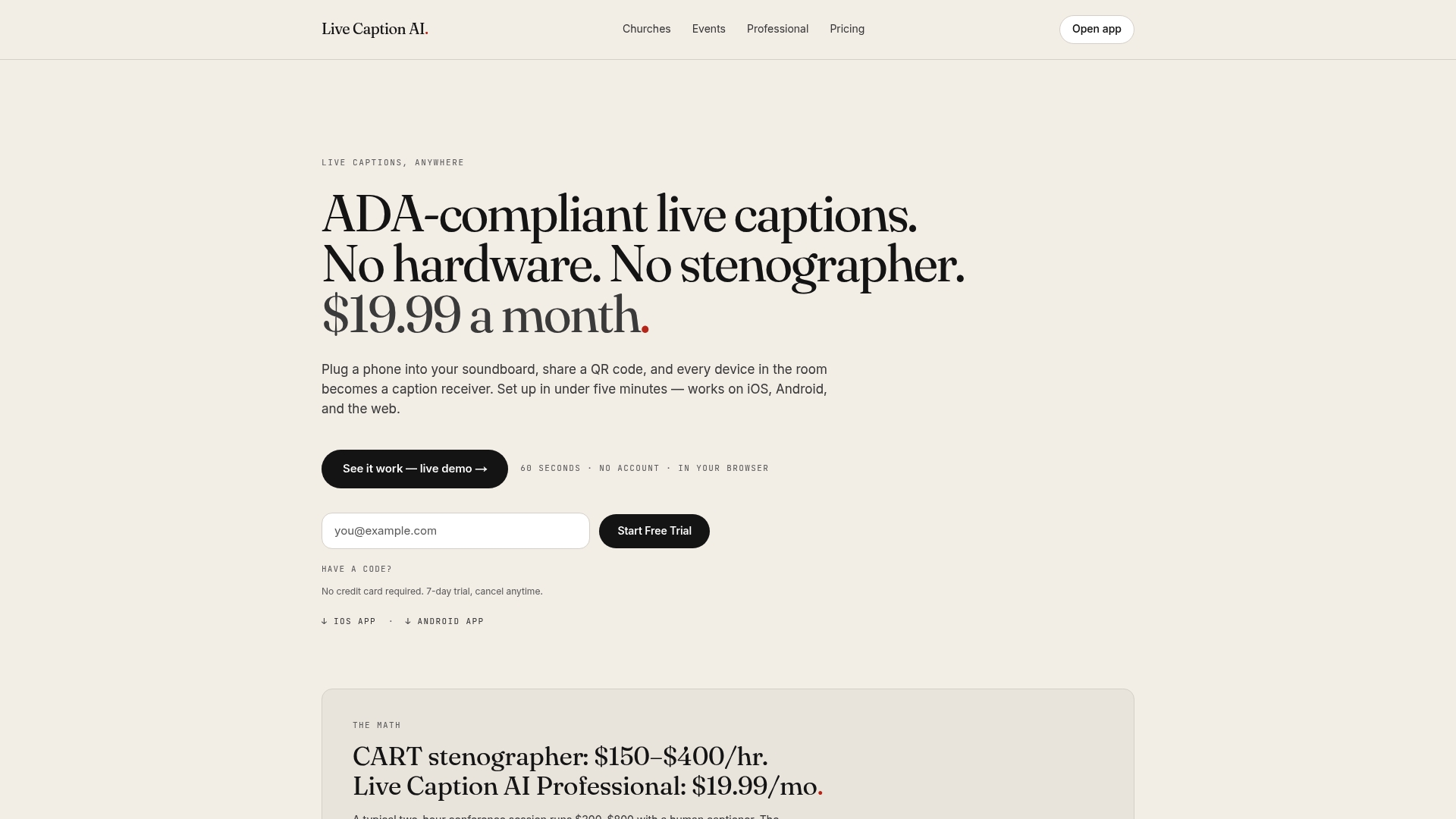
Run a one or two meeting pilot: start a session using the QR-code setup, capture the conversation, and export the transcript in whichever format your workflow needs, TXT, SRT, JSON, or PDF. Compare the Brief, Detailed, Action Items, and Meeting Notes outputs against what actually happened in the room. The Pro plan is available as a monthly subscription, and the Free tier is available with signup if you want to test the basics first. You can also try the live demo without creating an account at all to see the captioning in action before committing to anything.
Sources
For deeper detail on how automated transcription tools handle integrations and workflow, see Live Caption AI’s posts on automated transcription tools. For a closer look at privacy, consent, and access-control practices, the transcription and data security tag covers the checklist items in more depth.
If you’re evaluating event-specific captioning rather than internal meetings, AI conference translation setup and costs walks through QR-code session design and pricing. For a broader look at how AI adoption affects team productivity and returns, Babylovegrowth’s piece on AI productivity gains for agencies offers useful outside context.