October 29, 2026 · 15 min read
AI Event Transcripts: How to Create, Fix and Share Them
Learn how to create AI event transcripts live, correct them before sharing, and export TXT, SRT, JSON or PDF files, with U.S. accessibility basics for organizers.

An AI event transcript is a written record of what was said at a conference, service, class or meeting, produced by speech-to-text software instead of a typist. You can build it live, while the speaker talks, and save it as a file when the session ends. It will be fast and useful. It will not be perfect, so plan a short review before you share it or rely on it.
This guide shows how organizers create transcripts, raise their accuracy, fix errors, choose an export format and stay on the right side of privacy and U.S. accessibility expectations.
TL;DR
- Live captions and the transcript come from the same speech-to-text stream. Run it during the event, then export the text afterward.
- Accuracy depends on audio quality and vocabulary. Feed the tool names and terms before you go live.
- Always review. Automatic captions are never 100% accurate, so correct errors before you publish or use the text for decisions.
- Pick the format for the job: TXT to read or edit, SRT for subtitles, JSON for structured data, PDF to hand out.
- An AI transcript supports accessibility but does not establish ADA compliance by itself.
Table of Contents
- What an AI event transcript is, and when you get one
- How to create an AI transcript at your event
- Improve accuracy before the event, not after
- Review and correct the transcript before you share it
- Export formats: which one to choose
- Serve attendees who speak other languages
- What U.S. accessibility rules expect, and what AI cannot settle
- Privacy, consent and the limits of AI captions
- Our perspective: treat the transcript as a product of the event
- Put it to work with Live Caption AI
- A pre-event checklist
- FAQ
- Sources
What an AI event transcript is, and when you get one
There are two moments to produce a transcript.
During the event. Software listens to the speaker’s microphone and turns speech into text in real time. Attendees read it as captions. The same text builds up in the background as a running transcript.
After the event. You upload a finished recording to a transcription service and wait for the file. This works, but it only helps people after the fact. Nobody in the room benefited while the talk was happening.

For events, the first approach does double duty. The people who need captions get them in the moment, and you walk away with a transcript without a second workflow. That is the approach Live Caption AI is built around: the speaker runs it on a phone or laptop, and attendees scan a QR code to read captions on their own phones. There is no app to install, no account to create, no hardware to rent and no stenographer to book.
Live transcript vs. recording-based transcript
| Live captioning with a transcript | Upload a recording afterward | |
|---|---|---|
| Attendees read it during the event | Yes | No |
| Transcript ready when the event ends | Yes, export it right away | After upload and processing |
| Needs a stored audio file | No | Yes |
| Good for | Services, meetings, classes, conferences | Archived video, interviews |
| Typical correction pass | Light edit of names and terms | Light edit of names and terms |
The correction pass is the same either way. What changes is whether anyone benefited in the room.
How to create an AI transcript at your event
A workable setup takes a few minutes.
- Decide who the transcript is for. Attendees who are deaf or hard of hearing, attendees who speak another language, absent members, or your own records? The answer affects format and review effort.
- Set up the speaker device. A phone or laptop near the speaker works, but the audio source matters more than the device. A lapel or podium microphone beats a laptop microphone across the room.
- Load your vocabulary. Add speaker names, place names, product names and jargon before you start. More on this below.
- Choose a language setup. If some attendees need another language, pick the source language and the translation language ahead of time.
- Share the QR code. Put it on the screen, the program, the signage or the first slide. Attendees scan it and read on their own phones.
- Run a 60-second test. Speak a few sentences with a name or two. Check the text, the volume and the connection before the doors open.
- Go live, then export. When the session ends, save the transcript in the format you need.
Share the QR code more than once. People arrive late, and many will not look for it unless you point to it.
Improve accuracy before the event, not after
Generic speech-to-text tends to stumble on exactly the words your audience cares about: a pastor’s name, a drug name, a company ticker, a neighborhood. Three habits fix most of it.
Start with the audio
Clean audio is the biggest lever you control. Place the microphone close to the speaker’s mouth, reduce room echo where you can, and ask panel speakers to take turns instead of talking over each other. If the room has a sound system, feed from it rather than relying on a distant device.
Teach the tool your words
Live Caption AI offers two ways to do this:
- Specialized models. A Medical model, a Worship & Ministry model and a Finance & Earnings model tune recognition to those fields.
- Custom Terms. You can enter up to 100 names, places and terms before going live. Use them for the keynote speaker’s name, the venue, the sponsor list and any acronyms.
A church might enter the names of the pastor, the guest speaker and the ministry teams. A finance conference might enter the names of the companies being discussed. A hospital education day might enter the drug names on the agenda. Spend ten minutes on this and the transcript needs far less repair.
To be clear about scope: the models cover medical, worship and finance vocabulary. There is no legal or technical model, so for those subjects lean on Custom Terms.
Brief the speakers
Tell speakers to pause between ideas, spell unusual names once, and repeat audience questions before answering. Those habits help human listeners too.
Review and correct the transcript before you share it
No automatic system is flawless. The University of North Carolina’s digital accessibility office states that automatic captions are never 100% accurate, so errors should be reviewed and corrected. Treat the exported file as a strong first draft.
A 15-minute review routine
- Search for the proper nouns first. Names, places, organizations. These are the errors readers notice and the ones that cause real confusion.
- Check numbers. Dates, dollar amounts, percentages, addresses, phone numbers. If the transcript will inform a decision, verify each against the slides or the speaker.
- Fix negations and homophones. “Can” and “can’t,” “accept” and “except.” Small slips change meaning.
- Tidy for readability. The UNC guidance notes that filler words such as “um” and “uh” can be left out of a transcript for readability, and that essential non-speech information, such as background music, should be noted in brackets.
- Add structure. The W3C Web Accessibility Initiative recommends headings, speaker identification and timestamps only where they are useful, and publishing web transcripts as HTML. For a long event, break the text by agenda item and label who is speaking.
Label it honestly
If a transcript was machine-generated and only lightly reviewed, say so on the page. Something like “Machine-generated transcript, lightly edited” sets expectations and protects you if a reader spots an error. Do not describe an AI transcript as verified or certified unless a qualified person actually verified it.
Export formats: which one to choose
Live Caption AI saves transcripts as TXT, SRT, JSON or PDF. AI summaries are included as well. Here is how to match the file to the job.
| Format | Best for | Notes |
|---|---|---|
| TXT | Reading, editing, pasting into an email or document | Plain text, opens anywhere. Best starting point for cleanup. |
| Handing out or archiving a finished version | Looks the same on every device. Harder to edit, so correct the text first. | |
| SRT | Adding subtitles to a video of the event | Carries timing for each caption line. Most video editors and players accept it. |
| JSON | Developers, databases, custom analysis | Structured data you can process with your own scripts. |
A practical workflow: export TXT, make your corrections, then produce the PDF for distribution. If you are publishing a recorded video, use the SRT for subtitles and correct it before upload.
One limit to know: Live Caption AI does not export VTT, and it does not record or play back audio. If your video platform demands VTT, you will need to convert the SRT with a separate tool.
Serve attendees who speak other languages
A transcript in one language leaves out part of your audience. Live translation fixes that in the moment. In Live Caption AI, the speaker picks one source language and one target language per session, from 29 available target languages, and viewers can switch between the original and the translation on their own phones.
Two practical notes:
- One target language per session. If your audience needs two translations, plan the sessions around the larger group or run them separately.
- Translations are text, not audio. Attendees read them. There is no translated voice.
Plan the review step for translation too. Machine translation of names, idioms and technical terms deserves a second look before you publish a translated transcript.
Transcripts also help people who are not in the room. The Association of Science and Technology Centers notes that transcripts work with screen readers and refreshable Braille displays, while captions help people who are deaf or hard of hearing. A published transcript reaches readers a live caption cannot.
What U.S. accessibility rules expect, and what AI cannot settle
In the United States, the ADA requires covered entities to provide auxiliary aids and services, which can include real-time captioning or written materials, when they are needed to communicate effectively with people who have communication disabilities. The goal is effective communication, and the right aid depends on the situation: the setting, the length and complexity of the message, and what the person needs.
That has a few consequences for organizers:
- Captions are one tool in a plan. An effective-communication plan can include captions, written materials, interpreters and a clear way to request help.
- Quality matters. The ADA.gov guidance points to FCC television caption standards as a reference: accuracy, synchronicity, completeness and proper placement, with captions that mirror spoken words and include nonverbal information as far as possible. Those standards are written for TV, but they show what good looks like.
- Software does not make you compliant. No tool, ours included, can certify that your organization meets the ADA. Live Caption AI is an AI captioning tool. It is not a certified or human-reviewed service, and an organization can use it as one part of its effective-communication plan.
- Requests still need answers. If a person tells you AI captions do not work for them, you need another option, which might be a human captioner or an interpreter. The Justice Department’s settlement with Walt Disney World shows the kind of arrangements regulators look at, including advance scheduling of interpreters in some cases and providing auxiliary aids without a surcharge.
For a deeper look at web standards, see our guide to what WCAG 1.2.4 requires for live captions, and for event setups, our post on ADA event captions with cloud live transcription via QR. If you publish accessibility information for your events, these web accessibility statement examples give you wording to adapt.
For questions about your specific legal obligations, talk to an attorney who handles disability law.
Privacy, consent and the limits of AI captions
Consent
Live captioning is not the same as recording, but a transcript is still a record of what people said. Tell attendees at the start. A line in the program and a slide at the opening is enough for most events. If you also record audio or video with other tools, recording consent rules apply, and U.S. state laws differ: some require only one party’s awareness, others require everyone’s. If you record across states or have remote participants, check with counsel and follow the stricter rule.
What we store
Session audio is never stored in Live Caption AI. You get the text, and the transcript is yours to save, edit or delete according to your own policies.
What AI captions cannot do
Be straight with your audience about limits:
- Accuracy drops with noise, crosstalk, heavy accents and unfamiliar terms.
- The output is not human-reviewed.
- If your event involves protected health information, do not put it through the tool, and consult your compliance officer about what you can say aloud in a captioned session.
- It does not work offline, and it does not integrate with Zoom, Teams, Google Meet or OBS. Attendees need a connection to read captions.
Our perspective: treat the transcript as a product of the event
Most organizers think of captions as a service for a few people and the transcript as an afterthought. We see it the other way around. When captions run on every phone in the room, with no hardware to rent and no stenographer to book, the cost of providing them falls to something a small church or a school department can afford. Once that is true, the transcript is a free by-product, and it is often the most reused thing the event produces: the sermon notes, the meeting minutes, the class review sheet, the subtitle file for the video.

We also think organizers should be honest about what AI is. It is fast, affordable and good enough for many rooms, especially with the right vocabulary loaded. It is not a human, and it should not be sold as one. So we build around three things: a QR code that works on any phone, vocabulary tools (three models plus up to 100 Custom Terms) that fix the words generic tools garble, and no stored audio. Then we tell you to review the output.
If your event carries high legal or medical stakes, or someone asks for a human captioner, provide one. For everything else, AI captions turn accessibility from a budget line into a habit.
— Ryan
Put it to work with Live Caption AI
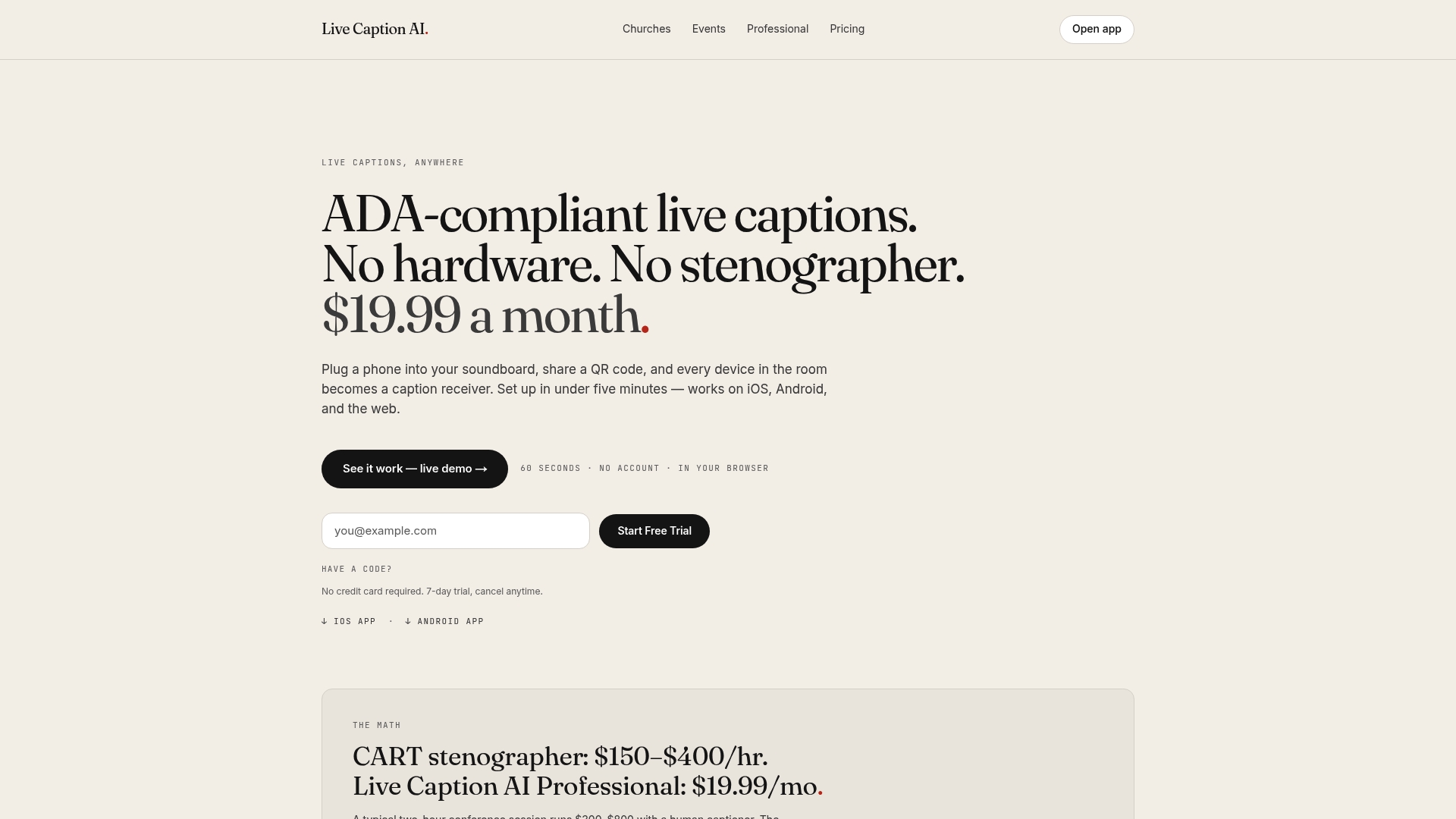
Live Caption AI gives you live captions on every phone in the room, plus a transcript you can export when the session ends. Speaker runs it. Attendees scan. Everyone reads.
Here is what you get:
- Free plan: try basic captions with no published price.
- Professional: $19.99 a month with unlimited captioning.
- Business: from $199 per month.
- Translation credit packs: 30 credits for $6.99, 60 credits for $11.99 or 120 credits for $19.99, each a one-off purchase.
See the current plan details on the pricing page. Working in a clinic, law office or professional setting? Read about live captioning for medical, legal and professional settings. Ready to try it? Explore Live Caption AI.
A pre-event checklist
Print this and keep it with your run-of-show.
- Microphone placed and tested with the speaker.
- Custom Terms entered: speakers, sponsors, venue, acronyms.
- Specialized model chosen if it fits the subject.
- Source and translation languages set, if needed.
- QR code on the first slide, in the program and on signage.
- Opening announcement mentions captions and the transcript.
- Reviewer named, with 15 minutes blocked after the event.
- Export format decided: TXT, PDF, SRT or JSON.
- A fallback ready for anyone who needs something other than AI captions.
For more setup ideas, browse our posts on event live captioning and live event subtitles.
FAQ
Can I get a transcript while the event is still happening?
Yes. With live captioning, the text builds as the speaker talks, so you can export it the moment the session ends. You do not have to upload a recording and wait. Review the file before you share it.
How accurate are AI event transcripts?
Accuracy varies with audio quality, accents, crosstalk and vocabulary. Even good systems make mistakes, and university accessibility guidance says automatic captions are never 100% accurate. Load names and terms in advance, use a good microphone and check the transcript before publishing.
Which file format should I export?
Use TXT for reading and editing, PDF for a finished handout, SRT for video subtitles and JSON for developers. Live Caption AI exports all four, but not VTT. Correct the text before you create the final file.
Does an AI transcript make my event ADA compliant?
No. The ADA asks for effective communication, and captions can be part of that plan. An AI tool does not certify compliance on its own, so pair it with a way for attendees to request other aids, and ask an attorney about your specific obligations.
Sources
- Captions and transcripts, UNC Digital Accessibility Office
- Transcripts, W3C Web Accessibility Initiative
- Accessible Communication and Events, Association of Science and Technology Centers
- ADA Requirements: Effective Communication, ADA.gov
- Settlement Agreement Between the United States and Walt Disney World, Civil Rights Division
- Telephone call recording laws, Wikipedia