September 3, 2026 · 13 min read
Event Producers: Auto-Translate Captions Without Hiring Interpreters
Event producers: set up auto-translated captions for live events and recordings. Learn QR delivery, export-format choices, latency expectations, and a...
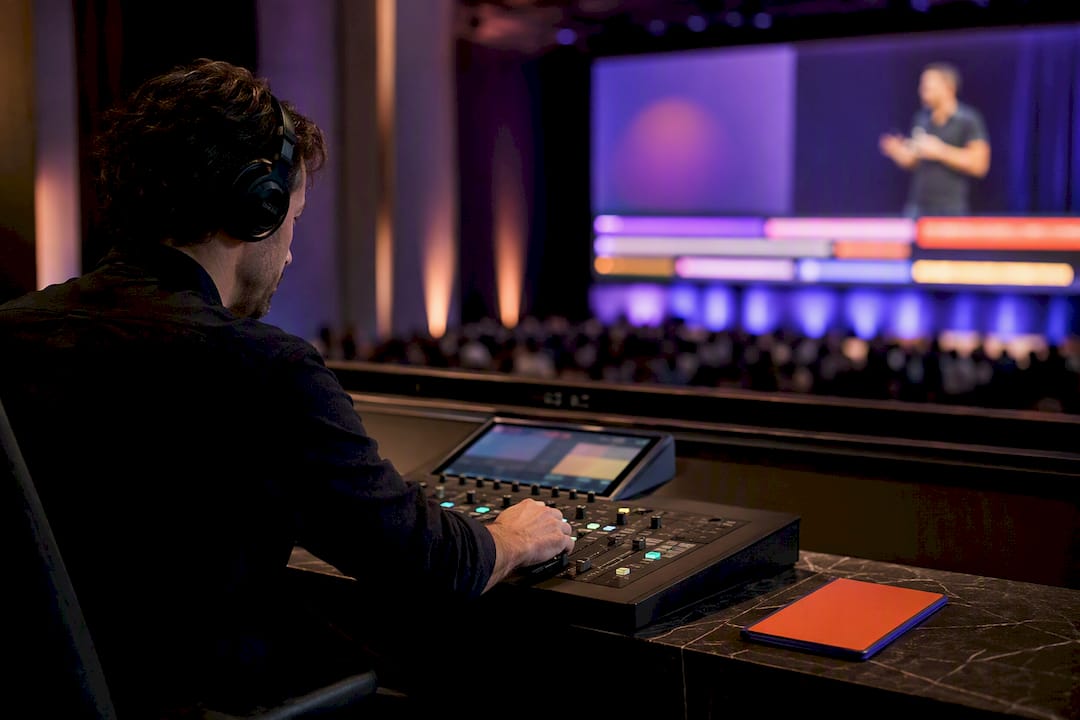
You can auto translate captions two ways: run the source through an editor for recorded video, or route a clean audio feed to a live-translation service for events. Recorded content needs auto-transcription, translation, and export. Live content needs a stable audio feed and a delivery method like a QR-accessible receiver. Pick based on timing, not budget: recorded workflows favor accuracy checks, live workflows favor speed and one clean target language per session.
TL;DR:
- Live translation tools work best when routing a stable audio feed directly from a mixer, avoiding ambient noise that degrades transcription accuracy.
- Using one session per target language is necessary, as most tools only support translating from one source language into a single language at a time.
- Transcription quality heavily depends on correct source language selection, clean audio, and minimizing cross-talk or heavy accents, especially for technical jargon.
- Export formats like SRT or VTT are ideal for platforms supporting subtitle tracks, while burned-in captions are necessary for social media platforms that lack native subtitle support.
- Human oversight or supervised workflows are essential for high-stakes contexts such as legal or medical settings, where machine translation alone may produce unreliable results.
Table of Contents
- What Tools Handle Auto Translate Captions?
- How Do You Auto Translate Captions for Recorded Video?
- How Do You Set Up Live Caption Translation for Events?
- What Limits the Accuracy of Auto-Translated Captions?
- Which Export Formats Should You Use for Translated Captions?
- What Should You Check on Data Privacy Before Choosing a Tool?
- How Does Live Caption AI Handle Live Translation?
- Automated Translation or Human Interpretation: Which Should You Trust?
- Get Started With Live Caption AI for Multilingual Events
- Where to Learn More About Auto Translate Captions
- Sources
What Tools Handle Auto Translate Captions?
Four tool categories cover almost every situation, and knowing which one fits your job saves hours of trial and error.
Browser extensions and overlays work at playback time. If you’re watching a video on a platform that doesn’t offer native subtitles in your language, an extension can capture the audio or existing captions and translate them on the fly. Immersive Translate is a good example: it renders translated subtitles as an overlay while you watch, without touching the original file. Chrome’s own accessibility settings do something similar at the operating-system level. You can turn on Live Caption and Live Translate directly in the browser for supported media, which is the fastest option if you just need to understand a video someone sent you.
Online subtitle editors are built for creators preparing a file for upload. You drop in a video, the platform auto-transcribes the audio, runs a translation pass, and hands you an editable transcript. From there you export SRT or VTT files, or burn the captions directly into the frame. This is the workhorse category for YouTube creators, podcasters converting to video, and marketing teams repurposing webinar recordings into multiple languages.
NLE workflows live inside professional editing software. Adobe Premiere Pro’s caption tools generate a Speech to Text transcript, then use cloud translation models to build a new, editable caption track in a target language, all without leaving the timeline. Adobe documents the process for translating captions inside Premiere Pro, and it’s worth learning if you’re already cutting video professionally rather than bouncing files between apps.
Event platforms are the category most creators overlook until they’re standing in front of a live audience. These services accept a console or mixer feed, run it through automated speech recognition and translation, and push the result out to attendees, often through a QR code that opens a browser-based caption receiver on any phone. Where browser extensions and editors work after the fact, event platforms work in the moment, which changes almost every operational decision downstream.
- Browser extensions: instant, viewer-side, no file editing
- Subtitle editors: best for single-video, multi-language exports
- NLE integrations: best for teams already editing in Premiere or similar tools
- Event platforms: the only category built for real-time delivery to a live room
How Do You Auto Translate Captions for Recorded Video?
The recorded-video workflow follows a predictable order, and skipping a step is usually where translation quality falls apart.
- Auto-transcribe the source audio. Upload the file and select the correct source language before transcription starts. A wrong language selection at this step compounds every error that follows.
- Clean the transcript. Fix speaker labels, trim timestamps that run too long, and break lines so no caption exceeds roughly 40 characters per line. This step matters more than most creators expect, since a messy source transcript feeds messy translations.
- Auto-translate to your target language and spot-check. Titles, proper names, and idioms are where machine translation slips most often. Read through those lines specifically rather than skimming the whole file.
- Export or burn in. Platforms that support subtitle tracks natively take an SRT or VTT file. Platforms that don’t, including most short-form social apps, need the captions burned directly into the video frame.
For creators managing a backlog, batch or queue features save real time. YouTube Studio, for instance, lets you apply caption settings across multiple uploads instead of repeating the process video by video, which matters once you’re translating into three or four languages regularly.
Pro Tip: Translate the title and thumbnail text separately from the caption file. Machine translation tools optimize for spoken sentence structure, and a literal translation of a punchy title often reads awkwardly in the target language.
How Do You Set Up Live Caption Translation for Events?
Live events add a layer recorded video never deals with: everything happens once, in real time, with an audience watching.
Start with the audio source. A direct feed from the front-of-house mixer or console, run through an XLR or line connection, gives the translation engine a clean signal to work with. Ambient room microphones pick up crowd noise, HVAC hum, and echo, all of which degrade transcription accuracy before translation even begins. This is standard practice among event producers running multilingual captioning, and it’s the single biggest factor separating a smooth session from a garbled one.
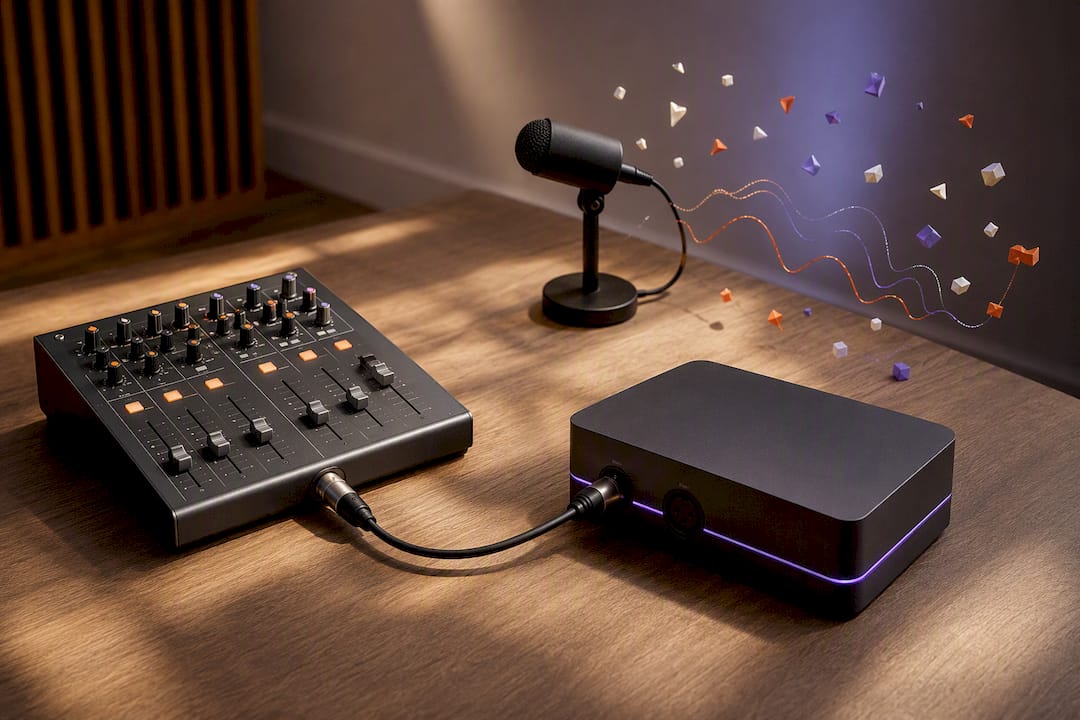
Next, understand the session-level language limit. Most automated live-translation tools run one source language to one target language per session. That means if your audience speaks three different languages, you need three separate translation sessions running in parallel, not one session serving everyone at once. Set audience expectations ahead of time so nobody expects to pick their own language mid-event from a single feed.
Delivery typically happens through one of three channels: a QR code that opens a browser-based caption receiver on attendees’ phones, a stage-side overlay for the room, or a projected screen near the podium. QR delivery is the lowest-friction option since it requires no app download and no hardware handout. Put the QR code on signage before the session starts, not after, so latecomers can scan it on the way to their seats.
- Route a direct console or mixer feed, not ambient microphones
- Confirm one source-to-one-target language session per audience language group
- Test end-to-end latency before doors open
- Ask speakers to pause briefly at the end of clauses, not mid-sentence
- Confirm export settings ahead of time if you need a transcript afterward
Pro Tip: Run a two-minute sound check with the actual speaker, not a stand-in. Accents, pacing, and mic technique vary enough between people that a generic test doesn’t catch the issues a real speaker will trigger.
Latency is cumulative across capture, streaming, transcription, translation, and rendering, so expect a practical delay of one to three seconds between spoken word and translated caption. That’s normal, not a malfunction, and it’s why pacing matters more in live settings than recorded ones.
What Limits the Accuracy of Auto-Translated Captions?
Accuracy problems almost always trace back to one of four sources: poor audio capture, overlapping speakers, heavy accents, or domain-specific jargon that a general-purpose model has never encountered.
A courtroom term, a medical procedure name, or a niche technical acronym will consistently trip up automated transcription, and a mistranslated term compounds the error into the target language too. This isn’t a flaw unique to any one tool. It’s a structural limit of models trained on general speech rather than your specific domain.
The fixes are tactical, not theoretical:
- Use a single, close-positioned microphone per speaker rather than one room mic for a panel
- Feed the system a custom vocabulary list for recurring technical terms before the session starts
- Reduce cross-talk by asking panelists to avoid interrupting each other
- For recorded content, do a manual pass over names and jargon before publishing
When accuracy genuinely matters, meaning legal proceedings, medical consultations, or broadcast-quality output, layering in a supervised workflow or a human interpreter alongside the automated captioning closes the gap that machine translation alone can’t. Interprefy’s guidance on live captions and subtitles draws a useful distinction here: captions serve same-language accessibility, while translated subtitles serve multilingual comprehension, and many hybrid events run both simultaneously rather than choosing one.
Which Export Formats Should You Use for Translated Captions?
The right export format depends on where the captions are going next, and using the wrong one creates work you’ll redo later.
- SRT and VTT are the standard formats for platform subtitle tracks. Most video hosts, learning management systems, and content management systems import them cleanly, provided the timestamps are formatted correctly before export.
- Burned-in captions are your only option for platforms that don’t support separate subtitle tracks well, which describes most short-form social video today.
- TXT and JSON turn a transcript into reusable text. JSON works well for developers pulling structured data into another system, while plain TXT is faster for pasting into blog posts, show notes, or a searchable archive.
- PDF suits formal records, accessibility documentation, or any situation where you need a fixed, shareable copy rather than an editable file.
Double-check encoding before you upload anywhere. A file saved without UTF-8 encoding will scramble accented characters and non-Latin scripts the moment it hits a different system, which is a common and entirely avoidable failure point.
What Should You Check on Data Privacy Before Choosing a Tool?
Before committing to any auto-translation service, confirm three things in the provider’s terms, not just its marketing page.
- Whether audio is retained or processed transiently. For sensitive sessions, including anything discussed in a medical or legal context, this distinction matters more than any feature list.
- Who owns the resulting transcript, and whether the export rights are actually yours to reuse without restriction.
- What contractual protections exist for regulated settings. Medical and legal deployments typically require specific agreements before any recording or transcription tool touches protected information, so ask directly rather than assuming coverage.
None of this takes long to verify, and skipping it is the kind of shortcut that only causes problems after the fact.
How Does Live Caption AI Handle Live Translation?
Live Caption AI approaches this from the accessibility-and-engagement angle rather than treating captions as an afterthought bolted onto a livestream.
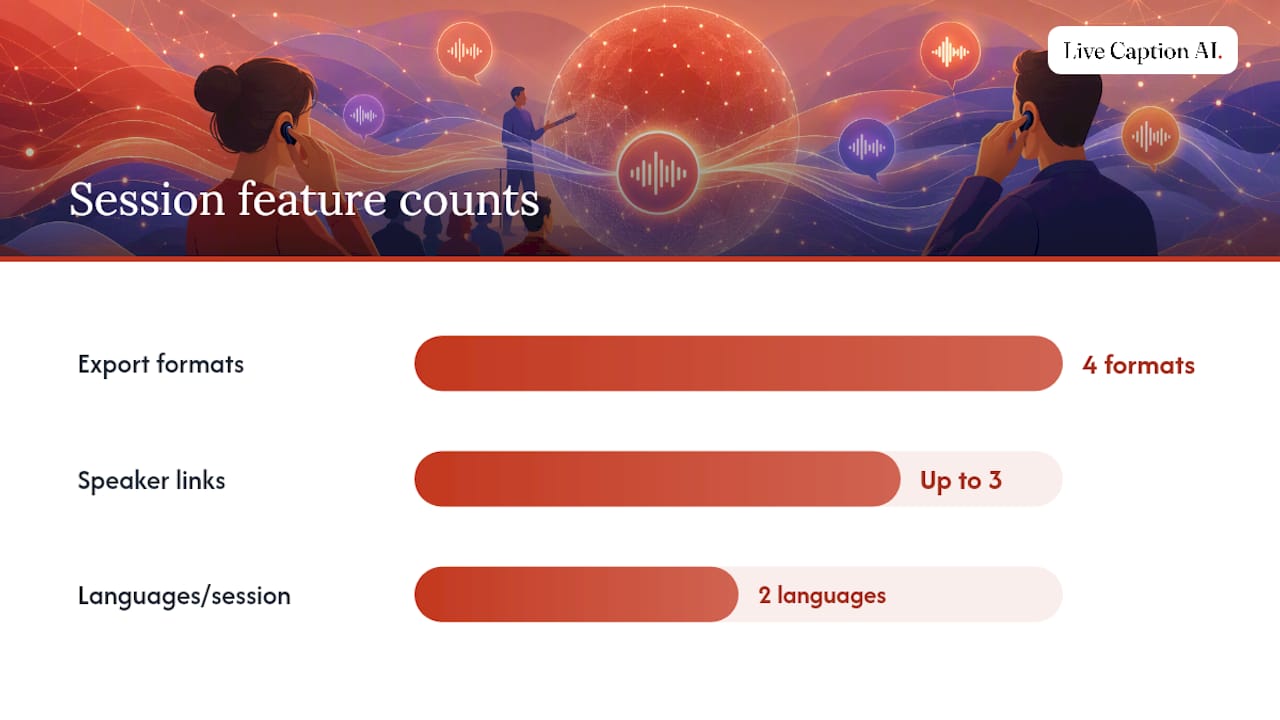
Attendees scan a QR code and read captions directly on their own phones, no app download required. Up to three speaker links, a website, a book page, a signup form, stay visible and tappable during the session and remain live afterward, turning a caption feed into a lightweight engagement channel. Speakers can see a live concurrent viewer count while the session is running, though that number isn’t retained as a post-session report.
On the language side, Live Caption AI supports multiple languages, with each session running one source language to one target language. That means a session translating English to Spanish serves Spanish-reading attendees; a separate audience needing French would need its own session. Translation runs entirely through machine translation with no human review step, which keeps costs low but means the accuracy caveats covered earlier still apply.
- Exports available in TXT, SRT, JSON, and PDF
- Audio is never stored; transcripts remain owner-only
- A free tier requires signup to start
- A pro plan is available monthly with included hours, with additional minutes billed separately.
This pricing structure offers a lower-cost alternative to traditional stenographers or live captioners, which can be expensive per event.
Automated Translation or Human Interpretation: Which Should You Trust?
Automated caption translation earns its place as the default for most content, not the exception. It’s fast, inexpensive relative to hiring an interpreter per event, and it clears the baseline accessibility bar that recorded video and live events both need to meet. For a weekly webinar, a church service, or a conference session where the goal is broad comprehension and engagement, automated translation gets you most of the way there without a five-figure line item in the budget.
Where it falls short is anywhere the cost of a mistranslation outweighs the cost of hiring a professional. Legal proceedings, medical consultations, and broadcast-quality multilingual output still call for human interpretation or a supervised workflow where someone corrects the transcript before it’s translated.
Before your next session, run through this checklist: confirm your audio feed is clean, decide your language policy up front, place QR signage where people will actually see it, and have a backup caption plan if the primary system drops.
— Ryan
Get Started With Live Caption AI for Multilingual Events
Live Caption AI provides an alternative to hiring a stenographer or a per-event interpreter, offering a subscription plan with included hours and additional per-minute credits.
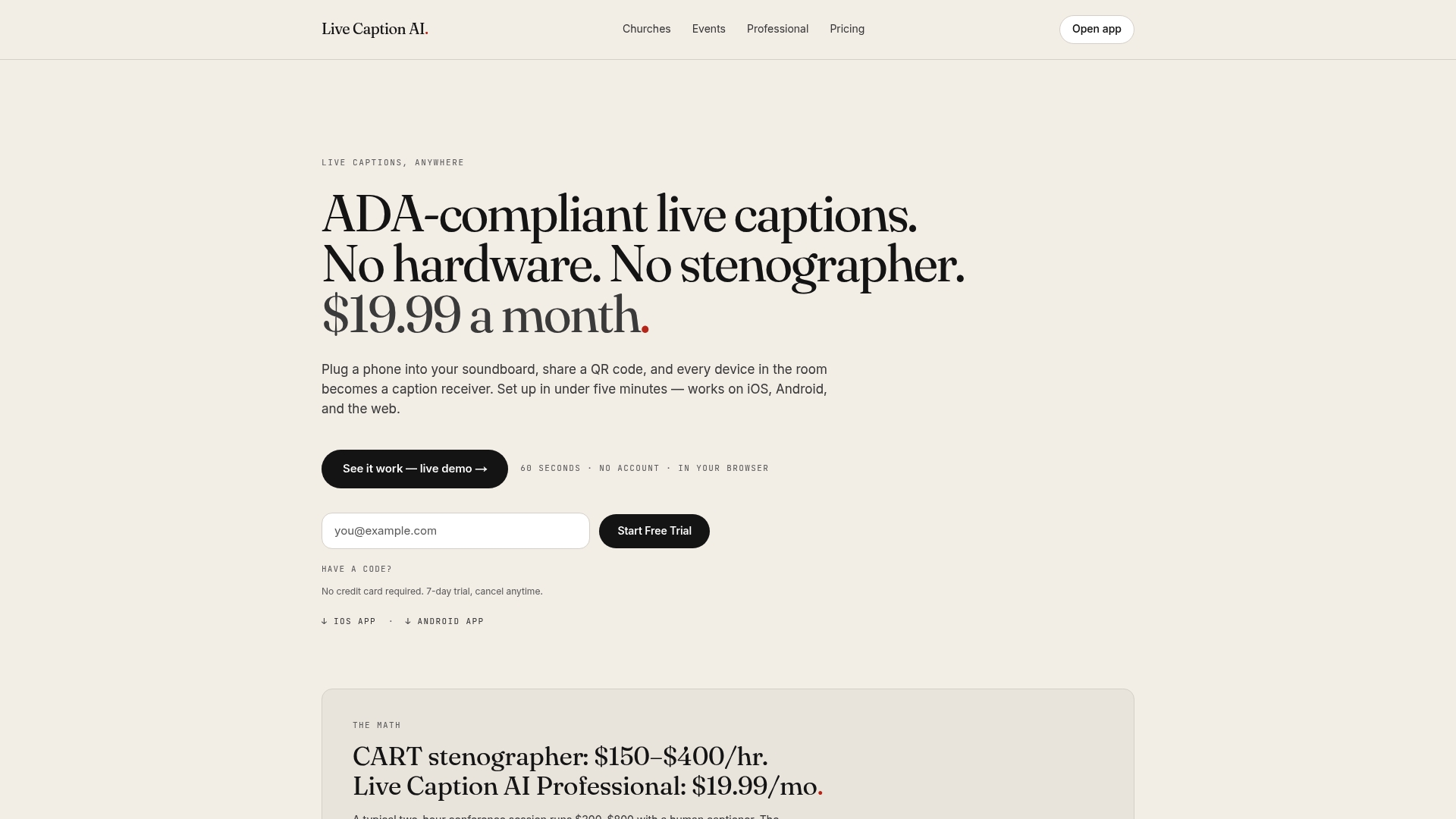
The setup involves attendees scanning a QR code to see captions on their own phones, with support for one source language to one target language per session, and exports available in multiple formats. Audio is not stored, and transcripts remain owner-only. If you run recurring webinars, check out how other producers structure live captions for webinars before your next session.
Sign up for the Free tier to test a short session yourself, then upgrade to Pro once you need more monthly hours or want to run recurring events. Visit Live Caption AI to get started.
Where to Learn More About Auto Translate Captions
For platform-specific detail beyond this guide, Adobe’s own documentation covers translating captions in Premiere Pro step by step. Chrome users can review how to enable Live Caption and Live Translate at the browser level. Developers building custom overlays can study the open-source Live-translation project on GitHub for a working real-time architecture. For broader digital-engagement context, EmpowerED’s piece on digital tools and student engagement is a useful companion read.
Sources
- Translate captions — Adobe Premiere Pro Help
- fmadore/Live-translation — GitHub
- Immersive Translate — Firefox Add-ons