October 30, 2026 · 14 min read
Remote Participant Captions: How to Set Them Up Right
How remote participants turn on live captions, what hosts must enable, and what to do for investor meetings and town halls when built-in captions fall short.

Remote participants get captions in one of two ways. Either the host turns on the meeting platform’s built-in captions and each person switches them on for themselves, or the organizer adds a separate captioning source, such as a human captioner or a QR-code tool. Which one you need depends on who is attending and why they need captions.
This guide covers both paths. You will see the exact steps for participants, the host settings that decide whether participants see anything at all, and how to plan for two high-stakes formats: investor meetings and town halls.
TL;DR
- Participants: in Zoom, select Show Captions in the control bar and pick the meeting language. Captions only appear if the host has enabled them first.
- Hosts: turn on automated captions in the web settings before the meeting. Leave the “specified users only” restriction unchecked if you want everyone to control their own captions.
- Accommodation requests: university accessibility offices say AI captions do not replace human captioning (CART) when someone needs captions as an accommodation.
- Investor meetings and town halls: clean audio, one speaker at a time and a prepared term list matter more than any setting.
- Gaps in built-in captions: a phone-based tool like Live Caption AI can put captions on every attendee’s own screen through a QR code.
Table of Contents
- How remote participants turn captions on
- What the host has to enable
- When built-in captions are not enough
- AI captions versus human captions
- Investor meeting captions
- Town hall meeting captions
- Our perspective: captions that do not depend on the meeting platform
- Live Caption AI for remote and hybrid audiences
- A pre-meeting checklist
- FAQ
- Sources
How remote participants turn captions on
The steps differ by platform, but the pattern is the same. Look for a captions or CC button in the meeting toolbar. Here is how it works in Zoom, which most US institutions document in detail.
- Select Show Captions in the control bar. According to Colorado’s digital accessibility guidance, you may be asked to choose the meeting language. Choose it and save.
- To turn them off, select Hide Captions.
- If you move into a breakout room, turn captions on again. The same guidance says to do this after entering a breakout room and after returning to the main room.
- To change the caption language, use the arrow next to the CC button. Georgetown’s accessibility team notes that each participant can turn captions on or off independently, on a computer or a mobile device.
Some versions of the interface use different wording. The University of Michigan describes choosing Live Transcript, then Show Subtitle or Hide Subtitle, or opening the Full Transcript. Florida Atlantic University lists Show Subtitles, View Full Transcript and Subtitle Settings. Same feature, different labels.
If you do not see a captions button
The cause is almost always on the host’s side. A participant cannot enable captions that were never turned on for the meeting. Michigan’s guidance says a participant may ask the host to activate captions when they are not available. Send that request in the chat, or better, before the meeting starts.
If you join often as a guest, ask in advance. A short message works: “Could you enable live captions for tomorrow’s call? I need them to follow along.” Do not wait until the first minute of the meeting to find out.
What the host has to enable
Hosts often assume captions are on by default. They are not. Stanford IT says its captioning settings are disabled by default, partly to limit data leakage and to avoid capturing information in meetings by accident. Many organizations will have a similar default.
The host checklist:
- Enable automated captions in the web settings. This is an account-level step, done in the browser portal, not inside the meeting. Florida Atlantic University separates the two stages: first enable closed captioning and the live transcription service in the web portal, then activate captions in the meeting.
- Decide who can start captions. Stanford explains that if you leave the setting restricting activation to specified users unchecked, participants can turn captions on themselves. If it is checked, only the host or a co-host can activate them.
- Start them at the beginning of the meeting. Do not wait for someone to ask.
- Tell attendees captions exist. Put one line in the invitation and say it again when you open the meeting.
If you are a guest in someone else’s meeting and cannot change any of this, the only fix is to ask the host. That is why the invitation matters.
When built-in captions are not enough
Built-in captions fail in four common situations:
- The platform does not offer them on your plan or version.
- The host cannot or will not enable them.
- Participants are on different platforms, or some are in a room and some are remote.
- The content is full of names, jargon or numbers the engine keeps getting wrong.
The University of Washington lists two routes beyond native captions: captions typed directly into the meeting by a captioner, or captions added through a third-party integration. Michigan adds that a host can connect a human CART captioner through Zoom.
A third option is a captioning tool that runs outside the meeting platform altogether. The speaker runs it on a phone or laptop near the audio source. Attendees read the captions on their own phones. That is how Live Caption AI works, and it is useful when the meeting platform’s own captions are unavailable or when you have a mixed room of in-person and remote people.
AI captions versus human captions
This is the question that matters most for compliance, so it deserves a straight answer.
AI captions are useful. They help non-native speakers, people in noisy places, people who process text better than audio, and people who are hard of hearing and just want a second channel. For many meetings, they are the right choice.
But accommodation is different from convenience. Yale’s accessibility guidance says AI captions may be useful but may not meet accessibility accuracy standards. It also says they do not replace live captioning, CART or ASL interpretation, and it recommends CART for accommodation requests. The University of Washington says the same in plainer terms: people who need captions as an accommodation require human live captions.
What that means in practice:
- If someone has requested captions as an accommodation, book a human captioner. Do not substitute an AI tool and call it done.
- If no one has asked, AI captions are a reasonable default that makes the meeting easier to follow for everyone.
- Tell people how to ask. The University of Washington advises large-event organizers to say in the event announcement, and in the registration form if there is one, how to request accommodations. It also points organizers to its ADA Coordinator’s Access Statements page for recommended wording.
Live Caption AI is an AI captioning tool. It is not a certified or human-reviewed service, and it does not make an organization ADA-compliant on its own. An organization can use it as one part of an effective-communication plan, alongside human captioning where an accommodation requires it.
Investor meeting captions
Investor calls are the hardest case for automatic captions. Speakers talk fast, they read figures, and they use terms like EBITDA, basis points and guidance ranges that general speech engines mishear.
Utah State University’s guidance is blunt about the drivers of accuracy. Captions improve with clear audio, less background noise, steady speech and one speaker at a time. Specialized terminology and fast speech raise the risk of errors. The University of Malta adds speaker volume, language proficiency and regional dialects to the list.
A practical setup for an investor meeting:
- Use a good microphone for each presenter. A laptop mic across a conference table is the most common cause of bad captions.
- Brief the speakers. Ask them to pause between speakers, avoid talking over questions and slow down on numbers.
- Prepare your terms. Write down company names, executive names, product names, tickers and any unusual jargon before the call.
- Choose a vocabulary model if the tool offers one. Live Caption AI has a Finance & Earnings model, and you can add up to 100 Custom Terms (names, places and terms you type in before going live).
- Save a transcript. Transcripts export as TXT, SRT, JSON or PDF, and AI summaries are included. Session audio is never stored.
- Check disclosure rules with counsel. If the call is a regulated disclosure, your legal team should decide whether the AI transcript is a working aid or an official record.
If an investor on the call has asked for captions as an accommodation, book a human captioner for that call.
Town hall meeting captions
Town halls mix people: some in the room, some on a video link, some on the phone, some listening later. Captions need to reach all of them.
The University of Washington’s advice is simple. Enable live captions in the platform. For attendees who need captions as an accommodation, arrange human live captions. Zoom captions can be typed in directly by a captioner or added through a third-party service.
Here is a workable plan:
- Before the event: add an accommodation line to the invitation and registration form. Name a contact and a response time.
- Two weeks out: if anyone has asked for captions, book the human captioner now. Good captioners fill their calendars.
- On the day: the host starts platform captions at the opening. A moderator reads questions from the chat aloud so they are captured.
- For the room: put a QR code on the screen or on the seat-back cards. Attendees scan it and read the captions on their own phones. No app, no account.
- For remote attendees on a different platform: show the same QR code on a shared slide so they can read along on a phone.
- Afterward: post the transcript for staff who could not attend.
For more on planning, see our guide to live captioning for events and how to add live captions and when to book.
Our perspective: captions that do not depend on the meeting platform
We built Live Caption AI around one idea: the caption receiver should be the phone each person already carries. Not a rented screen. Not an app download. Not an account.
That changes the remote participant problem. When captions live inside one meeting platform, they depend on the host’s settings, the plan, and the participant’s client. When captions live on the attendee’s own phone, none of that matters. The speaker runs Live Caption AI on a phone or laptop. Attendees scan a QR code. They read.

We also think organizations should be honest about what AI captions are. We are an AI tool. We are not certified. We have no human review. We do not make anyone ADA-compliant by ourselves. What we do is make captions affordable and easy enough that you can offer them at every meeting, not just the ones where someone asked. For a request that legally or ethically needs a human captioner, book one.
Specialized vocabulary is where we put our effort. Generic engines garble names. So we offer Medical, Worship & Ministry and Finance & Earnings models, plus up to 100 Custom Terms. Translation covers 29 languages: you pick one source and one target language per session, and viewers switch between the original and the translation.
— Ryan
Live Caption AI for remote and hybrid audiences
If your meeting platform’s captions are unavailable, or you want one consistent caption experience across a room and a screen, Live Caption AI is built for it.
- QR code access. Attendees scan and read on their own phones.
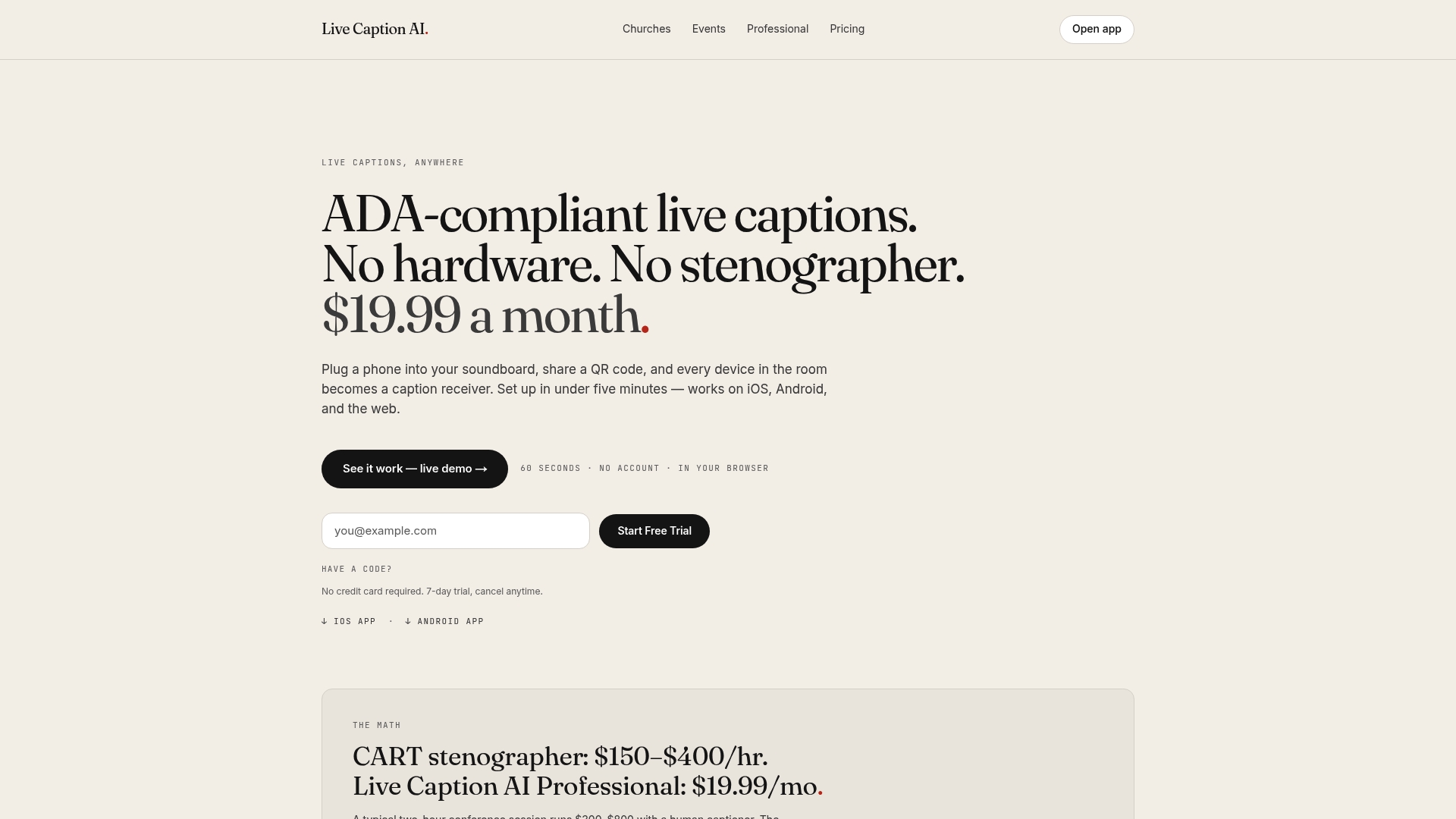
- No hardware. No stenographer. The speaker uses a phone or laptop.
- Specialized models and Custom Terms. Medical, Worship & Ministry, Finance & Earnings, and up to 100 of your own terms.
- Translation. One of 29 languages per session.
- Exports. TXT, SRT, JSON or PDF, with AI summaries included.
- Privacy. Session audio is never stored.
The Professional plan is $19.99 a month with unlimited captioning. Business starts from $199 a month. A Free plan is available, and translation credit packs are sold one-off: 30 credits for $6.99, 60 for $11.99 and 120 for $19.99. See the plans and pricing for details.
For medical, legal and other professional settings, our professional settings page explains how teams use it.
A pre-meeting checklist
Use this for any meeting with remote participants.
- [ ] Captions enabled in the platform’s web settings
- [ ] Participant activation allowed, or a host assigned to start captions
- [ ] Accommodation line in the invitation and registration form
- [ ] Human captioner booked if anyone has requested captions as an accommodation
- [ ] Good microphone for every speaker
- [ ] Term list prepared: names, products, acronyms
- [ ] QR code ready on a slide, if you use a phone-based tool
- [ ] Transcript plan decided: who gets it, where it is stored
- [ ] A test run five minutes before start
FAQ
Why can’t I turn on captions when I join someone else’s meeting?
Captions have to be enabled by the host first. If they are not, you cannot switch them on. Ask the host to enable them, or to let participants activate them, and send the request before the meeting if you can.
Do remote participants need an app or account to read captions?
It depends on the tool. Built-in meeting captions require you to be in the meeting through that platform’s client. With Live Caption AI, attendees scan a QR code and read on their own phone, with no app to install and no account to create.
Are AI captions enough for an ADA accommodation request?
University accessibility offices such as Yale and the University of Washington say no: for an accommodation, they recommend human captioning such as CART. AI captions work well as a general aid for everyone else. For legal questions about your obligations, talk to your counsel or ADA coordinator.
How do I get better captions on an investor call?
Focus on audio and vocabulary. Use a good microphone, have one person speak at a time and slow down on numbers. Load names and terms ahead of time. Live Caption AI offers a Finance & Earnings model and up to 100 Custom Terms for this.
Can I caption a town hall for both in-person and remote attendees?
Yes. Turn on platform captions for the video link, and show a QR code in the room and on a shared slide so people read on their own phones. Book a human captioner if anyone has asked for captions as an accommodation.
Sources
- Zoom Participants: Using Live Automated Captions, University of Colorado
- Zoom Automated Captions, Georgetown University
- Customize Zoom Captioning and Transcription Settings, Stanford University IT
- Zoom Live Transcription Service, Florida Atlantic University
- Live captions, University of Washington Accessible Technology
- Videoconferencing Accessibility, University of Michigan
- Captions for Live Events, Yale University
- Live Captions, Utah State University
- Use Automated Live Transcript, University of Malta