October 7, 2026 · 9 min read
Chinese Live Captions Across Any Device: Setup and a 60 Second Test
Get consistent Chinese live captions on phones, PCs, and meetings. Follow platform agnostic setup steps, audio routing and custom terms, and run a 60–90...

You can get live Chinese captions today through four practical routes: built-in phone captions, PC-level live captions, meeting-platform translated captions, or a dedicated web or app caption service. Each works differently depending on your device and setup, and some features only run on recent hardware or operating systems. Before any meeting or event, run a 60-second live test to confirm captions actually display the way you expect.
TL;DR:
- For built in captions, Pixel 6 or newer with Android U or later supports Chinese; Windows translation requires a Copilot+ PC running Windows 11 24H2.
- Transcription produces Chinese text, while translation converts speech between languages; selecting the wrong Chinese variant can yield readable captions that misrepresent what speakers said.
- Run a 60 to 90 second test with actual session audio, then check names, numbers, and moments when speakers switch between English and Chinese.
- For legal, medical, or formal events, pair automated captions with human captioners or prepared scripts because noise, jargon, and overlapping speech can defeat recognition.
- Live Caption AI serves mixed device audiences through QR codes, with no app or account required, and offers one of 29 translation languages per session.
Table of Contents
- Which platforms support Chinese live captions, and when to use each
- A setup checklist and quick live test before you rely on captions
- What automatic Chinese captions do well, and where they still fall short
- Small changes that meaningfully improve caption accuracy
- Deploying Chinese captions at real events: what we’ve learned
- When built-in captions are enough, and when they aren’t
- Getting consistent Chinese captions across every device in the room
- FAQ
- Sources
Which platforms support Chinese live captions, and when to use each
Your choice depends on what you’re captioning: a quick phone call, a work meeting, or a live event with multiple viewers.
- Device-native captioning like Android’s Live Caption and Live Translate works directly on supported phones, generating captions for calls and media without any app setup. According to Google’s Android Accessibility documentation, Pixel 6 and newer phones running Android U or later support Simplified and Traditional Chinese, though Live Translate specifically requires Pixel 6+.
- Windows 11 Live Captions adds system-wide captioning on compatible PCs, and Copilot+ PCs extend that into live translation. Microsoft confirms Live Captions ships from Windows 11 22H2 onward, while Copilot+ PCs with Windows 11 24H2 support broader translation into and from Chinese variants.
- Meeting platforms like Google Meet offer translated captions, but Google Meet Help notes that this feature is often viewer-controlled and depends on the account’s Workspace edition.
- Browser and web apps fill the gap when platform support is missing. These typically ask for microphone permission, then generate live Chinese translation or transcription directly in the browser, which makes them a fast fallback for cross-device audiences.
Pick device-native captions for solo use, PC-level captions for desktop work, meeting-platform captions for scheduled calls, and a web-based or dedicated service when your audience spans devices you don’t control.
A setup checklist and quick live test before you rely on captions
Running through this checklist before a meeting or event catches most problems before your audience notices.
- Choose the correct Chinese variant (Simplified, Traditional, or a regional option like Cantonese) in your caption settings, since the wrong variant hurts recognition and readability.
- Grant microphone or system-audio access, or turn on captions inside your meeting app’s settings menu.
- Check your device and OS version against the platform’s stated requirements, especially for translation features that need newer hardware.
- Run a 60 to 90 second live test using the actual room microphone or call audio you’ll use during the real session, not a quiet side room.
- Review the test output for names, numbers, and code-switching between English and Chinese, since these are the most common failure points.
- If you need translation, confirm the direction (Chinese to English or the reverse) and check that your host or attendees have the required app edition or hardware.
Pro Tip: Save your live test as a short recording and replay it before the real event using the audio commentary tool to catch issues early. You’ll catch variant mismatches and audio routing issues in seconds instead of mid-meeting.*
What automatic Chinese captions do well, and where they still fall short
Transcription turns spoken Chinese into Chinese text, while translation converts between Chinese and another language. Confusing the two causes most setup mistakes, since a device captioning fine in transcription mode might offer no translation at all.
Variant choice matters just as much. Simplified Chinese, Traditional Chinese, and regional spoken forms like Cantonese behave differently during recognition, and platforms list these as separate options rather than one generic “Chinese” setting. Selecting the wrong one produces readable text that still misses what was actually said.
Common failure points to expect:
- Names and proper nouns, especially ones without common characters.
- Numbers and figures, particularly when spoken quickly.
- Technical or specialized jargon outside everyday vocabulary.
- Overlapping speech from multiple talkers at once.
- Background noise in large rooms or outdoor venues.
For high-stakes content like legal proceedings, medical consultations, or formal ceremonies, pair automated captions with human captioners or pre-shared scripts rather than relying on automation alone.
Small changes that meaningfully improve caption accuracy
A few adjustments, none requiring new hardware, consistently improve caption quality.
- Route audio directly from your system or mixer into the captioning device instead of letting a room phone pick up sound acoustically.
- Prepare custom terms or vocabulary lists in advance when your platform supports them, especially for names, places, or specialized terminology.
- Ask speakers to pace themselves, avoid talking over each other, and slow down for names and numbers.
- Test a short recorded sample through your caption tool before the live session to confirm variant selection and punctuation handling.
Pro Tip: A five-minute sound check with your actual speaker, not a stand-in, reveals more about real-world accuracy than any spec sheet.
Deploying Chinese captions at real events: what we’ve learned
Running live captions for events surfaces problems that documentation alone doesn’t cover: a microphone angled wrong, a speaker who code-switches mid-sentence, or a viewer who doesn’t know translated captions exist until someone tells them. At Live Caption AI, we deliver captions by generating a QR code that attendees scan on their own phones, with no app install and no account required on the viewer side.
We built support for custom terms and specialized vocabulary models because generic speech-to-text consistently stumbles on names and domain-specific language, whether that’s a worship service, a finance presentation, or a clinical setting. Centralizing those terms in one place, rather than hoping every attendee’s personal device handles them the same way, keeps the caption experience consistent across a room. One tradeoff worth knowing: each session supports a single target translation language, and we never store session audio.

When built-in captions are enough, and when they aren’t

Built-in captions handle ad-hoc needs well: a quick call, a one-off video, an attendee with a recent phone. The catch is consistency. Not every viewer has a device new enough to support translation, and caption quality varies by who’s watching, not just what’s being said.
Dedicated services earn their keep when you need centralized control: one set of custom terms, one consistent language variant across every viewer, no dependency on individual hardware. If your event involves multiple language targets, names and figures that matter, or falls under an institution’s ADA effective-communication plan, that control stops being optional.
— Ryan
Getting consistent Chinese captions across every device in the room
Live Caption AI turns any phone into a caption receiver through a QR code: no hardware, no stenographer. That matters most when your audience shows up with a mix of old phones, new phones, and laptops, because built-in captions won’t treat them all the same way.
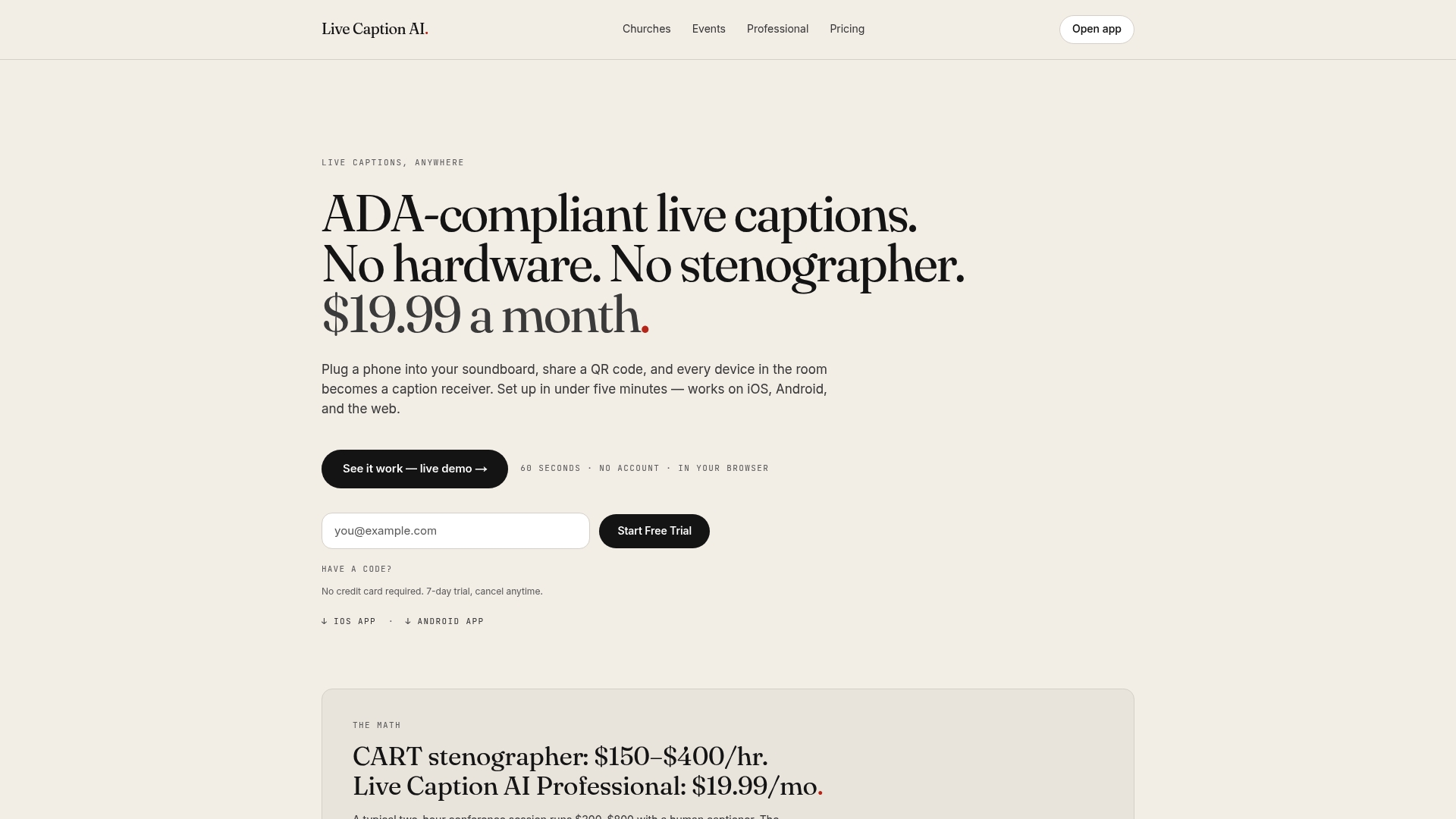
- Attendees scan a QR code and read captions on their own phone, with no app install and no account required.
- Medical, Worship, and Finance vocabulary models plus your own Custom Terms (up to 100 per session) cut down on garbled names and jargon.
- Translation into one of 29 languages per session keeps non-English-speaking attendees included without extra hardware.
If you’re weighing a dedicated setup against built-in options, our pricing page lays out the Free, Professional, and Business tiers so you can compare what fits your event.
FAQ
How do I get Chinese captions on my phone or laptop?
Turn on your device’s built-in captioning feature (Android Live Caption or Windows 11 Live Captions), select the correct Chinese variant, and grant microphone access. For meetings, check whether your platform offers translated captions that you can enable from the settings menu.
What makes a good Chinese caption setup for social videos?
Keep captions short, match them to natural speech pauses, and choose the variant (Simplified or Traditional) your audience actually reads. Testing captions on a sample clip before posting catches variant mismatches early.
How do I get live translated captions during a call or meeting?
Check if your meeting platform supports translated captions, since availability often depends on the viewer’s settings rather than the host’s. Google Meet’s help documentation walks through enabling this on supported accounts.
What’s the best option for live Chinese translation during events?
For events with mixed devices, a QR-code-based captioning service avoids depending on every attendee’s phone supporting the same built-in feature. Dedicated services also let organizers centralize custom terms and language variant settings across the whole room.
Do I need a recent phone for Chinese live captions to work?
Yes, device-native translation features typically require newer hardware. Google’s documentation specifies Pixel 6 or newer for Live Translate, and Microsoft’s Copilot+ PCs are required for broader translation support in Windows.
Sources
- Live Caption: Caption media & calls on your device - Android Accessibility Help
- Live captions — Microsoft
- Use translated captions in Google Meet - Computer - Google Meet Help