September 17, 2026 · 10 min read
Host Checklist: Webinar Captions That Meet ADA Needs and Catch Jargon
Set up webinar captions hosts can trust. Follow host steps, ADA aware rules, and try a domain trained option (Free or $19.99/mo) that catches specialized...
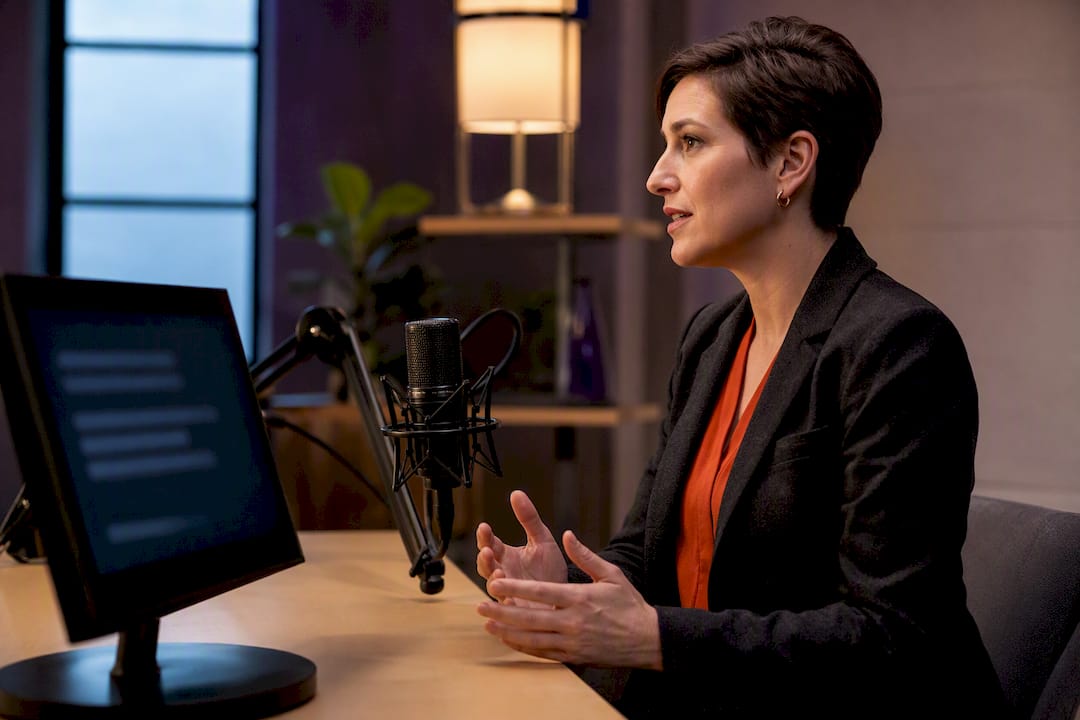
Live and on-demand webinar captions are standard features on most major platforms today. Turn on automated captions for everyday accessibility, but switch to CART or a domain-trained service like Live Caption AI when the event involves legal accommodation requests, medical or technical vocabulary, or audiences who need translation. Platform captions handle general speech well, though accuracy alone doesn’t satisfy ADA obligations in every situation.
TL;DR:
Automated captions are suitable for general accessibility, but domain-trained services like Live Caption AI provide higher accuracy for medical, or technical vocabulary. You can also add the jargon, names, and acronyms from your deck as Custom Terms before you go live.
Enabling captions requires setting permissions and language preferences before the webinar, with hosts controlling who can toggle or approve caption requests during the session.
Captions for on-demand replays are auto-generated and need manual editing; hosts can review and publish them alongside the webinar recording.
Automated captions are not guaranteed to meet ADA standards, especially in noisy environments or with specialized jargon, making manual or domain-trained captioning safer for compliance.
Live Caption AI seamlessly adds domain-specific captions via QR code without extra hardware and is recommended for high-stakes or regulated content where accuracy matters most.
Table of Contents
How Do You Enable Live Captions During a Webinar?
Start in your account or web portal settings before the event, not during it. Most platforms bury the automated captions toggle under meeting or webinar settings, and it needs to be switched on at the account level before it shows up as an option in a live session.
-
Log into your web portal and find the captions or accessibility settings section.
-
Turn on automated captions at the account or group level so the option appears during live sessions.
-
Decide who can enable captions — host-only, or open it up so co-hosts and panelists can toggle it too.
-
Set the spoken language before you go live, since caption engines need this to transcribe accurately.
-
Choose on-device processing if your connection is shaky. Zoom, for example, offers an on-device automated captions option built for low-bandwidth or lower-quality-audio situations, which keeps captions running even when your upload speed dips.
Run a five-minute rehearsal the day before. Check your mic levels, confirm the spoken language setting matches what you’ll actually say, and watch a caption preview to catch obvious mismatches.
Pro Tip: Rehearse with the exact microphone you’ll use live. Automated captions trained on a laptop’s internal mic often produce noticeably worse text once you switch to a lapel mic or headset on event day.

Who Controls Captions Once the Webinar Starts?
Hosts hold the steering wheel here, and knowing the controls before your session starts saves you from fumbling through menus while attendees wait.
-
Approve or decline requests. If you’ve restricted who can enable captions, attendees see a “request captions” prompt, and you’ll get a notification to approve or ignore it.
-
Disable captions for everyone through the same in-meeting controls used to turn them on, useful if a captioning glitch is distracting from your content.
-
Restrict who can toggle captions so only you or your co-hosts can turn the feature on or off mid-session.
-
View and access transcripts live, scrolling back through what’s been said without waiting for the recording to process.
-
Download the transcript after the session ends for your records or for attendees who missed the live captions.
One caveat worth flagging: automated and manual captioning modes are often mutually exclusive on the same platform. If you’ve booked a professional captioner, disable automated captions first so the two systems don’t compete for the same caption window.
Can You Add Captions to a Recorded Webinar Replay?
Yes, and the process runs separately from your live caption setup. Several platforms auto-generate subtitle tracks once a recording finishes processing, then hand you an editing pass before publishing.
-
Let the platform auto-generate the subtitle track after your recording finishes rendering.
-
Review and edit the draft captions, since automated subtitle generation on replays still needs a human pass to catch names, acronyms, and misheard phrases.
-
Publish the corrected caption track alongside your replay link so on-demand viewers see captions by default, not as an opt-in extra.
-
Download the caption file (usually SRT or VTT) if you need it for archiving, translation, or repurposing the transcript into a blog post or show notes.
If your webinar was pre-recorded but delivered “live,” your prepared transcript can often feed the caption engine directly, skipping the ASR guesswork entirely.
How Do You Customize Caption Display and Language?
Attendees don’t all want the same caption experience, and most platforms give them some say in it.
-
Font size and color are usually adjustable from the attendee’s own caption settings menu, not something a host controls remotely.
-
Pop-out caption windows let viewers drag captions to a second monitor or reposition them so they don’t sit directly over shared slides or a demo.
-
Spoken caption language is a host-side setting, and it matters more than most organizers realize. Caption accuracy hinges heavily on that setting matching what’s actually being said, so a Spanish-speaking presenter on an English-language toggle will produce garbled text no matter how clear their audio is.
-
Translated captions are typically limited to specific account tiers or add-on packages, so check your plan before promising multilingual captions in your event marketing.
Pro Tip: Ask one attendee during your rehearsal to pop out their caption window and report back on whether it blocks your slides. A caption bar sitting over a chart or code sample defeats the whole purpose of adding it.
When Do Automated Captions Fall Short of ADA Requirements?
Automated captions are a convenience feature, not a compliance guarantee. Several factors push accuracy up or down on any given call:
-
Background noise or multiple people talking over each other
-
Regional accents the speech engine wasn’t trained on
-
Industry jargon, drug names, legal terms, or acronyms specific to your field
-
Poor microphone quality or a spotty internet connection
The compliance gap: Automated captions do not automatically qualify as an ADA accommodation, because accuracy varies with exactly the conditions listed above. When an attendee has formally requested captioning as an accommodation, or when your event covers regulated medical or legal content, CART or a manual captioner is the safer route.
Write your captioning approach into your event materials ahead of time. A one-line accessibility statement, similar to the examples in this web accessibility statement guide, documents what you offered and protects you if accuracy is ever questioned later.
How Do You Fix Common Captioning Problems Fast?
Most caption failures trace back to audio, not the captioning engine itself.
-
Check your mic first. A dedicated USB or lapel mic consistently outperforms a laptop’s built-in mic for caption accuracy.
-
Cut background noise by muting non-speaking panelists and closing windows or fans.
-
Update your platform app before the event; caption engines get quiet accuracy improvements in routine updates.
-
Send speakers a vocabulary list in advance if your topic uses uncommon terms, acronyms, or names.
-
Enforce one-speaker-at-a-time etiquette, since overlapping voices confuse even strong automated captions.
Pro Tip: Keep a printed or digital list of speaker names and titles handy. If you’re recording for replay, you can use it to fix misheard names during your caption editing pass instead of guessing later.
How Does Live Caption AI Fit Into a Webinar Workflow?
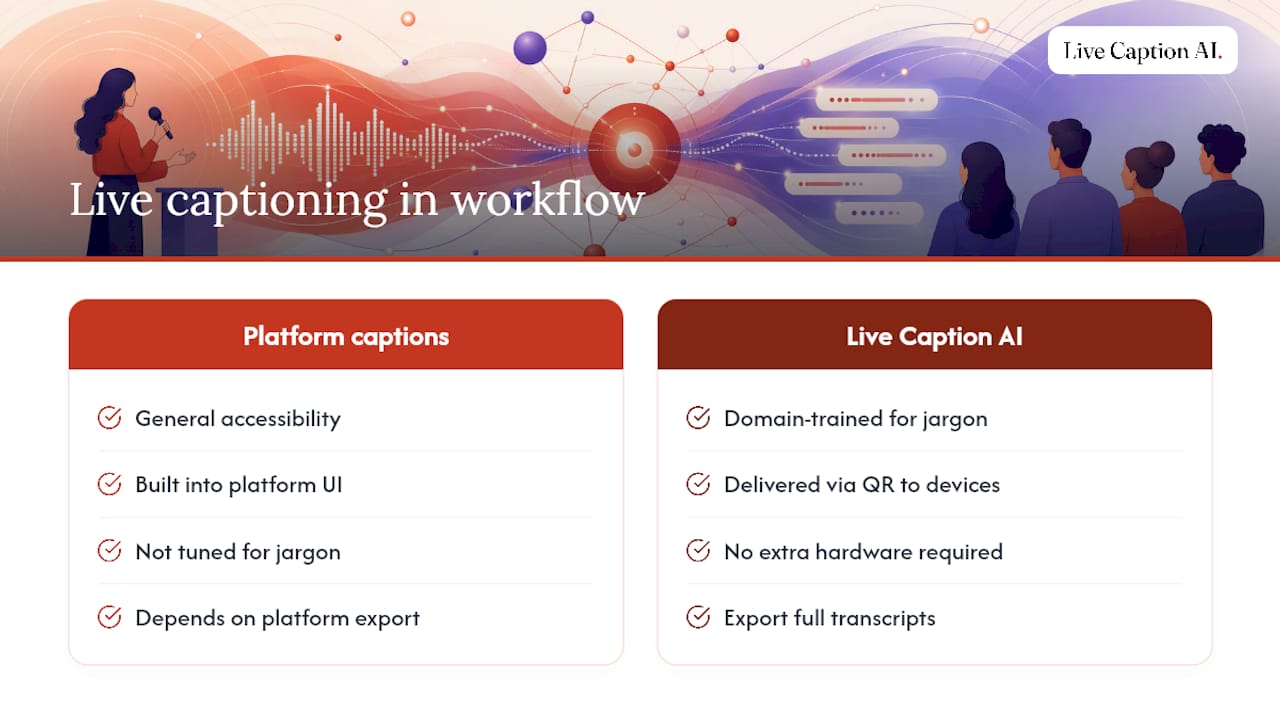
Platform captions cover general accessibility well. For medical, legal, and technical events with vocabulary that trips up generic speech engines, Live Caption AI runs domain-trained models tuned to catch specialized terminology, delivered to any attendee device through a QR code without requiring extra hardware. Hosts can export full transcripts after the session for records or repurposing, and the setup runs alongside your platform’s native captions rather than replacing your existing workflow. Related setups appear in these webinar live captioning posts.
What Actually Determines Which Captioning Method You Need?
Three questions decide this, in order: Has anyone formally requested captions as an accommodation? What’s your audience’s tolerance for occasional misheard words? And how specialized is your content’s vocabulary? A general marketing webinar with a clear speaker rarely needs anything beyond automated captions. A medical training session with an attendee who requested accommodation is a different calculation entirely, and I’d default to a higher-accuracy service every time stakes like that are on the table.
— Ryan
Try Live Caption AI for Your Next Webinar
Automated platform captions get you general accessibility, but they weren’t built to catch a drug name, a legal term of art, or a technical acronym on the first try. Live Caption AI uses models trained on domain-specific vocabulary and delivers captions to any attendee’s device through a QR code, requiring no extra hardware or stenographer booking.
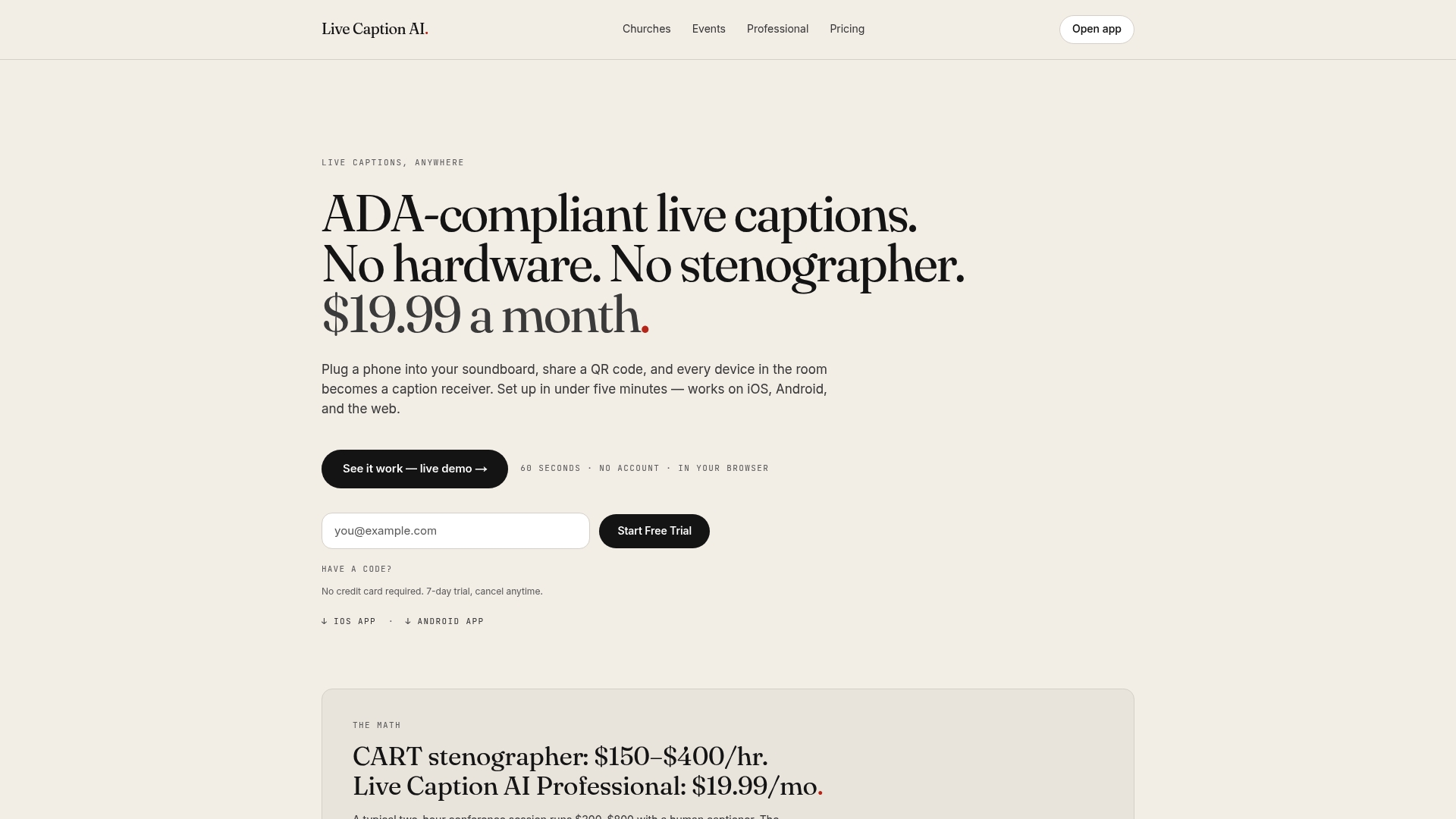
You can start with the Free plan to see how it runs alongside your existing platform captions, or move to the Professional plan available for a monthly subscription once you need the full feature set. Run it during your next rehearsal, export the transcript afterward, and compare it against your platform’s automated captions to see the difference on your own content. Check current plans and pricing before your next event.
Sources
Setup steps and host controls draw on Zoom’s automated captions guidance and Zoom’s caption viewing and permissions article. ADA context comes from the University of Michigan’s captioning tools page, and replay workflows reference webinar.net’s subtitle generation guide. Broader accessibility standards appear in this WCAG-based accessibility checklist.
FAQ
How Do I Caption a Zoom Webinar?
Turn on automated captions in your web portal settings before the event, then enable them from the in-meeting controls once you’re live. Hosts can also restrict who is allowed to enable captions, letting attendees request the feature if it’s turned off by default.
How Do I Caption a Teams Meeting?
Live captions in Microsoft Teams turn on through the in-meeting “more options” menu during the call, similar to how Zoom handles the feature through its own controls. Spoken language settings work the same way across platforms: set the language before you start talking, not after.
What Are Onscreen Captions?
Onscreen captions are the real-time text overlay showing what’s being said during a live webinar or meeting, generated either automatically through speech recognition or manually by a human captioner. They differ from closed captions on a recording, which are baked into the video file itself for on-demand viewing.
Do Captions Turn On for Everyone in Zoom Automatically?
No. A host has to enable automated captions at the account level first, and then decide whether attendees see them by default or need to request captions themselves if the host restricted who can turn them on. Each attendee can also adjust their own font size and display settings once captions are active.
Does Live Caption AI Work Alongside My Platform’s Built-In Captions?
Yes. Live Caption AI runs as a domain-trained layer delivered through a QR code to attendee devices, which hosts typically use for medical, legal, or technical content where platform captions miss specialized vocabulary. Pricing starts on the Free plan, with the Professional tier at $19.99 a month for full features.