November 15, 2026 · 13 min read
Projector Captions: Show Live Captions to the Whole Room
How to show live captions at a church or event: what to put on the projector, how to make text readable, and why a QR code gets captions onto every phone.

Projector captions are live text of what a speaker says, displayed on a big screen so everyone in the room can read along. They work, but a single screen fails the people in the back row, the side aisle and the balcony. The stronger setup pairs the screen with a QR code so every attendee can also read captions on their own phone. With Live Caption AI, the speaker runs the session on a phone or laptop, attendees scan the QR code, and live captions appear on their phones. No app to install, no account, no hardware to rent, no stenographer to book.
TL;DR
- A projector shows captions to the room. A QR code puts the same captions in each person’s hand, which fixes bad sightlines and glare.
- Readable captions need big type, strong contrast (white or yellow on a dark background), mixed upper and lowercase, and enough time on screen to be read.
- Put the QR code on your projector slide or print it in the program. Attendees scan and read. Nothing to install.
- Live Caption AI’s Professional plan is $19.99 a month with unlimited captioning, and it translates into one of 34 languages per session.
- Live Caption AI is an AI captioning tool, not a certified or human-reviewed service. Some events call for human captioners, and the legal section below covers which.
Table of Contents
- What projector captions are, and when they help
- The simplest setup: QR code first, screen second
- Making captions readable in every seat
- Fixing common problems
- Translation: captions in a second language
- Transcripts, privacy and what happens after the event
- What the ADA means for captioning at your event
- Why it costs so little to try
- Promo: put captions on every phone in the room
- Our perspective
- FAQ
- Sources
What projector captions are, and when they help
A projector caption setup has three parts: a source of speech, software that turns that speech into text, and a screen that shows the text. At a church, the screen is often the same one that shows lyrics and sermon slides. At a conference, it might be a side screen next to the stage. In a classroom, it is the pull-down screen at the front.
This helps most when:
- A Deaf or hard-of-hearing person attends and needs to follow along in real time.
- The room is noisy, echoey or large, and speech is hard to catch for everyone.
- Many attendees speak English as a second language and read faster than they can listen.
- You want one shared view, so no one has to hold a device up.
The weak point is geometry. A screen has a best seat and a worst seat. People in the back may not read small text. People at a steep angle see glare. Someone who sits where a pillar or a tall head blocks the screen sees nothing. A phone fixes all of that, because the text sits a foot from the reader’s eyes and can be enlarged.
The New York State guide to working with captioners makes the same point. It tells event hosts to set up a screen and projector ahead of time, and for large events to create a QR code so attendees can view captions on their own devices if the screen is hard to see. Screen plus QR code is the standard answer, not a workaround.
The simplest setup: QR code first, screen second
Traditional live captioning for a room often means booking a captioner, renting a display, running cables and testing audio feeds. If you are a church on a volunteer budget or an organizer replacing a cost that keeps growing, that is a lot of moving parts. (If you want to see how those costs add up, our breakdown of CART captioning costs puts numbers on it.)
Here is the lighter route with Live Caption AI:
- Open Live Caption AI on a phone or laptop. The speaker or a tech volunteer runs it. Nothing else to buy or rent.
- Pick a vocabulary model. Choose Worship & Ministry for services, Medical for health talks, or Finance & Earnings for investor and business events.
- Add Custom Terms. Type in up to 100 names, places and terms before going live: your pastor’s name, a guest speaker, a product, a neighborhood. Generic speech-to-text tends to garble these, so this step is worth five minutes.
- Choose a translation language if you need one. You pick one source language and one target language per session, from 34 languages.
- Start the session and show the QR code. Put it on a projector slide at the start, print it in the bulletin, or put it on a sign at the door.
- Attendees scan and read. Captions appear on their phones. They do not install an app or create an account.
That is the whole kit. The projector still does useful work: it carries the QR code, so late arrivals can scan at any point in the event.
Making captions readable in every seat
Whatever shows the text, readability decides whether captions help. The same New York State guide lists display standards worth treating as a checklist:
- Size: the font should be big enough to read from the farthest seat.
- Contrast: a dark background with white or yellow text is preferred.
- Case: mixed upper and lowercase, not all caps.
- Lighting: avoid glare on the screen.
- Timing: captions stay on screen long enough to be read.
You can find these in the state’s captioning best-practices guide. Two more habits from the same guide help: do not cover important on-screen content, such as a sign language interpreter, with captions or slides, and include non-spoken audio descriptions where appropriate.
A quick room check
Before doors open, walk to the worst seat in the room and look at the screen. Then scan the QR code on your own phone from that seat. If the screen is hard to read from there, you have your answer about where the phone view matters most. Mention it from the stage in one sentence: “Captions are on the screen, and you can scan the code to read them on your phone.” People will not use what they do not know exists.

Fixing common problems
Most caption problems at live events come from a short list.
| Problem | Likely cause | Fix |
|---|---|---|
| Names and terms come out wrong | Generic vocabulary | Pick the right model and add up to 100 Custom Terms before you start |
| Text lags or drops words | Distance from the speaker, room noise | Keep the phone or laptop close to the speaker or the sound source |
| Attendees cannot connect | Weak venue Wi-Fi or cell signal | Test the QR code from the back of the room first |
| Captions hard to read on the screen | Small font, low contrast, glare | Use large type, white or yellow on dark, and dim the lights near the screen |
| Guests speak another language | Source language only | Choose one target language from 29 and let viewers switch between original and translation |
Test early. Run the full flow once with a volunteer reading from a seat in the back. It takes ten minutes and saves the awkward moment of a QR code no one can scan.
Translation: captions in a second language
For churches with a bilingual congregation and AV companies running multilingual events, translation is often the reason to start captioning at all. With Live Caption AI, the speaker picks one source language and one target language for the session, from 34 languages. Viewers can switch between the original text and the translation on their own phones.
Two things to plan for:
- One target language per session. If you serve two additional language groups, plan which language each session targets.
- Text only. The translation appears as captions. It is not spoken audio.
Translation credit packs are also available as one-off purchases: 30 credits for $6.99, 60 credits for $11.99 and 120 credits for $19.99. See the pricing page for current details.
Transcripts, privacy and what happens after the event
Captions do not have to disappear when the session ends. Every session’s transcript is saved automatically to the speaker’s account. Transcripts are readable only by the speaker, and the speaker can delete a transcript from History at any time. Session audio is never stored.
From the saved transcript you can export TXT, SRT, JSON or PDF files. AI summaries are included, which helps a church send a sermon recap or an organizer share session notes. Use those exports for people who missed the event or want to review.
For a health talk, community seminar or general education session, the Medical model helps with vocabulary. Keep patient-specific or case-specific conversations out of the session.

What the ADA means for captioning at your event
The Americans with Disabilities Act (ADA) requires that communication with people with disabilities be as effective as communication with everyone else. This is called effective communication. Captions are one way to meet it. What counts as effective depends on the people attending and the content.
UW-Madison’s accessibility guidelines, updated in July 2025, give a clear picture of how one large institution applies the rule. The guidelines call for human-generated captions for live events expected to have more than 200 participants, for public safety or emergency information, for legal, financial or medical information, for events needing immediate follow-up, and for events where participants are known to need captions. They also say captions must be accurate, identify speakers and non-spoken sounds, display in sync, stay up long enough to read, and be large enough and unblocked.
What this means in practice:
- If someone tells you they need captions, ask what works for them and plan for it before the event.
- For events in the categories above, decide in advance whether you need a human captioner. Live Caption AI is an AI captioning tool, not a certified or human-reviewed service, and it does not make an organization ADA-compliant on its own.
- For the many everyday gatherings outside those categories, such as services, meetings, classes and community events, Live Caption AI can be part of your ADA effective-communication plan.
This is general information, not legal advice. For a specific obligation, ask your organization’s attorney or your state’s ADA resources.
Why it costs so little to try
A human captioner for a single event can run into hundreds of dollars an hour, and that adds up for a church that meets every week. Live Caption AI’s plans are monthly:
- Free: basic on-device captions.
- Professional: $19.99 a month, with unlimited captioning.
- Business: from $199 a month, for larger teams and AV companies running many events.
Paid plans unlock cloud-based features, including the vocabulary models, translation and transcripts. There is no hardware to rent and no per-event booking fee.
Promo: put captions on every phone in the room
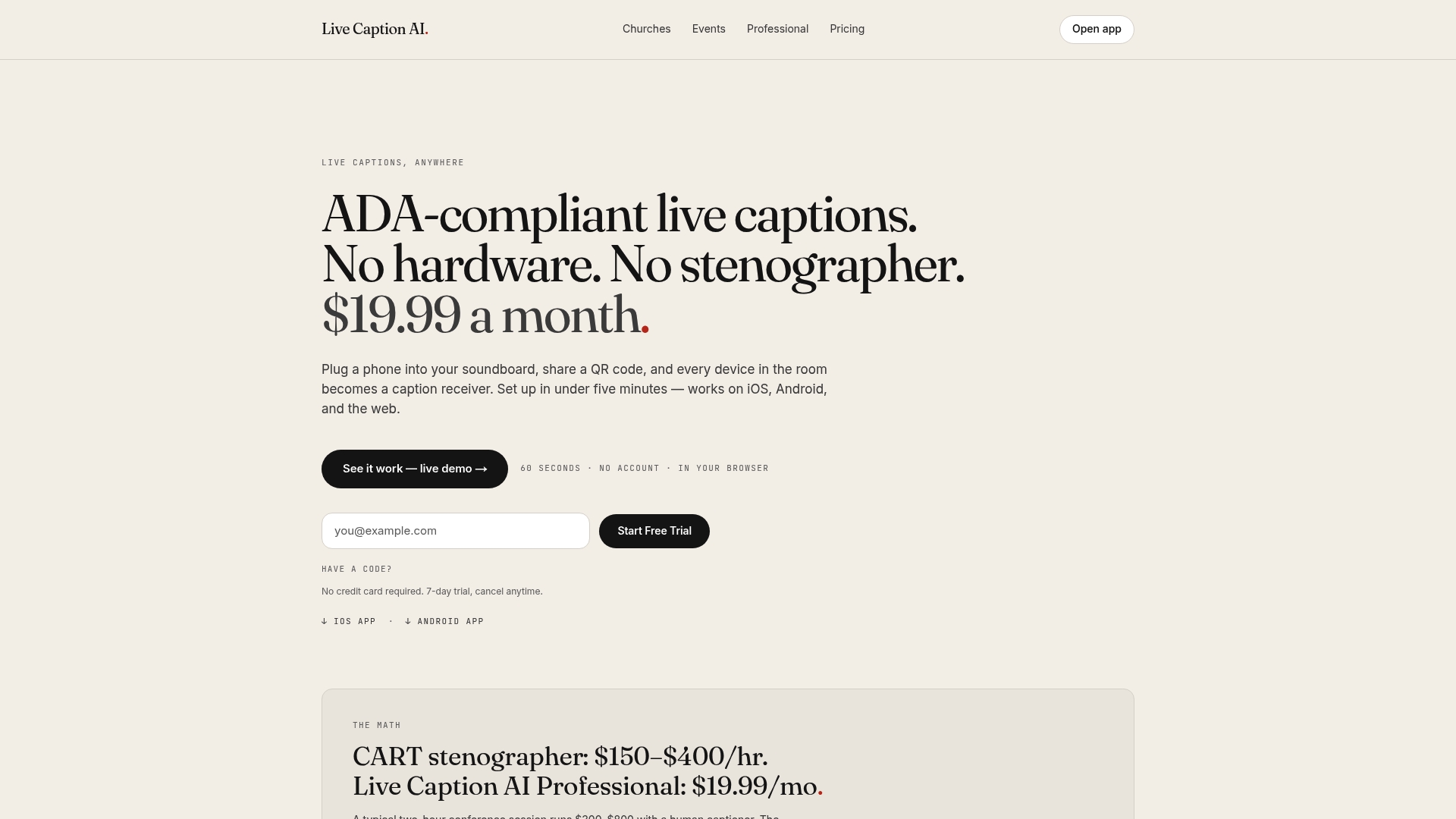
If your projector is the only caption display you have, the back row is reading blurry text, or none at all. Live Caption AI puts live captions on every phone in the room through a QR code. The Professional plan is $19.99 a month with unlimited captioning, Worship & Ministry, Medical and Finance & Earnings models, up to 100 Custom Terms and translation into one of 34 languages per session.
For settings with medical, legal or other professional content, see how Live Caption AI works in professional settings. To compare plans, visit the pricing page. Explore Live Caption AI.
Our perspective
We built Live Caption AI around one idea: the screen is not where people read captions best. Their phone is.
A projector is fixed. It sits at one angle, at one size, in one spot. Every person in the room has a different view and a different need. A phone moves with the reader. Someone can sit in the balcony, in an overflow room or in the back pew, and still read at their own size.
That is why we skipped hardware and stenographer booking. A volunteer can start captions from a phone or laptop. Attendees scan a QR code. No app, no account. A church that could never justify a captioning line item can caption every service. An organizer who used to pay per event can caption all of them.
We also know vocabulary decides whether captions are useful. A pastor’s name, a medication, a ticker symbol: those are the words people stumble over. So we offer Medical, Worship & Ministry and Finance & Earnings models, plus up to 100 Custom Terms you type in before you go live. For multilingual events, one source language and one of 34 target languages per session, and viewers can flip between the two.
And we keep the privacy simple. Session audio is never stored. The transcript goes to the speaker’s account, only the speaker can read it, and the speaker can delete it from History.
Ryan
FAQ
Can I show live captions on a projector screen?
Yes. A projector is a common way to share captions with a whole room. Pair it with a QR code so attendees who cannot see the screen well can read captions on their own phones. With Live Caption AI, you can put the QR code on a slide and attendees scan it to follow along.
What makes projected captions easy to read?
Use large type, high contrast such as white or yellow on a dark background, mixed upper and lowercase, and low glare. Captions should stay on screen long enough to be read. New York State’s captioning guidance lists these same standards.
Do attendees need to install an app?
No. With Live Caption AI, attendees scan a QR code and read live captions on their own phones. No app to install and no account to create.
Can captions be translated for a multilingual audience?
Yes. The speaker picks one source language and one target language per session, from 34 languages. Viewers can switch between the original text and the translation.
Is Live Caption AI enough to meet ADA requirements?
It can be part of an organization’s ADA effective-communication plan, but it does not make an organization ADA-compliant on its own. It is an AI captioning tool, not a certified or human-reviewed service. Some events, such as very large ones or those with legal, financial or medical content, may call for human-generated captions under institutional guidelines.
Sources
- Best Practices for Working with a Communication Access Real-Time Translation provider, State of New York, July 2025
- Content accessibility guidelines, UW-Madison Accessibility, July 2025