November 12, 2026 · 15 min read
Large Audience Captions: How to Caption a Big Room
How to provide live captions for a large audience: setup, accuracy, human vs. AI options, translation and cost, plus a QR-code approach that works on every phone.

Captioning a large audience means getting accurate live text to every person in the room, not just the front rows. You have two main routes: a human captioner (CART) or AI captions. You also need a way to show the text so everyone can read it. With Live Caption AI, the speaker runs the app on a phone or laptop, and attendees scan a QR code to read captions on their own phones. No app. No account. No hardware to rent.
This guide is about live, spoken captions at churches, conferences, classes, and public meetings. It is not about social media captions. It covers setup, accuracy, when to bring in a human captioner, translation, and cost.
TL;DR
- Live captions turn spoken words (and key sounds) into text in real time. Plan them early, with the audio feed and the display method in mind.
- Phones solve the “big room” problem. Everyone reads on their own screen, at their own size, from any seat.
- Clean audio matters most. A good microphone, a steady pace, and names and terms loaded in advance all raise accuracy.
- Use AI captions as a layer in your accessibility plan. When someone requests a specific accommodation, talk with them about what they need, which may mean a human captioner.
- Live Caption AI Professional is $19.99 a month with unlimited captioning, and translation goes into one of 29 languages per session.
Table of Contents
- What live captions for a large audience actually involve
- Three ways to show captions to a crowd
- Setting up live captions, step by step
- How accurate are AI captions, and how do you improve them?
- AI captions, human captioners, or both
- Perspective: why we built captions around the phone
- Captions for multilingual audiences
- What it costs to caption a big event
- After the event: transcripts and summaries
- Try it with your next event
- FAQ
- Sources
What live captions for a large audience actually involve
Social captions are text under a post. Live captions are different. They run as someone speaks, and people rely on them to follow the event as it happens.
The W3C’s guidance on live captions says captions should cover all live audio in synchronized media. That includes spoken dialogue and also equivalents for sound effects, music, laughter, and speaker identification. For a keynote or a sermon, the practical point is simple: people need to know who is talking and what is happening, not only the words.
A big audience adds three problems:
- Distance. People in the back can’t read a small screen across a room.
- Variety. A large crowd is more likely to include people who are deaf or hard of hearing, people who speak another first language, and people who just can’t hear well in a big space.
- Lead time. The RMTC-DHH captioning guide notes that large events such as conferences, public meetings, and graduations often draw a diverse audience. It also says accommodations are much easier to plan at the start than to arrange at the last minute.
So start with the questions that decide everything else. How many people? Is the event in person, hybrid, or streamed? How will the captioning system hear the speaker? Is Wi-Fi or cellular service reliable in the venue? How will people view the text? The ACDHH captioning guidelines list these same factors: venue, format, expected attendance, streaming, audio access, Wi-Fi, and how the audience will see the captions.
Three ways to show captions to a crowd
| Method | How it works | Best for | Watch out for |
|---|---|---|---|
| Big screen or projector | One shared display at the front | Rooms with a clear sightline for everyone | Back rows, side seats, and anyone who needs larger text |
| Individual monitors or devices | Captions on a tablet, laptop, or phone | Seated audiences, small reserved sections | Hardware to supply and manage |
| Phones via QR code | Each person scans a code and reads on their own phone | Churches, conferences, classes, any open seating | Attendees need a signal and a charged phone |
The New York State CART best-practices guide says captions may appear on a big screen or on individual monitors or devices. Both are standard. The phone method is the one that scales with the least effort, because the audience already carries the display.
Why phones work well in big rooms
A phone sits in someone’s hand. They choose the seat that’s best for them, and the text is right there. People can read it when the room is loud or when they’re sitting far from the stage.
That is the idea behind Live Caption AI. The speaker starts a session. A QR code appears. Attendees scan it and the captions show up in their browser. We built it so a church volunteer or an event coordinator can set it up without a technician.
Setting up live captions, step by step
Whatever tool you use, the order is the same.
- Decide who needs what. Ask registrants or members about access needs early. Put a line on the invitation or sign-up form.
- Pick the captioning method. Human, AI, or both (see the next sections).
- Fix the audio. The NY guide recommends giving the captioner a direct, high-quality audio feed. The same rule applies to AI. Captions are only as good as the sound that goes in.
- Prepare vocabulary. Names, places, product terms, scripture references, drug names. Load them in before you start.
- Test the display. Check readability from the back of the room. Scan the QR code from several seats.
- Tell the audience. Put the QR code on a slide, a bulletin, or a sign at the door. Say out loud that captions are available.
- Plan the backup. Know what you will do if the Wi-Fi drops. Post a cellular option or a second access point.
A quick audio checklist
- Use a headset or lapel microphone, not a laptop mic across the room.
- Ask speakers to talk at a moderate pace and pause between speakers.
- Reduce background noise: close doors, mute unused mics.
- Have panelists use the microphone, and repeat audience questions before answering.
Boston University’s guidance on automated captions recommends a headset or dedicated microphone, taking turns, and speaking slowly. These habits cost nothing and help every captioning method.
How accurate are AI captions, and how do you improve them?
Accuracy depends on the room more than on any promise. Research summarized in the RMTC-DHH guide puts automatic caption accuracy around 60 to 70% in the study it cites (Enamorado, 2020). The same guide also points to a 2022 comparison of industry leaders with rates between 69% and 88% for high-resource languages. Tools keep improving, but conditions still swing results a lot.
UGA’s accessibility team notes that built-in captions on video-conferencing platforms vary with jargon, accents, multiple speakers, and background noise. That list tells you where to put your effort.
Five ways to raise accuracy
- Better microphones. The single biggest gain.
- One speaker at a time. Overlapping voices confuse any system.
- Slow, clear delivery. Not robotic. Just steady.
- Spell out jargon and acronyms in your slides or notes.
- Add names and unusual terms before the event.
That last step is where we focus. Generic speech-to-text often garbles names and specialized words. Live Caption AI includes:
- A Medical model
- A Worship & Ministry model
- A Finance & Earnings model
- Custom Terms: up to 100 names, places, and terms the speaker types in before going live
If your pastor mentions Habakkuk, your keynote speaker has a name no one can spell, or your finance lead says a ticker symbol, add it to Custom Terms first. Then go live.
To be clear about what the tool is: Live Caption AI is an AI captioning tool. It is not a certified or human-reviewed service. It is not designed for courtroom or clinical use. Pick it for the settings it fits: services, classes, meetings, town halls, conferences, and community events.
AI captions, human captioners, or both
This is the decision most organizers get stuck on. Here’s a clear way to think about it.
Human captioners (CART) are trained professionals who caption live, on site or remotely. Infinite Creation’s live captioning tutorial describes human captioning as more accurate, better with overlapping speech and accents, though it costs more and must be booked ahead. The NY guide says on-site CART should be arranged several weeks or months in advance because on-site captioners can be in short supply.
AI captions start instantly, cost far less, and work in any room where you can run the app. No scheduling. No travel. That’s why so many churches and small organizations use them every week.
Many universities describe a layered approach. Auburn’s accessibility office says automated live captions are recommended for large or public meetings, virtual trainings, and online lectures, and that human captioning should be provided when a participant requests captions as an accommodation. The University of Colorado Boulder’s Digital Accessibility Office goes further for public live-streamed events, asking for human-created captions there and for accommodation requests.
Here is a practical way to use that:
| Situation | A sensible approach |
|---|---|
| Weekly worship service, open to all | AI captions on every phone, with vocabulary loaded |
| Staff meeting, class, or town hall | AI captions for everyone; follow up if anyone asks for something specific |
| Conference with a registered attendee who requests captioning | Talk with the attendee about what works for them; book a human captioner if that is their need, and keep AI captions running for the whole room |
| Public live-streamed event with formal requirements | Follow your own policy and legal counsel; add human captioning where it calls for it |
The value of AI captions in that table is coverage. A human captioner usually serves a request. AI captions reach everyone at once: the person who didn’t tell you they need them, the guest with a hearing loss they don’t mention, the attendee sitting under a loud speaker. That is a real gain in access at a price any organization can afford.
What the law asks of you
In the U.S., the ADA expects covered organizations to provide effective communication. Captions are one of the auxiliary aids that can help. The RMTC-DHH guide explains that organizations or projects receiving federal funding are tasked to provide auxiliary aids and services, including captions, for equally effective communication, and that live event captioning can be situational.
Live Caption AI can be part of your effective-communication plan. It does not make an organization ADA-compliant on its own, and there is no such thing as an “ADA-certified” tool. Ask your attorney or compliance officer how your plan should handle individual requests.
Perspective: why we built captions around the phone
We started with a simple observation. Most rooms already have hundreds of captioning screens in them. They’re in people’s pockets.
Renting hardware for a big room is expensive, and booking a stenographer for every weekly service or monthly meeting isn’t realistic for most churches and small teams. So we made the phone the receiver. The speaker runs Live Caption AI on a phone or laptop. Attendees scan a QR code. That’s it. No app to install. No account to create.
We also think accuracy is a setup problem you can solve. That’s why we added a Medical model, a Worship & Ministry model, and a Finance & Earnings model, plus up to 100 Custom Terms you type in before you go live. Names and specialized words are where generic captions break down, so that’s where we put our effort.
And we think privacy should be simple. Session audio is never stored. Every session’s transcript is saved automatically to the speaker’s account, readable only by the speaker, and the speaker can delete it from History at any time.
If you run a large room on a small budget, you shouldn’t have to choose between access and affordability. That’s what we’re here for.
Ryan
Captions for multilingual audiences
Large audiences are often multilingual. Captions in the speaker’s language help many people, but they don’t help someone who doesn’t read that language.
UW–Madison’s accessibility team points out that foreign languages commonly aren’t translated by auto-captions, which can leave a barrier. They advise verifying participants’ language needs ahead of time.
Live Caption AI adds live translation to the same QR experience:
- The speaker picks one source language and one target language per session.
- There are 29 target languages to choose from.
- Viewers can switch between the original captions and the translation on their own phones.
Two limits to plan around. A session has one target language, so if your audience needs two, find out which language is most requested and choose that one. And translation is text on screen, not spoken audio.
Plan your written materials too. Handouts, signs, and registration pages work well when they’re prepared in advance, and professional translation services can cover documents in many languages. Live captions then handle the spoken part of the event.
Translation uses credits. Credit packs are one-off purchases: 30 credits for $6.99, 60 credits for $11.99, and 120 credits for $19.99. See the pricing page for how plans and credits work together.

What it costs to caption a big event
Cost depends on the method, the length, and the lead time.
- On-site human captioning: typically the highest cost, plus scheduling and travel.
- Remote human captioning: the NY guide says remote CART may provide cost savings when event sound is clear and the internet connection is strong.
- AI captions: a flat monthly subscription instead of a per-event fee.
Here is what Live Caption AI plans look like, as published on our site:
| Plan | Price | What it’s for |
|---|---|---|
| Free | No published price | Basic on-device captions |
| Professional | $19.99 per month | Unlimited captioning, cloud features, custom vocabulary, translation, transcript export |
| Business | From $199 per month | Larger organizations; see the pricing page for details |
If you caption a service every week, plus a few meetings and events, one flat plan covers all of it. Check current plan details before you decide.
After the event: transcripts and summaries
Captions don’t have to disappear when the session ends. In Live Caption AI:
- Every session’s transcript is saved automatically to the speaker’s account.
- Transcripts are readable only by the speaker.
- Speakers can delete a transcript from History whenever they choose.
- Transcripts export as TXT, SRT, JSON, or PDF.
- AI summaries are included.
- Session audio is never stored.
The RMTC-DHH guide recommends reviewing and editing auto-generated transcripts after meetings. If you plan to post a transcript for people who missed the event, give it a quick read first and fix any names or terms.
Try it with your next event
If you want captions on every phone in the room without hardware, a stenographer, or an app for attendees, Live Caption AI is built for that. Set up your Custom Terms, pick your model, and share the QR code. Professional is $19.99 a month with unlimited captioning.
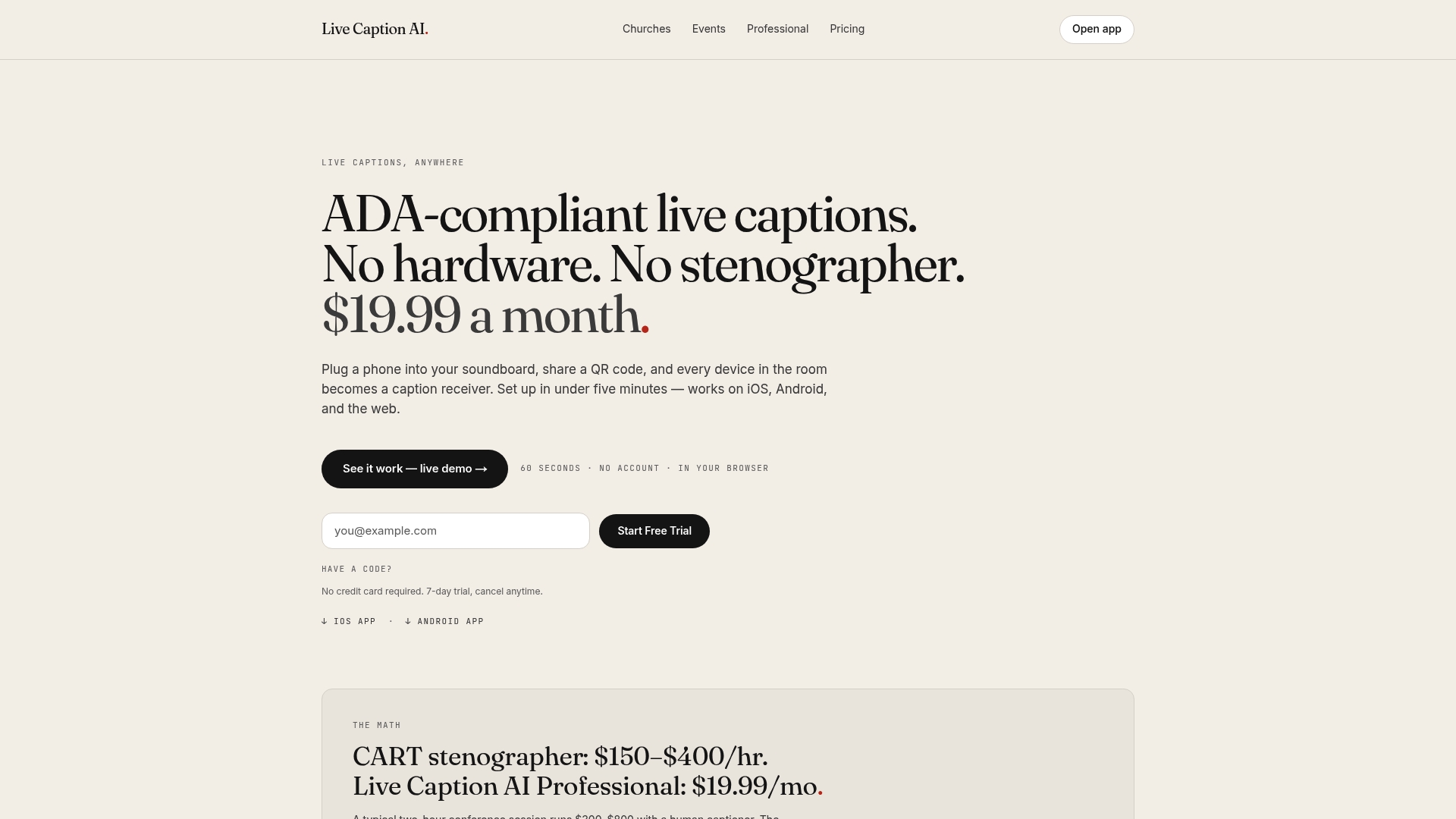
No hardware. No stenographer. Explore Live Caption AI, or see plans and pricing. Running webinars? Browse our posts on live captions for webinars.
FAQ
How do I provide captions for a large audience?
Plan early, then pick how people will see the text: a shared screen, individual devices, or their own phones. With Live Caption AI, the speaker starts a session and attendees scan a QR code to read captions on their phones. Use a good microphone and load names and terms first.
Do attendees need to install an app or make an account?
No. They scan the QR code and read captions in their phone’s browser. There is nothing to install and no account to create.
Are AI captions enough for my event?
They work well for churches, classes, meetings, and conferences, and many universities recommend them for large or public meetings. If someone asks for a specific accommodation, talk with them about what they need, which may include a human captioner. Live Caption AI is an AI tool, not a certified or human-reviewed service, and it is not for courtroom or clinical use.
Can I caption an event in more than one language?
Each session has one source language and one target language, chosen from 29. Viewers can switch between the original and the translation. If you need a second language, run a separate session or plan another solution for that language.
What happens to my transcript and audio?
Session audio is never stored. The transcript saves to the speaker’s account, readable only by the speaker, who can delete it from History at any time.
Sources
- W3C: Understanding Success Criterion 1.2.4, Captions (Live)
- New York State: Best Practices for Working with a Communication Access Real-Time Translation Provider
- ACDHH: Guidelines for Captioning Services
- RMTC-DHH Captioning Considerations Guide
- UGA DASH: Live Captions
- Boston University TechWeb: Automated Captions
- Infinite Creation: Live Captioning for Streams and Events
- Auburn University OACP: Video and Audio
- University of Colorado Boulder: Live Captioning
- UW–Madison Digital Accessibility: Live captioning and sign language interpreting
- Stellar Translations: Translation services