October 5, 2026 · 10 min read
Get Telehealth Captions for Patients, Ask When You Book, No Audio Storage
Steps patients can use to get live captions for telehealth: request captions when you book, check privacy and storage options, and confirm language and...

The fastest way to get captions on a telehealth visit is to request them when you schedule, then pick the method that fits the visit’s complexity: platform automated captions or device Live Captions for routine checkups, a third-party caption service for group or multi-device visits, and human CART or an interpreter for anything high-stakes. Confirm the setup works before the appointment starts.
Table of Contents
-
What methods provide live captions during a telehealth visit
-
Privacy and HIPAA: what to check about transcripts and storage
-
Pre-appointment and in-call checklist to verify captions work
What methods provide live captions during a telehealth visit
Several approaches exist, and each fits a different kind of visit. Knowing the differences helps you pick the right one and ask your provider the right question.
Zoom’s built-in captioning is the one most patients run into first. Zoom’s support documentation shows how automated captions work, including translated captions for mixed-language visits, but the host controls who can turn them on. If your doctor’s office hasn’t enabled captions on their end, you may not be able to switch them on yourself.
Device-level captions work differently: they live on your phone, not inside the call software. Apple’s Live Captions transcribe FaceTime calls and nearby audio on iPhone 11 and later, independent of what platform the clinic uses. Apple is direct about the limits: accuracy varies, and the feature isn’t meant for emergency or high-risk situations.
For complex or sensitive visits, human captioning beats any automated option. CART captioners and Video Remote Interpreting (VRI) services produce near-perfect transcripts and handle medical terminology, idioms, and fast speech far better than speech recognition alone.
Third-party captioning software fills a different gap: broadcasting captions to several patient devices at once, useful when a visit includes a patient, a family member, and an interpreter all viewing the same screen.
-
Platform captions (Zoom, etc.): built into the call, but host-dependent and sometimes restricted.
-
Device captions (iPhone Live Captions): work regardless of platform, best for one viewer, limited by device and language support.
-
Human CART/VRI: highest accuracy, best for complex or high-stakes appointments.
-
Third-party caption services: broadcast to multiple devices, useful for group visits or clinics serving varied patient needs.
How and when to request captions from your provider
Timing matters as much as wording. HHS guidance on nondiscrimination in telehealth makes clear that providers must supply auxiliary aids like captioning at no cost, and that they can’t shift that responsibility onto you by requiring you to bring your own captioner.
-
Request captions when you book the appointment, not the day before.
-
Follow up in any pre-appointment message or patient portal note, restating exactly what you need.
-
Ask which platform will be used and whether captions will already be turned on when you join.
-
Confirm the spoken language setting matches how your provider will actually speak.
-
If declined, ask to speak with the practice’s patient access or ADA coordinator, and reference HHS’s guidance directly if needed.
A few short phrases make the request unambiguous:
-
“Please enable CART captioning for my visit; I need a qualified live captioner, not just automatic captions.”
-
“Please turn on automated captions in [platform] before the call starts.”
-
“Can you send a link or QR code I can scan on my phone to view captions during the visit?”
Pro Tip: Put your request in writing, even a one-line portal message, so there’s a record if the accommodation doesn’t show up on the day.
Ask directly who is responsible for enabling captions on the clinic’s side, whether the transcript gets saved anywhere, and what language the system expects. If your provider refuses outright, that may be worth escalating. OCR’s April 2026 enforcement notice reinforces that effective communication, including real-time captioning when needed, isn’t optional for covered providers.
Privacy and HIPAA: what to check about transcripts and storage
Captioning touches protected health information the moment a provider’s voice becomes text, so privacy details deserve a real look before your visit, not after.
The key distinction is whether a captioning vendor is a “conduit” that passes audio through without storing it, or a service that retains transcripts or recordings. HIPAA guidance on audio-only telehealth notes that a vendor storing PHI typically needs a signed business associate agreement (BAA) with the provider; a vendor that only momentarily routes audio may not.
Before your appointment, it’s reasonable to ask:
-
Is the captioning tool processing audio on-device or sending it to the cloud?
-
Does the vendor store transcripts, and if so, for how long?
-
Who can access stored captions, and how are they deleted?
-
Does the provider have a signed BAA with the captioning vendor?
Many caption failures trace back to host and audio-routing settings rather than the captioning technology itself, meaning a phone dial-in or routed VoIP line can bypass captions entirely even when the feature is technically turned on.
If audio or transcripts are stored anywhere, ask about encryption and deletion policies before you agree to the call. A provider that can’t answer these questions clearly is worth a second question, not an assumption that everything’s fine.

Pre-appointment and in-call checklist to verify captions work
A short checklist catches most problems before they become a wasted appointment.
-
Confirm which platform the visit will use and ask whether host-side captions are already enabled.
-
Test your login to the patient portal or meeting link a day ahead, not minutes before.
-
Restate your caption request in writing once more, close to the appointment date.
-
If using device captions, turn them on and run a quick test call with a friend or family member.
-
Verify the spoken language setting matches your provider’s language.
-
Save a backup contact, phone number or portal message, in case captions fail and you need a fast fix.
Once the call starts, verify captions immediately rather than waiting:
-
Check that captions actually appear on screen within the first minute.
-
Read a few lines for accuracy. Garbled or delayed text is a sign to flag the issue right away.
-
If captions aren’t working or aren’t accurate enough for a complex topic, ask for a human captioner or interpreter to join, even mid-call.
How Live Caption AI can be used for telehealth
For visits involving multiple viewers or specialized vocabulary, a dedicated captioning service fills a gap that platform captions and device captions don’t always cover. We built Live Caption AI around a simple idea: turn any phone into a caption receiver, no hardware and no stenographer required.
For telehealth specifically, a few features are worth knowing about:
-
Patients and family members scan a QR code to view captions on their own phones, useful when more than one person needs to follow along.
-
Specialized vocabulary models and customizable terms help capture clinical terminology that generic speech recognition often misses.
-
Translation into one of 29 languages per session supports patients and families who communicate in a language other than the provider’s.
-
Session audio is not stored, which matters when a clinic wants to avoid retaining PHI longer than necessary.
Pro Tip: A tool like this tends to help most with group visits, multi-device audiences, or cost-sensitive clinics; for a single high-stakes diagnosis conversation, human CART or VRI is still the safer default. Learn more about engineering constraints and pilot projects for real-time call transcription on Monobot.
We don’t claim to replace a qualified interpreter when the situation calls for one. We’re built for the everyday visits where broadcasting clear, accurate captions to every phone in the room solves the actual problem.
Author’s practical view: reliable routes and trade-offs
If I had to boil this down to one habit: ask for captions the moment you book, every time, even for a visit that seems routine. For a standard follow-up or prescription refill, platform automated captions or iPhone Live Captions are usually enough, and they cost you nothing extra to request.
The trade-off shows up at the edges. A new diagnosis, a surgical consult, or anything with legal or financial weight deserves human CART or an interpreter, not an automated guess. Automated systems are good at routine conversation and bad at the moment a doctor says something that actually changes your treatment plan.
Verify host settings and privacy policies ahead of time. The appointment itself is not the place to discover captions were never turned on.
— Ryan
Try Live Caption AI for telehealth
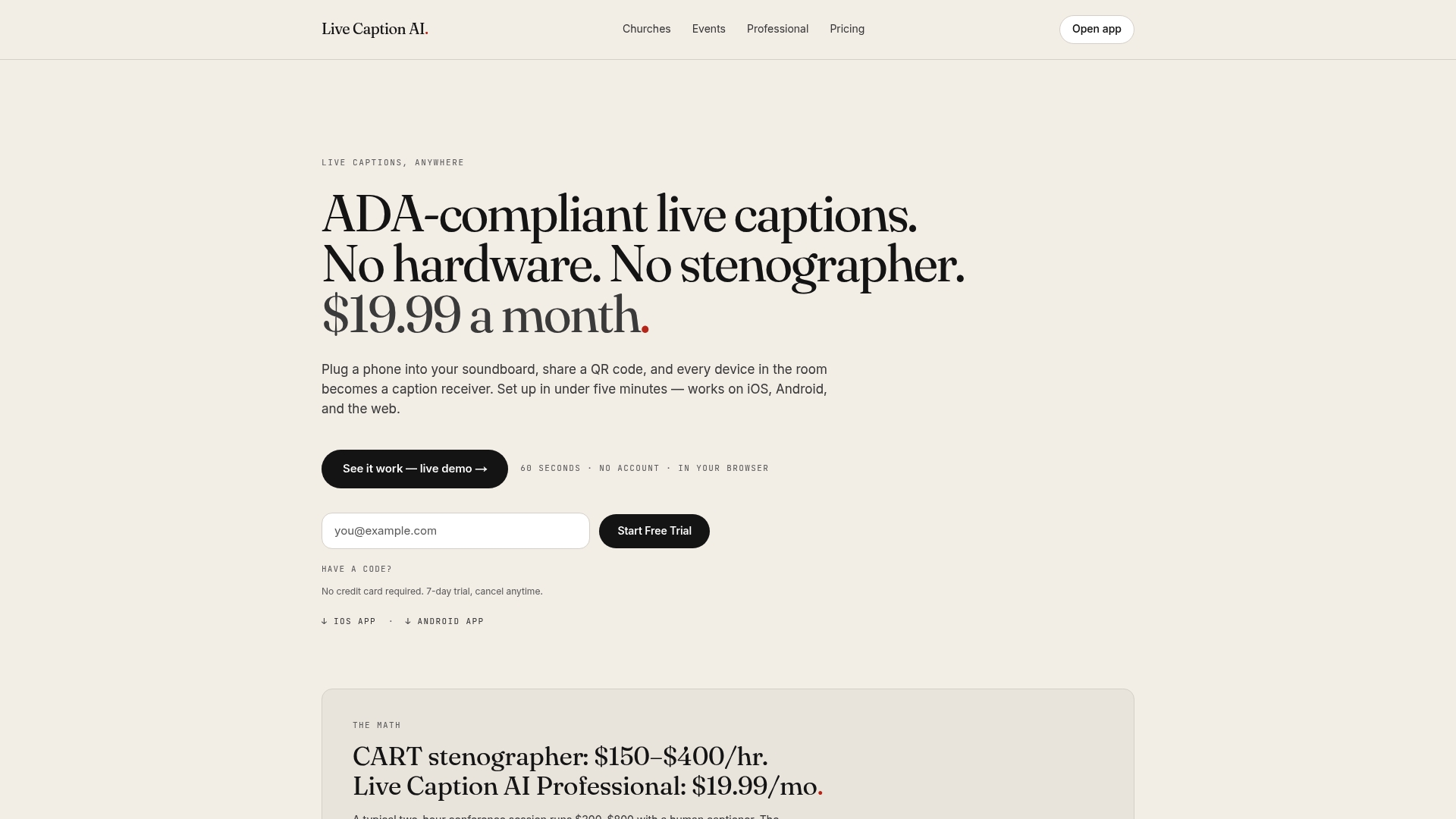
If your clinic doesn’t have a captioning setup that fits your next visit, point them toward one that’s simple to test. We offer a QR-code caption receiver any patient can scan on their own phone, specialized vocabulary models for medical terminology, translation into 29 languages per session, and a policy of never storing session audio.
-
Start with the Free plan to test basic on-device captions before committing to anything.
-
Review the Professional live captioning features built for clinical and professional settings if your practice needs more than the basics.
-
Confirm with us directly on storage, language settings, and deployment details before your appointment, the same checklist questions worth asking any vendor.
[ Explore Live Caption AI ]
FAQ
What is the best live caption app for PC?
There’s no single “best” app; it depends on what you’re captioning. For video calls, Zoom’s built-in automated captions work directly inside the meeting, while Windows’ own system-wide live captions feature works across any app playing audio on the desktop.
How do I turn on live captions in Zoom meetings and webinars?
Captions are enabled through the meeting controls under “Show captions,” but Zoom’s documentation notes that hosts sometimes need to activate the feature first and participants may need host approval to turn it on themselves. If you don’t see the option, ask the host to enable it before the call starts.
How do I get live captions on my phone?
On an iPhone, Live Captions can be turned on under Settings, then Accessibility, then Live Captions, which transcribes FaceTime calls and nearby audio in real time according to Apple’s support guide. For a telehealth visit on a platform that doesn’t support device-level captions well, a QR-code caption receiver like the one we offer with Live Caption AI lets you view captions on your phone regardless of which video platform your provider uses.
Does the iPhone have live captioning for phone calls?
Yes, iPhone 11 and later support Live Captions for FaceTime and nearby spoken audio, but Apple is clear that accuracy can vary and the feature shouldn’t be relied on for emergency or high-risk situations. For a routine telehealth check-in it’s often enough, but for a complex medical conversation, human captioning is the safer choice.