September 12, 2026 · 10 min read
Spanish Live Captions: Quick Setup and ADA Ready Options
Turn on Spanish live captions in minutes, personalize variant, size, and placement, and troubleshoot accuracy. See when to upgrade to an ADA ready managed...
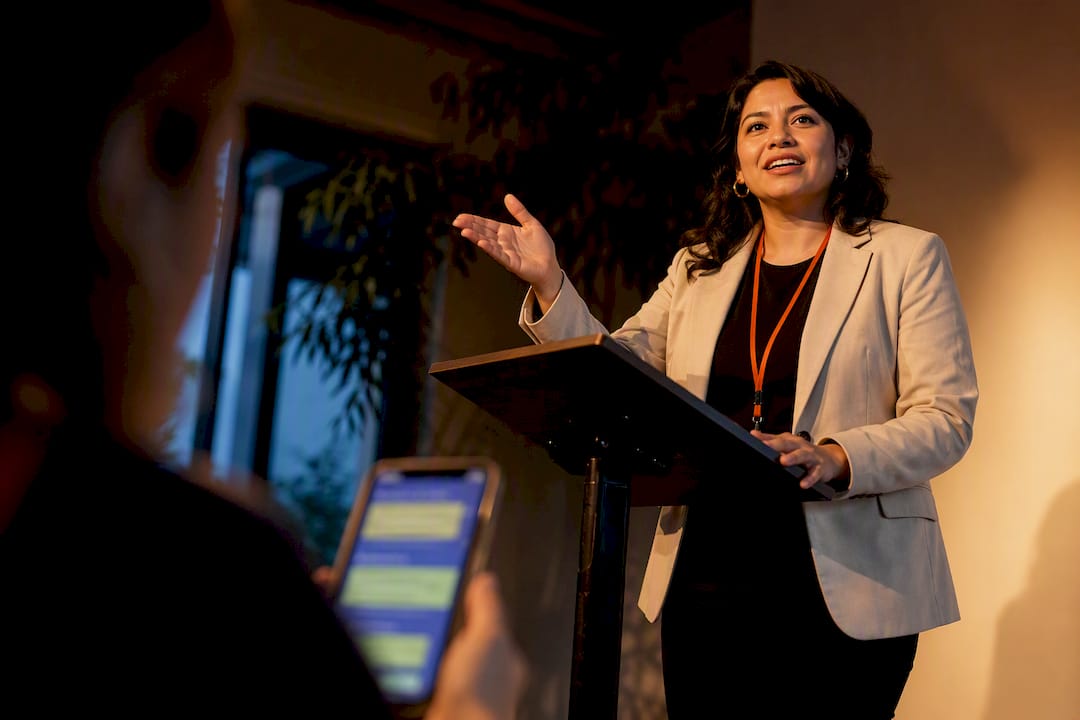
Yes, you can get live Spanish captions on nearly every modern device today. Turn on your operating system’s built-in captioning, open a live-translate app like Google Translate’s conversation mode, or use a browser overlay for video and calls. For events, medical visits, legal proceedings, or any setting where accuracy and compliance matter, a managed captioning service beats piecing together free tools.
TL;DR:
Using Chrome’s Live Caption and Live Translate features allows quick setup and effective real-time Spanish translation during media consumption.
Adjusting caption settings such as font size, placement, and regional Spanish variants improves accuracy and readability, especially in noisy environments.
High-quality results depend on proper microphone choices, speaker pacing, noise suppression, and domain-specific models, particularly in medical or legal contexts.
Managed captioning services are necessary for larger, sensitive, or compliance-driven events, providing better accuracy and adherence to privacy rules.
Table of Contents
-
How Do You Personalize Captions and Pick the Right Spanish Variant?
-
Get Event-Grade Spanish Captions Without the Stenographer Bill
How Do You Turn on Spanish Live Captions?
Getting captions running usually takes less than two minutes. The exact steps change depending on whether you’re captioning a browser tab, a Windows PC, a phone conversation, or a video call, so here’s what to do in each case.
-
Turn on Chrome’s Live Caption and Live Translate. Open Chrome settings, search “Live Caption,” and toggle it on. When it’s active, a caption box appears at the bottom of any tab playing audio, and you can set a target language for translation. This works well for watching Spanish-language news clips or YouTube videos without switching tabs to find subtitles.
-
Use Google Translate’s Conversation mode for spoken exchanges. Open the app, tap the microphone icon, and select Conversation mode with English and Spanish as your two languages. The app listens, transcribes, and speaks the translation back, and it keeps a running text transcript on screen. Listening mode works better in noisy rooms, while text-only mode is faster for quiet, back-and-forth chats. Google has continued expanding these live translate features to cover more real-time conversation scenarios, including Spanish.
-
Enable Windows Live Captions for system-wide audio. Press Windows key + Ctrl + L, or go into Accessibility settings and turn on Live Captions. From there you can add Spanish as a caption language and adjust size, color, and position. Microsoft’s own live captions support documentation walks through the supported Spanish variants and personalization controls in detail.
-
Handle meeting apps and video calls with system-level captions. Most meeting platforms have caption toggles buried in settings menus, but if a specific app doesn’t support Spanish translation natively, Windows Live Captions or a browser overlay can still caption whatever audio plays through your speakers. This system-capture workaround matters because it doesn’t depend on the meeting app cooperating at all.
-
Consider a browser extension or desktop overlay for advanced control. Tools that capture tab audio and stream it to a translation API can display bilingual overlays over any web content. Projects like DilMesh show how system-wide speech-to-text and multi-language overlays work in practice, layering translated text over the original audio source in real time.
Pro Tip: If you’re bouncing between Spanish media and English meetings all day, keep Chrome’s Live Caption toggle in your browser toolbar for one-click access instead of digging into settings every time.
How Do You Personalize Captions and Pick the Right Spanish Variant?
Readable captions depend on more than just turning the feature on. A few adjustments make the difference between captions you actually use and ones you give up on after five minutes.
-
Dual-language versus translated-only: dual-language overlays show the original Spanish alongside the English translation, which helps language learners or bilingual households; translated-only display is cleaner for viewers who only need the English text.
-
Font size and contrast: increase font size and background opacity in low-light rooms or on smaller screens, since default settings often assume a bright, high-resolution monitor.
-
Caption placement: move captions to the top of the screen for video content where the bottom third is already busy with on-screen graphics.
-
Regional variant selection: choosing Mexican Spanish, Castilian Spanish, or a general Latin American setting where the platform allows it can noticeably improve recognition accuracy, since accent and vocabulary differences affect how speech models parse audio.
-
Accessibility controls: for deaf and hard-of-hearing viewers, pairing high-contrast caption backgrounds with a slower caption-refresh rate reduces missed words during fast dialogue. Bilingual overlay configurations that display both languages at once also give viewers a way to double-check translation accuracy on the fly.
Pro Tip: If captions lag behind speech during video playback, switch to translated-only display first. Dual-language overlays process more text per second, and that extra load is often what causes the delay.
Why Are Your Spanish Captions Inaccurate?
Caption quality has less to do with which app you picked and more to do with how you’re using it. Fix these five things first, in order.
-
Swap your built-in laptop mic for a directional lavalier or headset mic. Built-in mics pick up room echo and keyboard noise, both of which confuse speech recognition before translation even starts.
-
Use short turns and deliberate pauses. Speaking in shorter bursts and pausing briefly between ideas, a technique sometimes called chunking, gives the model cleaner boundaries to work with and cuts down on garbled mid-sentence translations.
-
Turn on noise suppression wherever it’s offered. Most meeting apps and phones have a noise-cancellation toggle that filters HVAC hum, traffic, or background chatter before it reaches the transcription engine.
-
Choose domain-tuned models for specialized vocabulary. General consumer apps routinely miss medical or legal terminology; managed captioning with domain-specific accuracy handles those terms far more reliably.
-
Set realistic latency expectations. On-device captioning responds faster but works with a narrower vocabulary; cloud-based models tend to be more accurate but add a beat of delay while audio travels to a server and back.
The pause-and-chunk habit matters more than most people assume. Speaker behavior, not engine choice, tends to be the biggest lever for accuracy in real-world use, particularly in legal and medical settings where a single mistranslated term changes meaning entirely.
When Do ADA and Privacy Rules Apply to Spanish Captions?
Public events, medical visits, and legal proceedings carry accessibility and privacy obligations that a casual video call doesn’t. Knowing the difference keeps you compliant without over-engineering a simple conversation.
-
ADA context: if you’re running a public event, service, or program, captions function as an accommodation, and offering them in Spanish alongside English extends that accommodation to a wider audience.
-
Consent for recorded sessions: live, transient captions that disappear after display carry lower privacy stakes than anything recorded or stored; if you’re saving transcripts, tell attendees and give them a way to opt out.
Health information needs a compliant deployment. If captions capture or store any protected health information, a consumer translation app isn’t built for that.
Why Won’t Your Spanish Captions Work?
Most caption failures trace back to one of four things. Work through this list before assuming the app itself is broken.
-
Check permissions and language settings first. Confirm the app has microphone access, that Spanish is actually selected as the source or target language, and that the caption toggle itself is switched on. It sounds obvious, but a mis-set source language is the single most common cause of garbled or blank captions.
-
Check your network if captions lag or freeze. Cloud-based translation models need steady bandwidth. Switching from public Wi-Fi to a wired connection or a stronger network often resolves lag instantly.
-
Fix dialect and accent mismatches. If captions come out consistently wrong despite clear audio, try a regional Spanish variant, ask the speaker to slow down and chunk their sentences, or toggle bilingual mode to see both languages and spot where the translation breaks down.
-
Escalate to a managed service when DIY tools hit their ceiling. Browser extensions capturing tab audio can also hit session limits or need periodic reconnection during long sessions, a known trade-off in tab-capture caption workflows. If you’re troubleshooting the same problem repeatedly at every event, that’s a sign to move to event-grade captioning instead.
What’s the Right Call: DIY Tools or a Managed Service?
For watching Spanish-language media or joining a two-person call, your browser or phone’s built-in captioning is genuinely enough. Save the heavier tools for situations that actually need them.
Larger events change the math fast. Once you’re captioning for a room full of people, juggling multiple devices, or working in a medical or legal setting where a mistranslated term has real consequences, the DIY approach starts costing you more in troubleshooting time than it saves in dollars. That’s the point where a managed, compliance-ready solution stops being optional and starts being the obvious call.
— Ryan
Get Event-Grade Spanish Captions Without the Stenographer Bill
Live Caption AI is an alternative to hiring a stenographer or using multiple translation apps for one event. It offers ADA-compliant live captioning with domain-specific accuracy that catches medical and legal terminology generic speech-to-text tools miss.
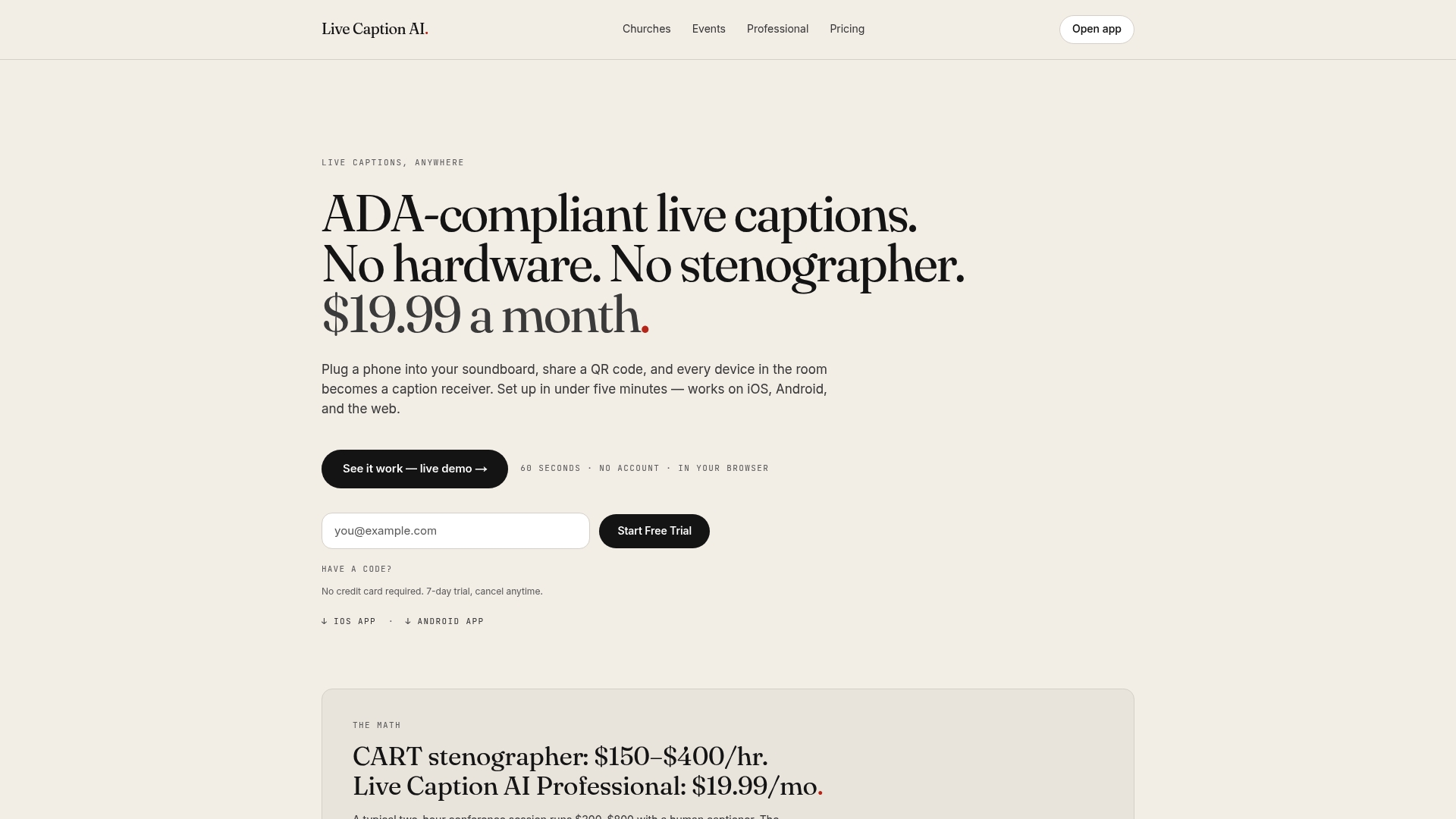
No hardware to rent, no app for attendees to install. Live Caption AI turns any phone into a caption receiver through a simple QR code, and broadcasts to multiple devices at once. Explore how automatic caption translation works across event types, or pair your captioning setup with an AI transcription tool for meetings that also need a written record afterward. Start a free trial at Live Caption AI and see your first Spanish captions live in minutes.
Sources
FAQ
What Are Some Good Captions for Spanish?
The best setup pairs your source language correctly with Spanish as the target, uses short spoken turns, and displays dual-language text when you want to verify the translation against the original audio.
Can You Translate a Live Caption?
Yes. Tools like Chrome’s Live Translate and Google Translate’s Conversation mode convert live speech into translated captions in real time, and managed services like Live Caption AI handle this across unlimited devices for larger audiences.
How Do You Get Spanish Subtitles on a Video?
Turn on Chrome’s Live Caption feature while the video plays in a tab, set Spanish as your target language, and the app generates a live translated caption box automatically without needing a pre-made subtitle file.
What Is a Live Caption?
A live caption is real-time, on-screen text generated from spoken audio as it happens, as opposed to subtitles created ahead of time from a script. Live Spanish captions apply that same real-time process while also translating the speech.