September 1, 2026 · 10 min read
2–4x More Scans: QR Code Captions, Ready Lines and Live QR Workflow
Boost scans with destination-first QR code captions. Get the caption formula, copy-ready lines, an event QR to live caption checklist, and Live Caption AI...
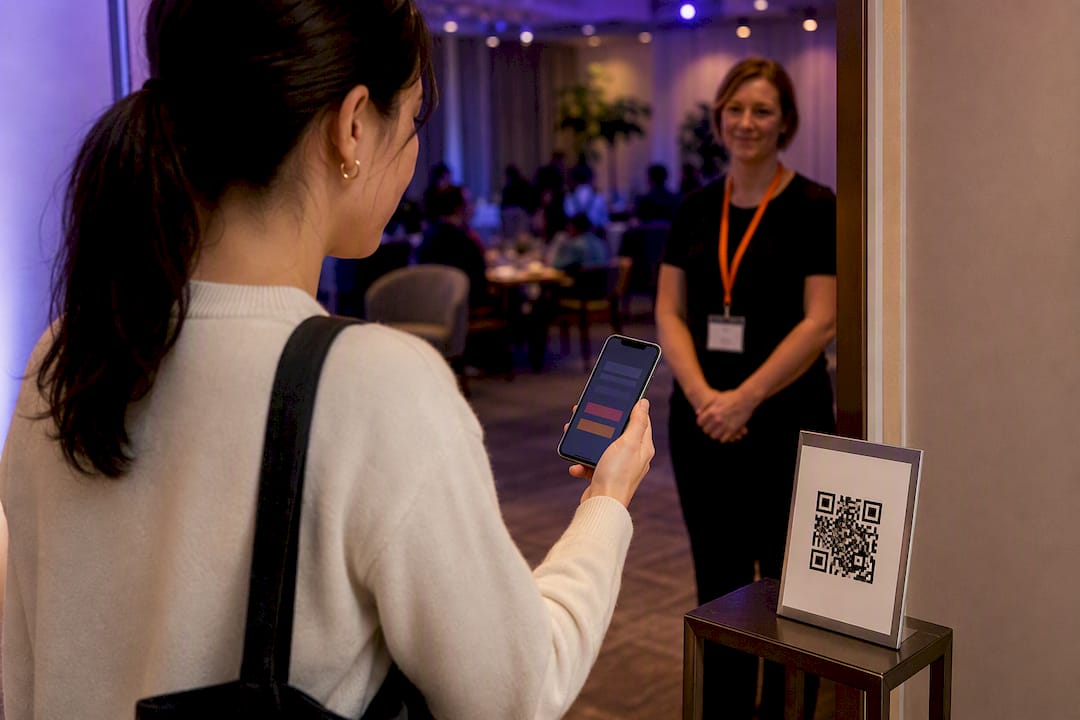
A short destination-noun label, something like “Menu” or “Live Captions,” beats “Scan Me” almost every time, and pairing it with a browser-based live-caption link is the fastest way to get audience phones reading in real time. Test the microphone feed against the actual QR before doors open, and always have a backup plan if a phone won’t cooperate. Live Caption AI builds its QR delivery around exactly this pattern.
TL;DR:
- Using a destination noun like “Menu” or “Live Captions” instead of “Scan Me” can increase scan-to-action conversions by two to four times.
- Including specific numbers such as “29 Languages” or “3-Minute Setup” pre-qualifies scanners, boosting engagement even more.
- Placing captions directly below the QR code with ample whitespace and legible, high-contrast fonts improves scanning reliability and reduces confusion.
- Rehearsing microphone and QR link testing before the event minimizes technical failures and ensures smooth caption delivery during live sessions.
- Live Caption AI offers a cost-effective, no-download solution for multilingual, real-time captioning, with exports available in multiple formats and session privacy maintained.
Table of Contents
- Why Caption Wording Matters for Scan-to-Action Conversion
- The Caption Formula and Placement Rules That Actually Work
- Ready-to-Use QR Caption Lines by Tone
- How to Deliver Live Captions via QR Codes: An Operational Checklist
- Accessibility and Compliance Notes for QR Caption Deployments
- Placement and Technical Rules for Reliable Scanning
- Sign Templates You Can Copy Right Now
- What I’ve Learned Running Events With QR Captions
- Live Caption AI: A Practical Way to Put This Into Action
- Where to Go Deeper
- Sources
Why Caption Wording Matters for Scan-to-Action Conversion
The label next to your QR code is doing more work than most marketers give it credit for. Swap a generic “Scan Me” for a destination-focused caption like “Menu” or “Free Trial,” and conversion in print environments can jump 2 to 4 times. That gap exists because “Scan Me” tells someone what to do but never what they get. A destination noun does the opposite: it skips the instruction and names the payoff.
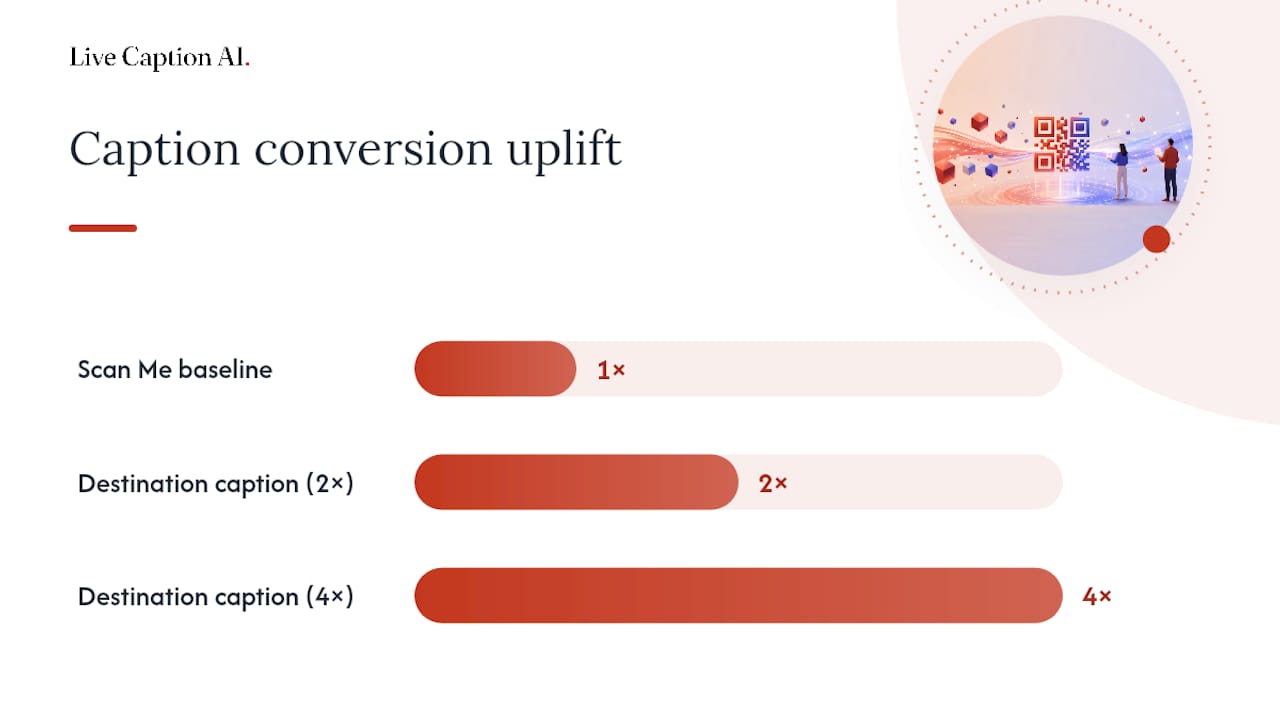
Specificity compounds the effect. A caption that includes a number, “3 languages available” or “30 seconds to join,” pre-qualifies the scanner before they even lift their phone, since the CTA next to a QR code is the single biggest lever on scan-to-action conversion, and numeric detail pushes that lever further.
If you run events or manage signage regularly, try this quick test:
- Print two identical flyers, one labeled “Scan Me,” one labeled “Menu.”
- Place them in the same location for a week.
- Compare scans through your QR platform’s analytics.
Most teams see the difference within days, not weeks.
The Caption Formula and Placement Rules That Actually Work
The formula behind every high-performing QR caption is simple: prompt, reason, payoff, and the destination noun carries most of that weight in just one to three words. Skip the verb. “View Menu” works. “Menu” works better, because it removes friction between the eye and the decision.
Here’s the sequence to follow when designing any caption:
- Name the destination, not the action. “Live Captions” beats “Scan for Captions.”
- Add a number when one exists. “29 Languages” or “3-Minute Setup” pre-qualifies the scanner.
- Center the caption below the code, not beside it or above it.
- Leave whitespace about a third of the code’s height between the QR and the text, which keeps the label out of the quiet zone that scanners need to read the pattern.
- Choose a legible, high-contrast font and resist the urge to make the caption “pop.” The QR code is the visual anchor. The caption supports it.
Pro Tip: Don’t bold, color, or box your caption to compete with the QR code for attention. A caption that fights the code for visual weight actually slows recognition, because the eye doesn’t know where to land first.
Ready-to-Use QR Caption Lines by Tone
Different events call for different registers, but the destination-noun rule holds no matter which tone you pick. Swap words freely to match your brand voice; just keep the payoff up front.
Warm and welcoming:
- “Welcome Playlist”
- “Guest Book”
- “Photo Album”
- “Thank You Notes”
Playful:
- “Sneak Peek”
- “Behind the Scenes”
- “Guess the Song”
- “Bonus Content”
Direct and destination-first:
- “Menu”
- “Live Captions”
- “Wi-Fi Password”
- “Event Schedule”
Urgent or FOMO-driven:
- “24-Hour Deal”
- “Last 10 Spots”
- “Ends Tonight”
Instructional:
- “3 Languages Available”
- “Tap for Directions”
- “Scan for Handouts”
Adding “no app needed” under any of these removes the last bit of hesitation for scanners who worry about downloads, and a number works best where the destination has a real quantity behind it, spots left, languages offered, minutes to complete.
How to Deliver Live Captions via QR Codes: An Operational Checklist
Getting captions onto an audience’s phones during a live event comes down to a workflow you can rehearse the same way you’d rehearse a sound check. Browser-based caption pages are the standard pattern because they skip app downloads entirely.
- Generate the QR code and map it to your session’s audience page, the URL where captions will actually stream.
- Confirm the display or signage shows the code at a size readable from the back of the room.
- Let attendees scan using their native camera app, no download required.
- Offer language selection if your platform supports it, right on the landing page before captions begin.
- Stream the captions and monitor for latency or dropped connections during the first few minutes.
Before doors open, run through your pre-event checks. Test the microphone feed against the actual QR link, not a placeholder. Check latency on a real phone, not just a laptop browser. Confirm your session is set to one spoken source and one caption language target, since juggling multiple simultaneous targets in a single session tends to break more than it fixes.
Pro Tip: Rehearse switching between speakers or sessions at least once before the actual event. The moment most caption setups fail isn’t the first five minutes, it’s the handoff between speaker one and speaker two.
Have a fallback ready regardless: a shared house screen running captions, a printed transcript at the info table, or a staff member near the entrance who can help someone whose phone won’t load the page.
Accessibility and Compliance Notes for QR Caption Deployments
Good caption signage does double duty as an accessibility tool. A brief verbal announcement, pointing attendees to the code and explaining what it does, reaches people who might not notice a printed sign. Easy-read instructions, large font sizes, and high contrast help low-vision attendees find and use the code without squinting.
Live Caption AI’s product facts relevant to these deployments:
- Supports multiple languages for live caption delivery.
- Runs one spoken source to one caption target per session.
- Exports transcripts in TXT, SRT, JSON, and PDF formats.
- Never stores session audio; transcripts remain owner-only.
- Pro plan runs $19.99 a month; the free tier requires signup, the demo does not.
For signage copy about privacy, keep it short: “Captions are generated live and not recorded.” That single line answers the question most attendees actually have without turning your sign into a legal notice.
Placement and Technical Rules for Reliable Scanning
A caption is worthless if the code underneath it won’t scan. Size and data density matter more than most designers assume.
- Minimum size for indoor signage: roughly 1.5 to 2 inches per side for close-range table tents; larger codes on posters or banners need to scale with viewing distance.
- Outdoor and distance scanning requires larger codes still, often 6 inches or more for anything read from across a room.
- Respect the quiet zone, the blank border around the code, since placing text or graphics too close to the edge reduces scan reliability.
- Choose URL redirects over embedded text whenever possible; shorter encoded content keeps the printed pattern smaller and easier to scan, especially for multilingual sessions where a full text block would bloat the code.
- Export at high resolution (300 DPI minimum) for print, and consider generating the caption directly into the QR image file so a last-minute layout edit doesn’t accidentally revert it to “Scan Me.”
Sign Templates You Can Copy Right Now
A handful of proven caption and code pairings cover most events:
- Wedding photo upload: “Add Your Photos”
- Live captions at talks: “Live Captions 29 Languages”
- Menu: “Menu”
- Wi-Fi access: “Wi-Fi Password”
- Donations or payments: “Donate Here”
Add one instruction line beneath any of these: “Open your camera, point, tap, no app needed,” since that single phrase removes the most common hesitation for first-time scanners. Generate the label directly into the QR image file when your platform allows it, so nobody accidentally swaps it back to something generic during a last-minute reprint.
What I’ve Learned Running Events With QR Captions
Rehearsal is the part everyone skips and regrets skipping. Test with actual phones, not just your own, plugged into the real PA feed, not a quiet office. One clear verbal announcement pointing people to the code beats three posters nobody reads. And a small sign right at the door, not buried on a table inside, gets more scans than anything fancier you’ll design later.
— Ryan
Live Caption AI: A Practical Way to Put This Into Action
Live Caption AI is the alternative to hiring a stenographer or buying dedicated captioning hardware for QR-based live events. Instead of managing a separate device or paying by the hour, you generate a QR code, attendees scan it in their phone’s browser, and captions stream live with no app download and no per-session equipment rental.
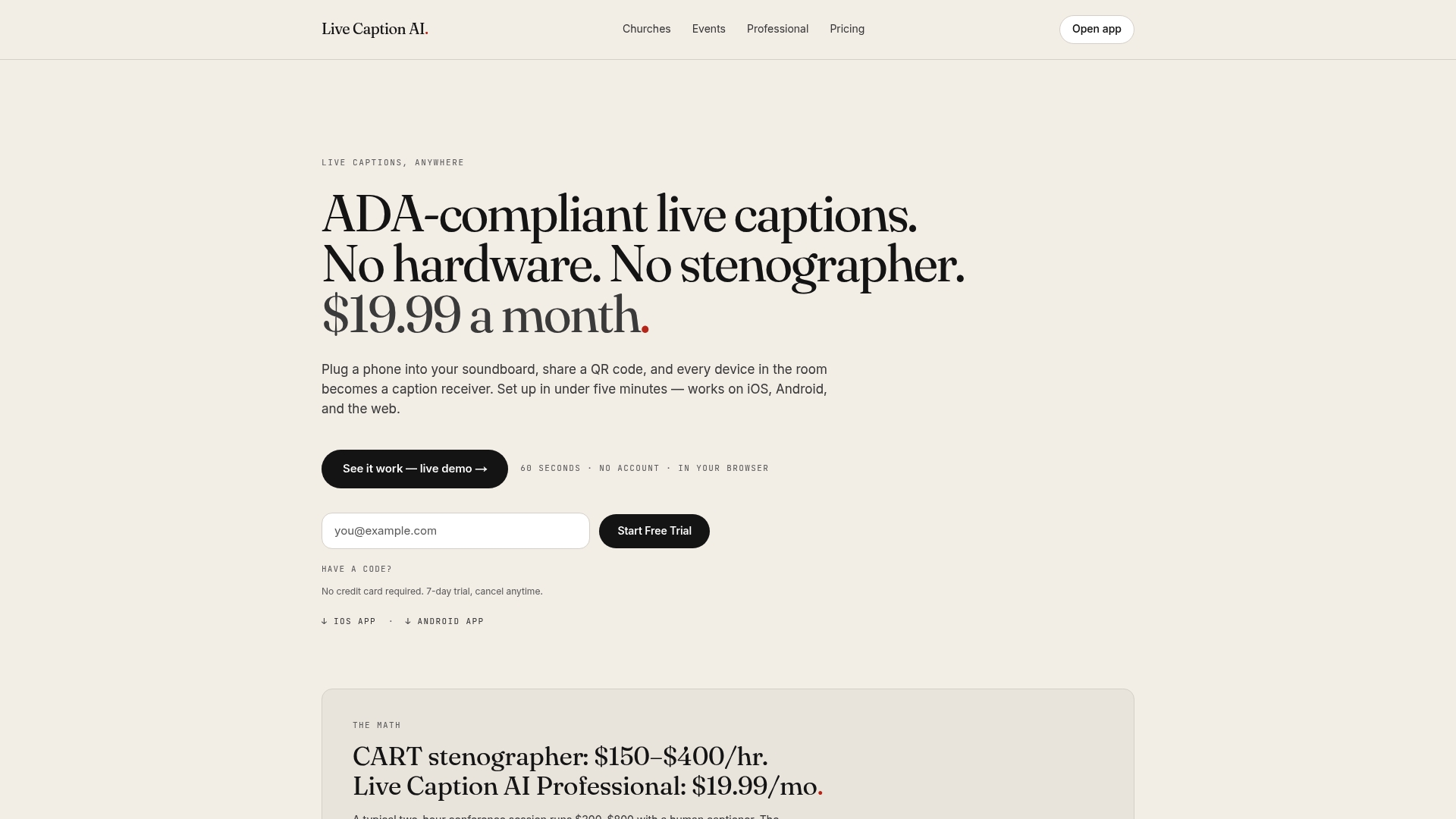
The platform supports 29 languages, running one spoken source to one caption target per session so the setup stays predictable during a live event. Transcripts export in TXT, SRT, JSON, and PDF formats, and session audio is never stored, transcripts stay visible only to the account owner. There’s no certification held today (no HIPAA, SOC 2, or similar), so if your setting requires one, check current data-handling details on the site before committing. Pro runs $19.99 a month, a fraction of typical stenographer costs for a single session, and the free tier gets you started with signup (no credit card needed to try the demo).
A hosted option like this makes the most sense when you need language options and export formats without building your own streaming pipeline. If your event is a single English-language talk with no compliance need, a simpler DIY approach might suffice. For anything multilingual, recurring, or audience-facing, start with Live Caption AI and generate your first session QR before your next event.
Where to Go Deeper
- QR code CTA design covers destination-naming and placement in more depth.
- Live Caption AI’s QR caption tag has additional wording examples and generator tips.
- QR code translation guidance explains the one-source, one-target session model further.
Sources
- QR Code call-to-action patterns (QR Code Chimp)
- QR code accessibility and labeling guidance (QR Code Kit)
- Ime
- Wedding QR code sign wording and examples (Eventoly)