September 6, 2026 · 11 min read
For $19.99/Month: Training Session Captions for L&D Teams
Accessibility first playbook for L&D teams. Deploy AI live captions with human review, prep scripts and audio, pilot one session, and export SRT/VTT —...

Yes, training sessions need captions, and for most learning and development teams the fastest practical route is AI-powered live captions paired with human review for anything you record and reuse. Reach for CART or certified interpreters when a formal accommodation request demands that level of assurance. Whatever method you pick, always produce an accessible, searchable transcript alongside the caption file.
TL;DR:
- Live AI captions are suitable for internal, low-risk sessions, but formal accommodations and legal situations require CART or certified interpreters.
- Proper preparation involves checking audiovisual setups, sharing scripts in advance, and confirming caption display options to avoid garbled captions.
- Post-production caption editing ensures accuracy and detailed annotations, making transcripts suitable for archiving and compliance audits.
- Caption files should be in SRT or VTT formats, published as accessible HTML, and include speaker labels and descriptions to meet accessibility standards.
- Budget for AI captions as a low-cost default, but allocate funds for human review when content will be reused or involves legal or safety-critical information.
Table of Contents
- What Is the Difference Between Live and Post-Production Captions?
- Quick Checklist: What to Prepare Before Captioning a Training Session
- How Do You Choose the Right Captioning Approach?
- Step-by-Step: Pre-Production, Live Setup, and Post-Production
- Which File Formats and LMS Settings Actually Matter?
- How Should You Handle Multilingual Training Sessions?
- Turning Captions Into Usable, Archived Transcripts
- What Should You Budget for Captions and Transcripts?
- Plan Captions Before You Script, Not After
- Try Live Caption AI for Your Next Training Session
- Sources
What Is the Difference Between Live and Post-Production Captions?
Live captions appear in real time while your instructor is talking. Post-production captions get added after the session, once you have a recording to work with. They solve different problems, and mixing them up is the most common planning mistake in corporate training.
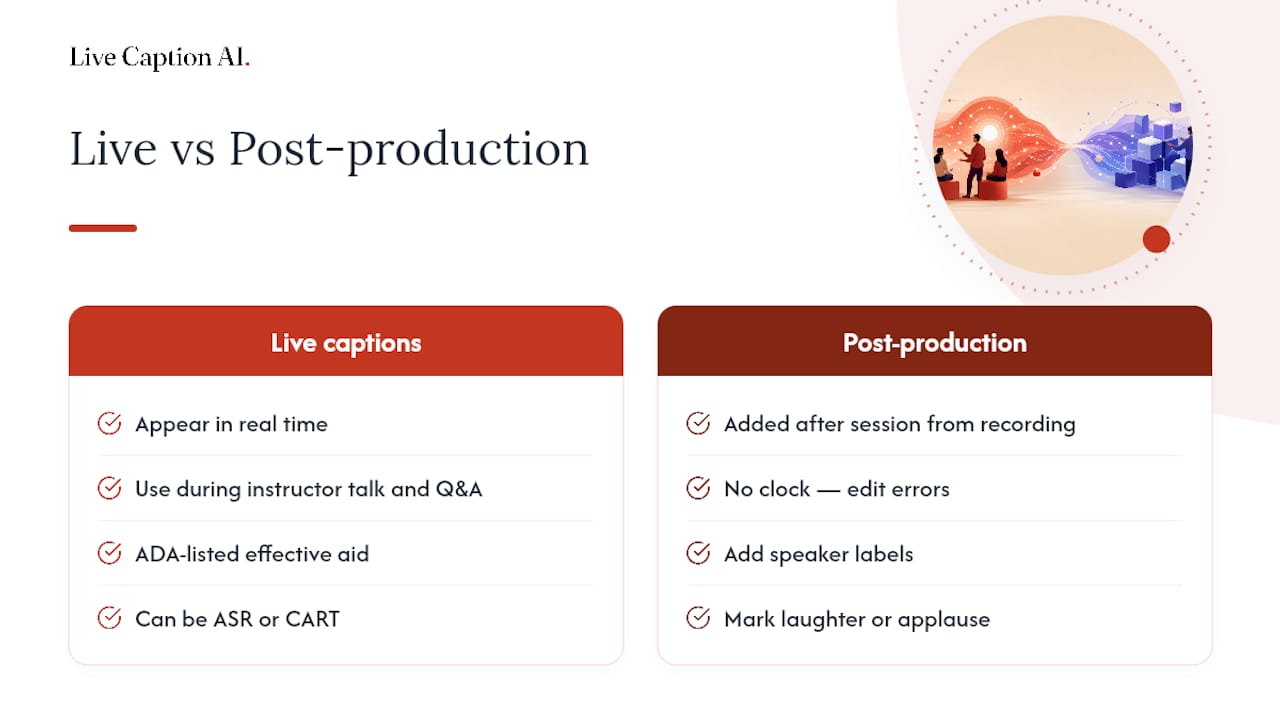
Real-time captioning, sometimes called CART (Communication Access Realtime Translation), is what the ADA lists as an effective communication aid alongside qualified interpreters and video remote interpreting (VRI). It’s built for the moment, when a hearing employee needs to follow a live Q&A or a deaf colleague needs the discussion as it happens. Automated speech recognition (ASR) can do this job too, and does it at a fraction of the cost, but the tradeoff is accuracy under pressure. Accents, cross-talk, and jargon all chip away at quality in real time.
Post-production captioning works on a finished recording. There’s no clock ticking, so you can fix errors, add speaker labels, and mark laughter or applause before anyone watches the video. That extra time is exactly why Section508 without a human editing pass.
Quick Checklist: What to Prepare Before Captioning a Training Session
Skipping prep work is how sessions end up with garbled captions and a scramble the night before launch. Work through this before you open the room:
- Confirm any accommodation requests early and state caption availability directly in the calendar invite or registration page.
- Decide live captions, post-production, or both, and have a backup plan if your primary captioning tool drops mid-session.
- Send scripts, slide decks, acronym lists, and speaker names to whoever is running captions, at least a day ahead.
- Test your audiovisual setup and internet bandwidth, and confirm how captions will display, embedded in the player, on a QR-code receiver, or as a side panel.
- Note whether the session is public, exceeds a size threshold, or has a standing accommodation on file. University accessibility offices increasingly treat any of those three as a trigger for mandatory live and recorded captions.
A five-minute mic and bandwidth test saves you from discovering an issue in front of 200 live attendees.
How Do You Choose the Right Captioning Approach?
Start with the legal floor, not the budget. The ADA’s effective communication rules treat captioning, CART, and interpreters as accommodations an employer may be required to provide, and the ADA guidance specifically calls out staff training on how to implement them. Know what your organization is obligated to offer before you shop for tools.
From there, match the method to the stakes:
- AI live captions work well for internal, low-risk sessions like team standups or optional lunch-and-learns.
- CART or a certified interpreter belongs in front of a formal accommodation request, a public-facing event, or any session where legal exposure is real.
- VRI is a middle ground when a certified interpreter can’t be on-site but sign language is still required.
- Human quality control on the transcript is worth the time whenever a recording will be reused, archived, or referenced in a compliance audit.
Demonstrative content, screen shares, product demos, physical technique, needs extra attention because captions alone won’t describe what’s on screen. Multilingual sessions raise the bar further; a caption feed in one language does nothing for an audience that needs another.
Pro Tip: Match the captioning tier to how long the content will live. A one-off training gets AI captions. Anything going into a permanent onboarding library earns a human review pass.
Step-by-Step: Pre-Production, Live Setup, and Post-Production
Running captions well is a sequence, not a single decision. Here’s the order that actually works:
- Pre-production. Align your script with your slides, build a glossary of product names and acronyms, add an accessibility notice to the invite, and confirm your LMS or player supports caption files before the session date.
- Live setup. Check microphones and devices, connect your captioning service, and decide whether attendees will view captions through an embedded player or a QR-code receiver on their own phone. Always have a backup recording running in case the live feed fails.
- During the session. Ask instructors to speak at a steady pace and repeat questions from the audience before answering, since a shouted question from the back of a room rarely reaches a microphone cleanly. Assign a moderator to watch the caption feed for major errors in real time.
- Post-production. Run a human-proof pass over the ASR output to fix punctuation, add speaker identification, and note key non-speech audio, then export both SRT and VTT files and publish an accessible transcript alongside the recording.
Pro Tip: Give your moderator a printed glossary during the live session. Watching for a mangled product name in the caption feed is easier when they know exactly what to look for.
Skipping step one is how teams end up paying for an expensive retrofit later. Planning captions into scripting and production from the start is consistently cheaper than fixing them after the fact.
Which File Formats and LMS Settings Actually Matter?
SRT and VTT cover the vast majority of training use cases and are the formats most learning platforms expect by default. DFXP/TTML shows up mainly in enterprise broadcast environments with more complex styling needs, and most L&D teams will never touch it.
A few technical details make or break accessibility, even when the caption file itself is accurate:
- Publish transcripts as accessible HTML, not a locked PDF, with speaker labels and brief visual descriptions of anything shown on screen.
- Confirm the WCAG requirement that captions include meaningful non-speech audio, not just spoken dialogue.
- Test that your media player is fully keyboard-operable and that captions don’t cover slides, demos, or on-screen text.
- Write a short internal how-to post for uploading caption files so the process doesn’t live only in one person’s head.
Getting this right the first time also pays off outside compliance. Accessible media tends to perform better in search and internal discovery too, since transcripts give search engines and LMS search bars actual text to index.
How Should You Handle Multilingual Training Sessions?
Build your English captions first and get them accurate, then generate translated subtitle files that preserve the original timing rather than starting from scratch in each language. Machine translation on top of a clean English caption file is far more reliable than translating from a rough or unedited transcript.
- Have a native-speaking reviewer check technical terms and jargon in each translated track before publishing.
- Offer separate language tracks with a clear, visible control for switching between them in the player.
- For live multilingual events, pair professional interpreters with a caption display rather than relying on translation alone, especially for regulatory or safety-critical content.
Live Caption AI’s multilingual live captioning resources cover this workflow in more depth if you’re running sessions across several language groups regularly.
Turning Captions Into Usable, Archived Transcripts
A raw caption file dumped straight from an ASR engine is not a transcript. W3C guidance is direct on this point: usable transcripts require merging fragmented caption lines into readable paragraphs, adding section headings, labeling speakers, and describing anything visual that the audio alone doesn’t convey.
- Publish the finished transcript as accessible HTML with metadata and a language tag, not a locked file format.
- Tag it in your LMS with keywords and a retention date so it surfaces in searches months or years later.
- Log the accommodation history, review date, and an owner for each session’s materials.
Captions do more than satisfy a compliance checkbox. Presenting information through both audio and text supports comprehension and retention, which matters just as much for a hearing employee reviewing notes later as it does for someone who’s deaf or hard of hearing.
What Should You Budget for Captions and Transcripts?
AI live captions are your cheapest baseline and a reasonable default for internal, lower-stakes sessions. Adding human quality control raises the cost but still runs far faster than transcribing a session from scratch by hand.
- Budget CART or interpreter costs specifically for sessions tied to a formal accommodation request or public event.
- Estimate roughly 15 to 30 minutes of human review per hour of recorded content, plus time for glossary setup and one test run before a big launch.
- Keep a small contingency fund set aside for last-minute accommodation requests that land the week of the event.
Plan Captions Before You Script, Not After
The teams that get accessibility right treat captions as a scripting decision, not an afterthought bolted on after the recording ships. Building a glossary and speaker list before you hit record costs almost nothing. Fixing a mangled transcript six months later, after it’s already been shared across three departments, costs real time and credibility.
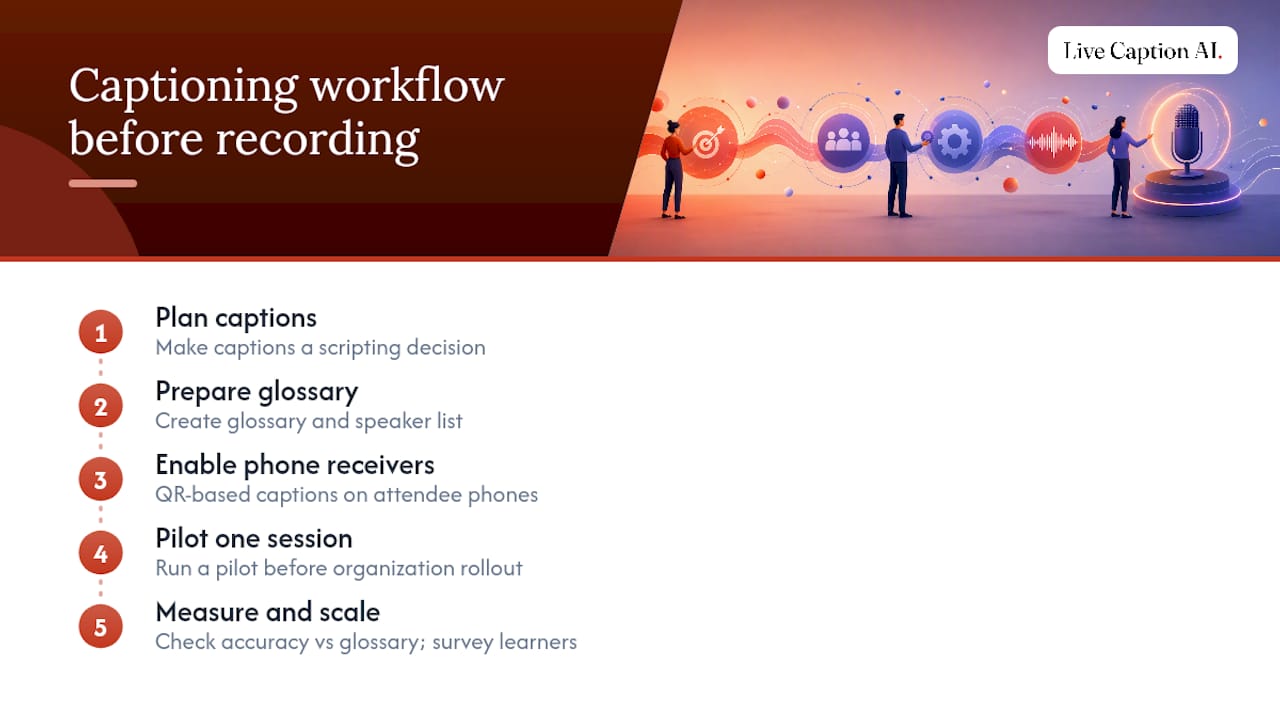
A solution that supports QR-code device receivers lets attendees caption sessions on their own phones without special hardware, with models tuned to catch industry terminology generic ASR tools miss, and offers deployment options compliant with privacy regulations for training that touches protected health information.
My advice for any L&D team new to this: pilot one session before rolling captions out organization-wide. Measure caption accuracy against your glossary and ask a handful of learners whether the captions actually helped them follow along. Scale once you see the pilot to work, not before.
— Ryan
Try Live Caption AI for Your Next Training Session
Some captioning solutions replace the choice between an expensive stenographer contract and a caption tool that mangles product names. They can turn any phone into a caption receiver through a simple QR code, apply domain-specific accuracy so acronyms and jargon show up correctly, and offer compliant deployment options for medical and legal training content.
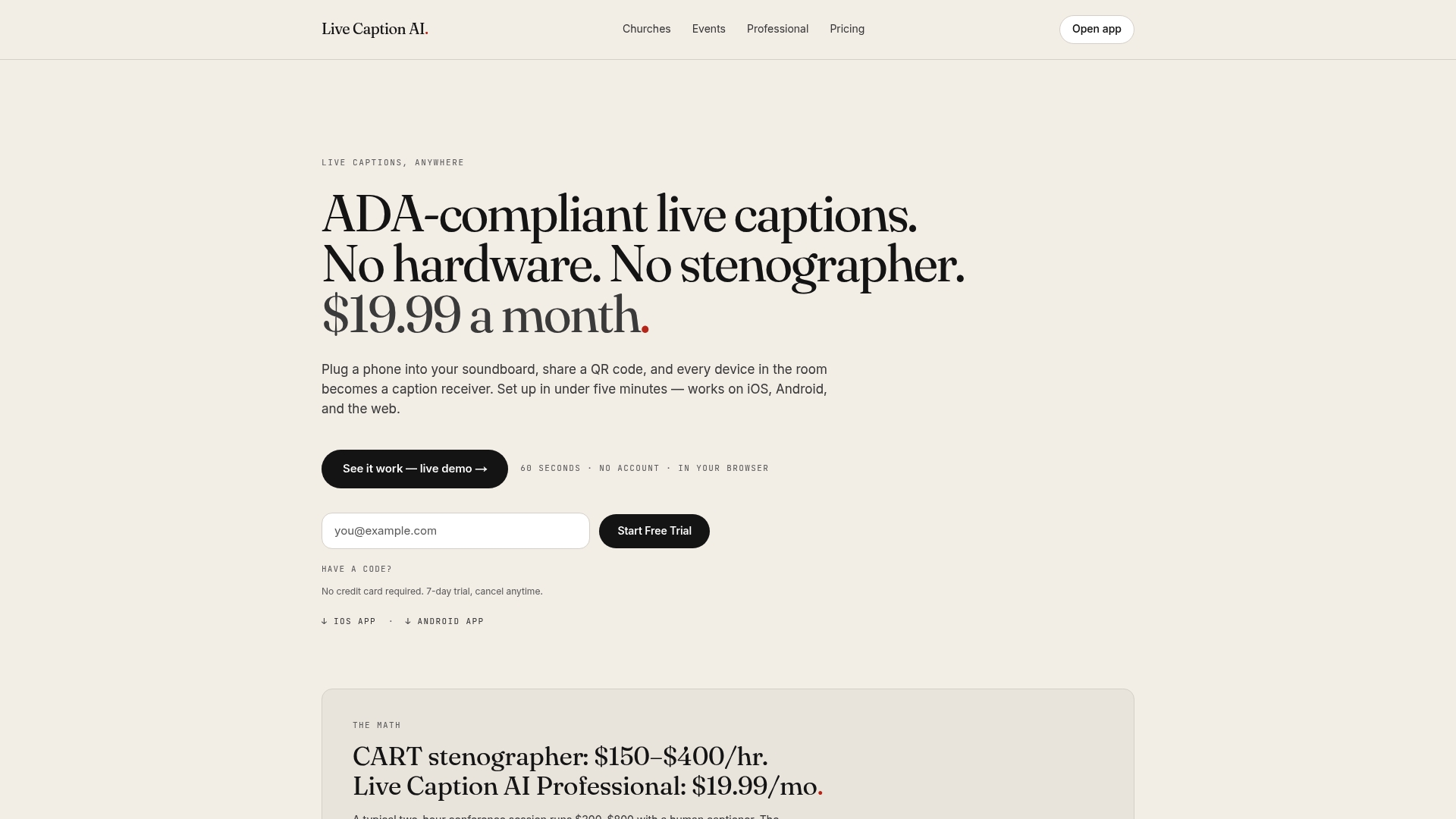
For teams weighing AI captions against CART or on-site interpreters, Live Caption AI’s live captioning resources for events walk through where each option fits. A typical session that would otherwise run hundreds of dollars in stenographer fees can be captioned for $19.99 a month.
Start with a trial: sign up, upload your glossary of company terms, run one live pilot session, then export the SRT or VTT file and see how it performs in your LMS. Visit Live Caption AI to get started.
Sources
- Making Video-Based Learning Accessible: A Practical Guide
- ADA resources: Effective communication
- Section508