September 8, 2026 · 16 min read
Creators: Use Captions, SDH, or Subtitles Correctly for Accessibility
Creator-focused explainer on when to use captions, SDH, or subtitles for accessibility. Includes practical live-caption options that run without hardware...

Captions include dialogue, sound effects, music cues, and speaker labels, built for viewers who cannot hear the audio. Subtitles assume the viewer can hear just fine and translate or repeat the dialogue as text. That single distinction determines which one you need: closed captions and SDH cover accessibility, while subtitles cover translation and readability. Mixing them up doesn’t just confuse terminology, it can leave deaf and hard-of-hearing viewers without the information they legally need.
TL;DR:
Captions include sound effects, speaker labels, and tone cues, making them essential for accessibility, especially when audio is unavailable or unclear.
Subtitles focus solely on translating or displaying dialogue, often edited for readability, and are primarily meant for language comprehension.
SDH combines caption features with subtitle styling, providing a hybrid approach suited for both translation and accessibility needs.
Legal standards require captions to be accurate, synchronized, complete, and properly placed, with poor quality subtitles failing to meet these accessibility criteria.
Automated live captioning offers quick deployment but often struggles with technical jargon, emphasizing the importance of domain-specific models for certain settings.
Table of Contents
-
Making Captions Work for Language Learners and Deafblind Viewers
-
Font Size, Color, and Viewer Control: Customization Differences
-
Get Live Captions Running Without Hardware or a Stenographer
Captions vs Subtitles: What Captions Actually Include
Captions transcribe everything a hearing viewer would pick up from the audio track, not just the words being spoken. That means dialogue, but also sound effects like [door slams], music cues, tone shifts, and who’s talking when multiple speakers are on screen. The Web Accessibility Initiative treats this non-speech audio as the defining feature that separates captions from a plain transcript or subtitle track.
Captions come in two flavors:
-
Closed captions (CC): Viewers toggle them on or off, and they’re the standard for broadcast TV and most streaming platforms.
-
Open captions: Burned into the video permanently, common on social media clips where autoplay defaults to muted.
-
Verbatim captions: Every stutter, filler word, and pause included, often required for legal or educational accuracy.
-
Edited captions: Cleaned up slightly for readability without losing meaning.
You’ll see captions doing heavy lifting anywhere sound isn’t guaranteed to reach the viewer: a subway platform, a gym TV, a video autoplaying in a social feed with the volume off.
Captions vs Subtitles: What Subtitles Are Built For
Subtitles exist for one core job: getting spoken dialogue into text a viewer can read, usually because they don’t understand the language being spoken. That’s interlingual subtitling, the kind you see on a foreign film. Intralingual subtitles, same-language text, show up too, often for language learners who want to read along while they listen.
Subtitles get edited hard for readability. Timing, line length, and reading speed all get adjusted so a viewer can finish reading a line before the scene cuts away. According to Subtitling, this editorial shaping is what separates subtitles from a verbatim caption track, subtitles are written for reading comfort, not for capturing every acoustic detail.
Typical use cases:
-
Foreign-language films and international streaming releases
-
Corporate training content localized for multiple regions
-
Language-learning apps and study tools
-
Social content where creators want reach in markets that don’t speak the original language
Captions vs Subtitles at a Glance
The two tracks can look nearly identical on screen, white text over a dark bar at the bottom of the frame, yet function completely differently depending on what’s driving them. SDH (subtitles for the deaf and hard of hearing) splits the difference: it keeps subtitle-style readability but adds the speaker labels and non-speech cues that plain subtitles skip, a hybrid several streaming platforms now use by default according to Subtitling.net.
| Attribute | Captions | Subtitles |
|---|---|---|
| Purpose | Accessibility for deaf/hard-of-hearing viewers | Translation or readability for hearing viewers |
| Content included | Dialogue + sound effects + speaker IDs | Dialogue only |
| Activation/display | Closed (toggle) or open (burned-in) | Usually closed, selectable by language |
| Common file formats | SRT, WebVTT, TTML | SRT, WebVTT |
| Primary audience | Deaf, hard-of-hearing, sound-off viewers | Non-native speakers, learners, hearing viewers |
Same visual box on screen, different job entirely. A subtitle track can look flawless and still fail a deaf viewer completely, because it was never built to carry the sound effects and speaker cues they need.
When to Use Captions and When to Use Subtitles
The decision comes down to one question: does the viewer need help hearing, or help understanding the language?
-
If the audience might not hear the audio at all, choose captions or SDH. This covers deaf and hard-of-hearing viewers, but also anyone watching in a noisy environment or with the sound muted.
-
If the audience can hear fine but doesn’t speak the language, choose subtitles. A foreign film screened domestically needs translated subtitles, not verbatim captions.
-
If you’re publishing to social platforms, default to open captions since most feeds autoplay muted, per guidance from Rev.
-
If you’re distributing internationally, offer both: SDH or closed captions in the original language, plus translated subtitle tracks for each target market.
-
Label your tracks clearly. “English (CC)” tells a viewer they’re getting sound effects and speaker IDs. “English” alone implies dialogue-only text.
A lecture recording almost always needs captions. A subtitled anime release needs subtitles. Get the label wrong and you’ve either shortchanged an accessibility need or wasted translation effort on a track most viewers don’t need.
Captions vs Subtitles: File Formats and Technical Delivery
Format choice affects whether a track can be toggled, edited later, searched, or indexed by a platform’s algorithm.
-
SRT (SubRip): The simplest, most widely supported format for both captions and subtitles, plain text with timestamps.
-
WebVTT: Built for the web and HTML5 video, supports styling and positioning that SRT lacks.
-
TTML: Used by some broadcast and streaming platforms for more complex formatting needs.
-
Closed tracks: Stored as separate timed-text files, which keeps them searchable and reusable across platform digital-accessibility guidance.
-
Open/burned-in captions: Permanently rendered into the video pixels, meaning they can’t be turned off, translated, or indexed by search, and they degrade slightly with every re-encode.
YouTube and Netflix both handle SDH as a selectable track alongside standard subtitles, which is why the same title can list five subtitle languages plus one SDH option.
Live Captioning vs Pre-Recorded: The Accuracy Trade-Off
Pre-recorded captioning gives you time. A human reviewer can catch a misheard word, fix a name, and sync timing frame by frame before anything ships. Live captioning doesn’t get that luxury, every word displayed is a bet made in real time, and the system has to balance latency against accuracy on the fly.
Generic automated speech-to-text tends to stumble on jargon. A general ASR model transcribing a cardiology conference or a deposition will often miss or mangle terms it’s never been trained on, which is why the W3C notes that domain-specific training matters for accuracy in specialized settings. A model that’s seen thousands of hours of medical or legal terminology performs meaningfully better than one that hasn’t.
Pro Tip: Run a short QA pass on any automated caption feed before a high-stakes event, checking proper nouns, acronyms, and technical terms specifically. It’s a five-minute check that catches the errors generic ASR is most likely to make.
Some live captioning tools offer ADA-focused solutions that turn attendees’ phones into caption receivers through a QR code, with domain-specific models aimed at catching medical and financial terminology that generic speech-to-text tends to miss.
What U.S. Creators Need to Know About Accessibility Law
Closed captioning in the U.S. traces back to the Television Decoder Circuitry Act, which pushed broadcasters toward mandatory caption support decades ago. FCC rules built on that foundation now require accuracy, synchronization, completeness, and correct placement for captions on covered programming, standards laid out in detail by NIDCD.
Key compliance points creators should know:
-
Accurate: Captions must match the spoken content, not a paraphrase.
-
Synchronous: Text needs to appear in sync with the audio, not lagging behind.
-
Complete: Captions run the full duration of the program, not just select scenes.
-
Properly placed: Text shouldn’t block other on-screen visual information.
The ADA and WCAG guidance reinforce the same expectations for web and public-facing video content. Here’s the part creators get wrong most often: translated subtitles do not satisfy these accessibility obligations. A subtitle track built for a Spanish-speaking hearing audience does nothing for a deaf English speaker who needs sound-effect cues and speaker labels. Only captions or SDH check that box.
A Quick Checklist Before You Publish
-
Identify who’s actually watching: deaf/hard-of-hearing viewers need captions or SDH; non-native speakers need subtitles.
-
Decide on closed vs open captions based on platform and autoplay behavior.
-
Pick a format, SRT or WebVTT covers most needs.
-
Choose automated, human-reviewed, or hybrid captioning based on stakes and budget.
-
Test sync and readability on the actual device your audience will use.
Pro Tip: Test with a few real viewers from your target audience before launch, not just your own eyes on a desktop monitor. A caption that reads fine on a laptop can run off-screen on a phone.
Making Captions Work for Language Learners and Deafblind Viewers
Second-language learners often use same-language (intralingual) subtitles as a study tool, reading along while listening reinforces vocabulary and pronunciation in a way audio alone doesn’t. Reading speed matters more here than in typical subtitle work; learners need extra time to process unfamiliar words, so tighter, faster-cut subtitles that work fine for native speakers can leave a learner behind mid-sentence.
Deafblind viewers face a much harder access problem, since standard visual captions don’t help someone who can’t see the screen either. Refreshable braille displays paired with a text-based transcript, or tactile and haptic feedback systems synced to caption timing, are the primary tools here. This is where separating captions into a clean, structured text file (rather than burning them into video) actually matters beyond convenience: a properly formatted WebVTT or SRT file can feed a braille display or screen reader in ways burned-in text never can.

The practical takeaway for creators: whenever you’re producing captions, keep them as an editable, structured text track. That single choice determines whether your content can serve a much wider range of access needs, from a language learner slowing down playback to a deafblind viewer routing your transcript through assistive hardware. A burned-in caption forecloses all of that with one production decision.
Captioning Challenges Across Content Types
Movies and scripted TV benefit from generous lead time, so captioners can refine speaker labels, sound cues, and timing across multiple review passes. The challenge there is mostly editorial: deciding how much non-speech detail helps versus clutters the screen during a dense action sequence.
Live events flip that equation entirely. A church service, a courtroom hearing, or a conference keynote all demand real-time output with no do-over, and the caption stream has to keep pace with unscripted speech, cross-talk, and regional accents. Domain vocabulary is the biggest failure point here, a live captioner or ASR system unfamiliar with legal or medical terms will stumble exactly when accuracy matters most.
Educational video sits in the middle. Lecture captions need to be verbatim enough to preserve technical accuracy, since students often rely on captions for review and note-taking, not just comprehension in the moment. That pushes educational captioning closer to the legal/medical end of the accuracy spectrum than to entertainment.
Best practice across all three: match your captioning method to your content’s error tolerance. A sitcom with tight comedic timing can absorb an occasional captioning delay. A live medical consultation cannot.

Font Size, Color, and Viewer Control: Customization Differences
Closed captions on broadcast and streaming platforms typically give viewers real control: font size, background opacity, text color, and even font style are adjustable in most modern TV and streaming interfaces, a legacy of the accessibility standards that shaped closed captioning from the start. That control matters for viewers with low vision or specific contrast sensitivities who need larger or higher-contrast text to read comfortably.
Subtitles, especially on platforms built primarily for international audiences, often ship with less customization. Many web video players still lock subtitle styling to a single default look, white text, black background, fixed size, because subtitles were historically treated as a translation feature rather than an accessibility one.
That gap is closing. WebVTT’s styling support means more platforms can now offer the same font, color, and positioning controls for both captions and subtitles, but the underlying assumption still shapes default behavior: caption systems tend to assume a viewer needs the flexibility, subtitle systems tend to assume they don’t. Creators who care about accessibility should test their platform’s actual viewer-facing controls rather than assuming parity exists.
How Captions and Subtitles Shape Viewer Engagement
Captions keep people watching. Muted autoplay on social feeds is the clearest example: without open captions, a video scrolling past in a feed loses its message entirely, since most viewers never bother to unmute. Creators who add burned-in captions to short-form video routinely see longer watch times simply because the content becomes comprehensible without sound.
Subtitles extend reach in a different way, by removing the language barrier entirely rather than the sound barrier. A show subtitled into a dozen languages can find audiences a dubbed-only release never would, since subtitle production is faster and cheaper than full dubbing.
There’s a comprehension cost either way if the text is wrong. Poorly timed or badly translated subtitles pull viewer attention away from the visuals and toward decoding text, the opposite of what good subtitling is supposed to do. The same applies to captions: a caption feed lagging behind the audio, or garbling a technical term, breaks trust with the exact audience depending on it most. Getting the words on screen right isn’t a nice bonus feature, it’s the entire value proposition of adding text to video in the first place.
Captioning Standards Outside the United States
The U.S. framework built on the Television Decoder Circuitry Act and FCC rules isn’t the only accessibility standard creators need to know if they’re publishing internationally. The W3C’s Web Accessibility Initiative guidance applies globally rather than to any single country’s broadcast law, which is part of why WCAG has become the default reference point for web video accessibility worldwide.
Terminology gets messier outside the U.S. In some regions and languages, “subtitles” is used as the umbrella term for both accessibility captions and translation text, with no separate word distinguishing the two. That’s a real production headache for global content teams: a spec written by a European localization vendor might use “subtitles” to mean exactly what an American caption vendor calls “SDH.”
The European Union’s accessibility directives increasingly reference WCAG conformance levels directly, pushing member states toward similar accuracy and completeness expectations found in U.S. FCC rules, even without an identical legal structure. Creators distributing content across multiple countries are better served by defaulting to WCAG-level accessibility (full non-speech audio inclusion, speaker labels, accurate sync) rather than assuming a lighter, translation-only subtitle track will satisfy every market’s expectations.
Tools Creators Actually Use to Build Captions and Subtitles
Most caption and subtitle work today starts with either a dedicated editor or a platform’s built-in auto-caption feature, then gets refined from there. Free and low-cost editors handling SRT and WebVTT files directly are common starting points for creators doing their own timing and text cleanup by hand.
For social-first content, platform-native caption tools generate open captions automatically, and creators frequently adjust word timing and styling afterward since automated defaults rarely match a brand’s visual style. Guidance on shaping that on-screen text for short-form platforms, including caption writing style choices, is worth a look if you’re publishing regularly to feeds where autoplay is muted by default.
Beyond accessibility, captions also feed a video’s discoverability, since search engines can index caption and transcript text the way they can’t index audio, a point covered well in this video SEO guide.
For live settings, the tooling looks different entirely. Instead of a desktop editor, you need real-time ASR paired with a delivery method, an app, a receiver device, or in Live Caption AI’s case, a browser-based QR code system that turns any attendee’s phone into a caption display without extra hardware. Browsing live subtitle software options is a reasonable next step if your captioning need is a live event rather than pre-recorded video.
Why We Built Live Caption AI Around Accessibility First
Most captioning tools treat accessibility as a checkbox. We built Live Caption AI around it, because getting captions right at churches, meetings, and live events has direct consequences for real people trying to follow along in the moment.
— Ryan
Get Live Captions Running Without Hardware or a Stenographer
If this article convinced you captions and SDH are the right call for your live event, the next question is cost and setup, and some services are built to fit this need. Instead of hiring a stenographer for hundreds of dollars a session, some solutions turn any attendee’s phone into a caption receiver through a simple QR code, with no hardware to rent or install.
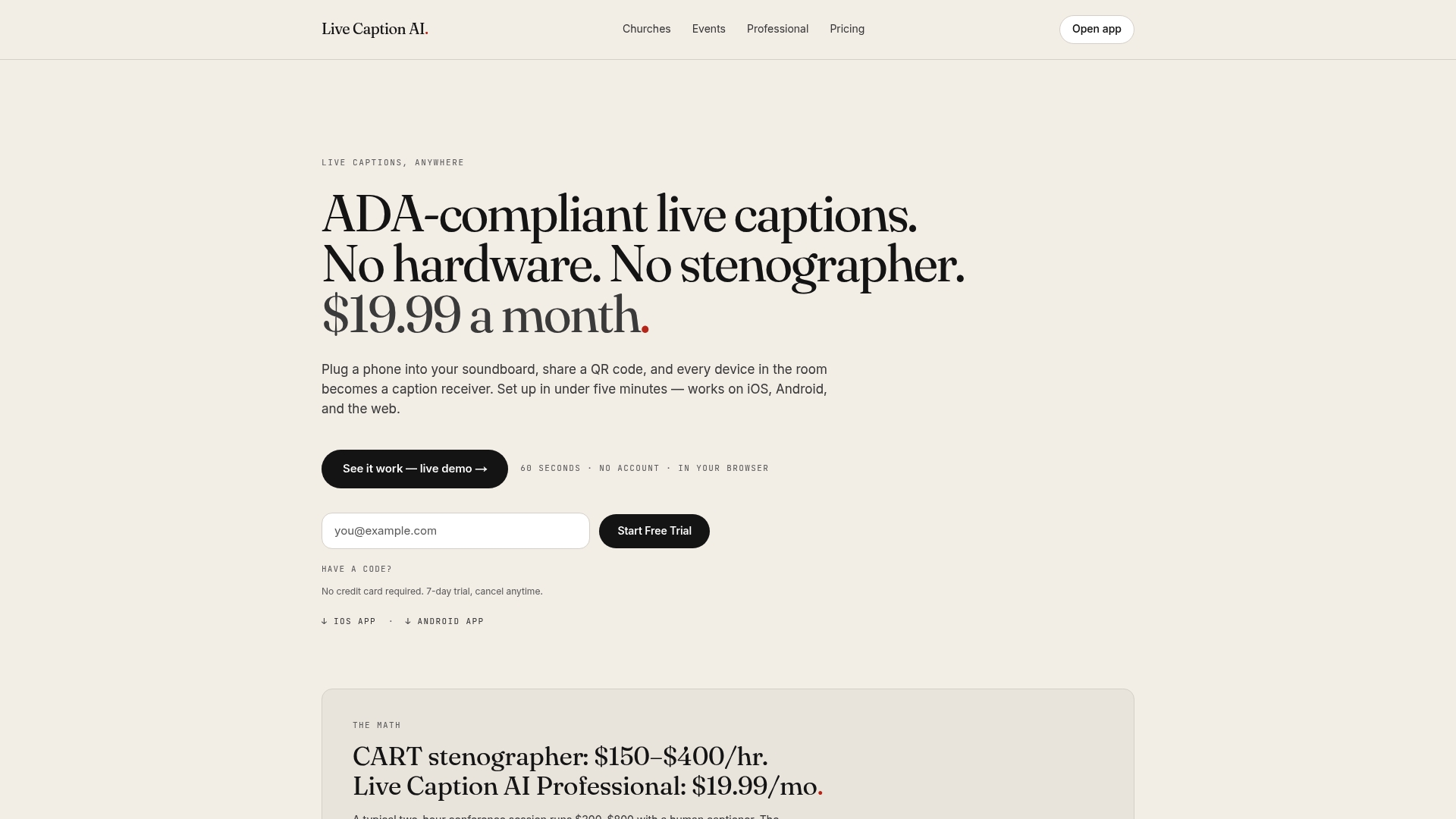
Some domain-specific models are trained to catch terminology that generic speech-to-text tends to miss, useful whether captioning a legal proceeding, a medical consultation, or a Sunday service. Plans often run from a free tier for basic on-device captions up to paid tiers unlocking cloud-based features, with professional plans available for a monthly fee. Check out how open vs closed captions affect your setup, then visit Live Caption AI to start a trial and see how it handles your next live session.