September 2, 2026 · 10 min read
5 Minute Test to Decide Open vs Closed Captions Before You Publish
Learn when to burn captions or use a toggle with a 5 step accessibility first checklist and a simple live caption option (Live Caption AI) for events.

Open captions are burned into the video and always visible; closed captions are a separate, toggleable text track viewers can turn on or off. The right choice depends on where the video lives, whether your audience needs control over the text, and whether the platform even supports a closed-caption track. Most creators end up needing both formats at different points in their workflow, not one or the other.
TL;DR:
- Closed captions are searchable, editable, and support multiple languages but depend on platform compatibility, requiring testing before full deployment.
- Open captions guarantee visibility across all players, though they are harder to update, not searchable, and may degrade with video compression.
- Most platforms support closed captions reliably for broadcast and educational content, but social platforms often lack consistent support, favoring open captions.
- Captions are distinct from subtitles, with captions including non-speech sounds and subtitles focusing only on dialogue, affecting content accessibility choices.
- Live captioning solutions like Live Caption AI provide real-time, multi-language text without recording audio, ideal for events and short-term needs.
Table of Contents
- Open Vs Closed Captions: The Core Difference
- What Are Open Captions?
- What Are Closed Captions?
- Captions, Subtitles, and SDH: Untangling the Labels
- Weighing the Trade-offs by Platform
- Accessibility Rules and Quality Standards You Should Know
- How to Choose: A Quick Decision Checklist
- Adding Captions: File Formats and Workflow Basics
- Why This Choice Matters More Than It Looks
- A Simple Way to Add Live Text to Any Session
- Sources
Open Vs Closed Captions: The Core Difference
The phrase “open vs closed captions” describes two different delivery methods for the same basic idea: putting spoken words and sound cues on screen as text. Open captions get rendered directly into the video image during editing or export. Once that happens, they’re part of the picture. There’s no button to hide them, no settings menu, nothing to toggle. Closed captions work differently. They’re stored as a separate, toggleable text track that a media player reads and displays on top of the video, and viewers switch them on or off whenever they want.
That single distinction, burned-in versus switchable, drives almost every practical decision that follows: where you can use each format, how searchable your content stays, and how much control you’re handing to the viewer.
What Are Open Captions?
Open captions are text permanently embedded into the video frame itself. Think of them as part of the image, not an overlay a viewer can remove. Once rendered, they’re baked in for good.
Editors typically reach for open captions in a few specific situations:
- Social clips on platforms where closed-caption support is inconsistent or absent
- Theatrical or in-venue displays where every viewer needs to see the text regardless of device settings
- Marketing materials where the creator wants to guarantee the caption is visible no matter what player or app the viewer uses
The tradeoff is real. Open captions aren’t searchable by search engines or screen readers because the text is just pixels, not machine-readable characters. They’re also harder to fix after the fact. A typo means re-rendering the whole clip. And because the caption is now part of the video image, heavy compression during upload can blur or pixelate the text, especially on small mobile screens where the text was already tight on space.
What Are Closed Captions?
Closed captions live in a separate file or data track that rides alongside the video rather than inside it. A player reads that track and displays the text only when the viewer switches it on, which is why the format is called “closed”: the option is there, but it’s hidden by default.
That separation from the video image is what makes closed captions so flexible. Many players let viewers customize how the text looks, adjusting font size, color, and background to fit their own vision needs or reading preference. Because the captions exist as real text rather than baked-in pixels, they carry three advantages open captions can’t match:
- Search engines and screen readers can index the words, which helps with discoverability
- Archiving stays clean since you can update or correct the track without re-exporting the video
- Multiple language tracks can sit on top of the same video file, letting one upload serve several audiences
The catch is that closed captions depend entirely on the player supporting them. If the platform or embed doesn’t read caption tracks, viewers see nothing at all.
Captions, Subtitles, and SDH: Untangling the Labels
People use “captions” and “subtitles” as if they’re interchangeable, but they describe different content, not different delivery methods.
- Captions include everything happening in the audio, not just dialogue. That means speaker identification, sound effects like “[door slams],” and background music cues. They’re built for viewers who can’t hear the audio at all.
- Subtitles typically transcribe or translate spoken dialogue only, assuming the viewer can already hear sound effects and tone. They’re built more for language access than hearing access.
- SDH (subtitles for deaf and hard of hearing) blurs the line. SDH functions like captions, including non-speech audio cues, but gets labeled as subtitles because it’s delivered through a subtitle track on streaming platforms.
Here’s the part that trips people up: open versus closed describes how the text is delivered, whereas captions versus subtitles describes what content the text contains. The two are independent choices. You can have open subtitles, closed captions, or any other combination depending on the project.
Weighing the Trade-offs by Platform
Neither format wins outright. Each comes with a specific cost that shows up depending on where the video lands.
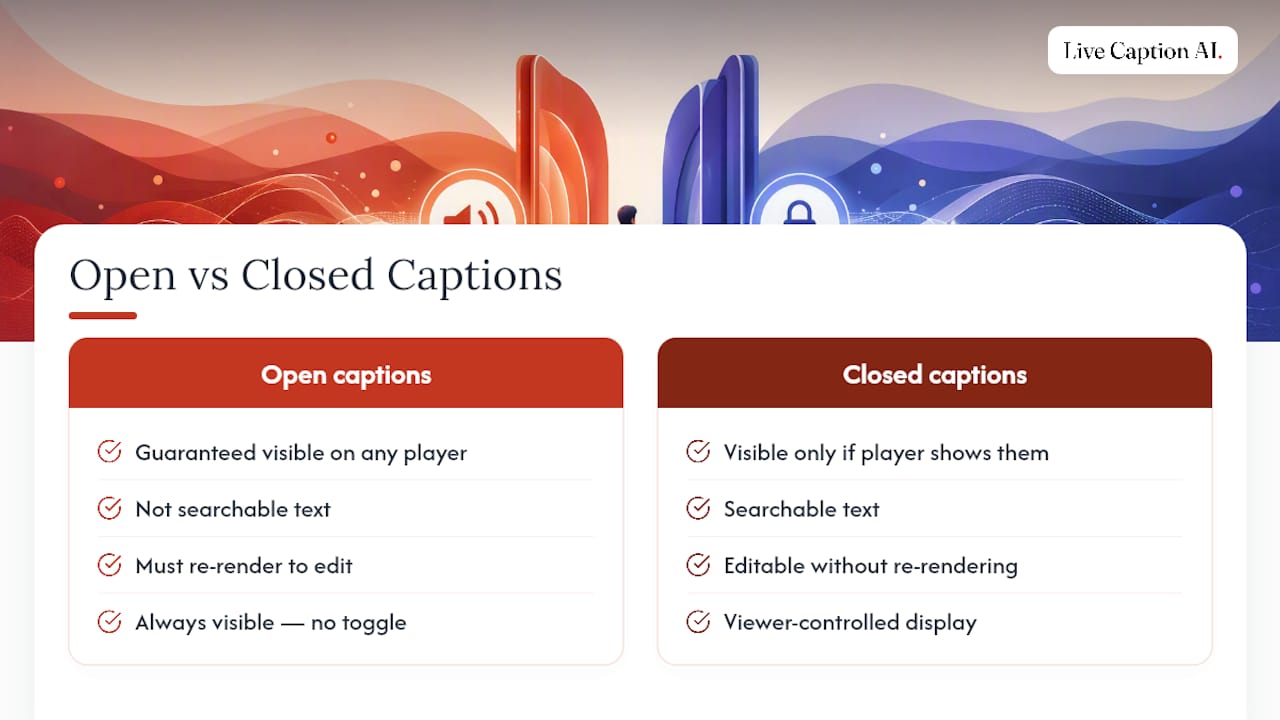
Open caption advantages: guaranteed visibility on any player, no dependency on platform support, works even when a viewer’s device or app doesn’t read caption tracks at all.
Open caption disadvantages: not searchable, can’t be edited without re-rendering, and vulnerable to quality loss when compression squeezes the video file down for upload.
Closed caption advantages: searchable text, viewer-controlled display, support for multiple languages on one file, and no permanent alteration to the video image.
Closed caption disadvantages: entirely dependent on the player actually supporting caption tracks, and invisible to viewers who don’t know to turn them on.
Platform matters more than personal preference here. Broadcast television and most learning management systems support closed captions reliably. Social feeds are inconsistent, which is why open captions became the safer default for platforms lacking closed-caption support for years, and theaters showing a fixed print need open captions since there’s no player to toggle anything.
Pro Tip: If you’re unsure whether a platform supports closed captions reliably, test the upload yourself before committing a whole content calendar to one format. A five-minute test saves you from re-editing a month of clips.
Accessibility Rules and Quality Standards You Should Know
Captioning isn’t just a nice extra. In the United States, FCC rules have required closed captioning on nonexempt broadcast programming since January 1, 2006, with the underlying regulations taking effect back in 1998. That obligation extends to most video programming distributors, not just traditional broadcasters.
Beyond the legal floor, the W3C’s Web Accessibility Initiative sets quality expectations that apply whether captions are open or closed:
- Accuracy: the text matches what’s actually said, not a rough paraphrase
- Synchronization: captions appear and disappear in time with the audio
- Completeness: captions run for the full duration of the video, not just the easy parts
- Placement: text doesn’t block faces, graphics, or other important visual information
Live captioning adds a layer of difficulty none of this covers on its own. There’s no chance to fix a typo before it airs, so real-time accuracy checks and a plan for correcting errors on the fly matter more than they do for prerecorded content.
How to Choose: A Quick Decision Checklist
Match the format to the situation instead of picking one out of habit.
- Check platform support first. If the destination doesn’t reliably display closed-caption tracks, open captions are the safer bet regardless of other preferences.
- Ask whether viewers need control. If some viewers want captions and others don’t, closed wins. If everyone needs to see the text, open wins.
- Weigh search and archiving needs. Content meant to be found later, indexed, or translated into multiple languages should lean closed.
- Separate live from prerecorded. Live events often lean on open, on-screen text for guaranteed visibility, while prerecorded content has time to build a clean closed-caption track.
- Consider a hybrid. Some creators burn in short callouts or names as open captions for style, then layer a full closed-caption track underneath for accessibility and search.
Adding Captions: File Formats and Workflow Basics
Once you know which format fits, the actual production step is straightforward. Closed captions typically export as text-based files like SRT, with some workflows also using TXT, JSON, or PDF for transcripts and archiving. Open captions get rendered directly during video editing, so there’s no separate file to manage after export.
For prerecorded content, build the caption file first, sync it against the audio, then export. For live events, real-time captioning tools generate text as the speaker talks, which is inherently harder to perfect in the moment.
Before publishing, run a few quick checks:
- Play the video on mobile to confirm text stays legible after compression
- Read the captions independently to catch phrasing that doesn’t match natural speech
- Confirm speaker changes and sound cues are marked clearly, not just dialogue
Why This Choice Matters More Than It Looks
Captioning is one of those decisions that seems purely technical until you realize how much it shapes who can actually watch your content. The format debate matters, but it’s secondary to the real point: captioning at all is what makes a video usable for people who are deaf, hard of hearing, watching on mute, or just trying to follow along in a noisy room.
Live events are where this gets hardest, because there’s no second take. Getting affordable, accurate captioning into that moment, without needing a full production budget, is worth solving well.
— Ryan
A Simple Way to Add Live Text to Any Session
Everything above covers open and closed captions as they’re built into recorded video. Live Caption AI works differently, and it’s worth being clear about that instead of blurring the lines. It doesn’t burn captions into a video file, and it doesn’t produce the broadcast-standard CEA-608/708 closed captions that TV rules require. Instead, it renders live text on screen and on a shareable viewer URL that attendees open on their own phone, usually through a quick QR code scan.
That makes it a practical fit for churches, live events, medical visits, and professional meetings where you need real-time text now, not a caption track baked into a recording later. Live Caption AI supports multiple languages, with one source language to one target language per session, and allows exporting transcripts afterward. Audio is never stored, and transcripts stay owner-only. A professional plan is available via a monthly subscription. If you’re weighing options for your next live captioned event, check the Professional plan details to see if it fits your setup.
Sources
- What is the difference between open and closed captioning?
- Captions/Subtitles | Web Accessibility Initiative (WAI) | W3C
- Captions for deaf and hard-of-hearing viewers
- Open vs. Closed Captions - Digital Accessibility