September 20, 2026 · 12 min read
6 Steps for Creators to Build a WebVTT Bilingual Captions Screen
Build an accessible bilingual captions screen with WebVTT. Covers layout, testing, six steps, and Live Caption AI for live events.
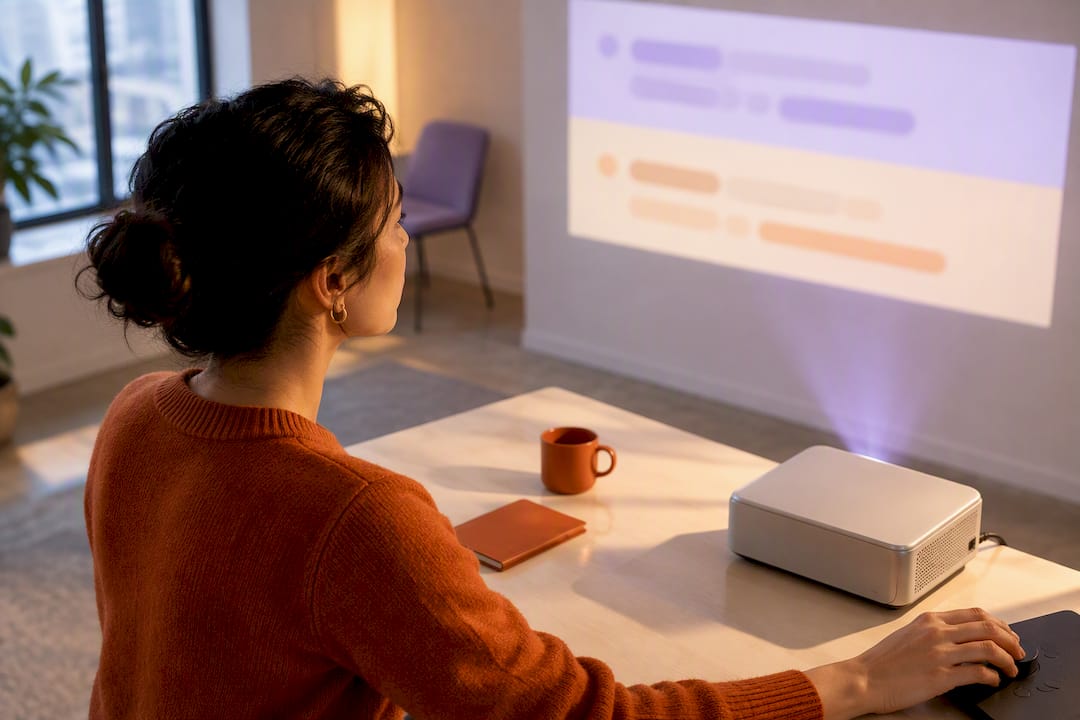
A bilingual captions screen shows the original-language caption and its translation on-screen at the same time, either stacked or side by side. The most reliable way to build one is a straightforward pipeline: transcribe the source audio, translate the timed cues without breaking their timestamps, align both languages into a single set of aligned cues, then export or render. For accessibility, keep the source-language captions as true captions, not just a translated line.
TL;DR:
WebVTT is the preferred format for web-based bilingual captions because it supports styling and positioning, unlike SRT, which lacks formatting capabilities.
Stacked caption layouts are best for mobile and social media, with the source language on top and translation below, maintaining consistent order across the video.
Combining both languages into a single cue or using custom rendering is necessary because browsers typically display only one track at a time when attaching multiple language tracks.
Live bilingual captioning faces latency and accuracy challenges, but QR code-based receiver systems like Live Caption AI allow let every viewer read along on their own phone, switching between the original and the session’s translated language.
Testing on small screens and ensuring captions do not obscure faces or graphics are critical before publishing or going live, especially to maintain synchronization during seeking or speed changes.
Table of Contents
-
What Bilingual Captions Are and Why Captions vs. Subtitles Matters
-
How Do You Produce Prerecorded Bilingual Captions Step by Step?
-
How Live Caption AI Fits Into a Bilingual Captioning Workflow
What Bilingual Captions Are and Why Captions vs. Subtitles Matters
Captions are a verbatim, time-aligned transcript of the audio, including non-speech information like “[phone rings]” or “[applause]”. Subtitles translate spoken dialogue for viewers who don’t speak the original language, but they typically drop that non-speech context. A true bilingual captions screen needs both jobs done at once: source-language captions for accessibility, plus a translated line for comprehension.
That distinction determines your entire approach. If you only translate dialogue, you’ve built subtitles, not captions, and you’ve likely left out sound cues a deaf or hard of hearing viewer needs.
-
Captions: verbatim speech text + sound effects, speaker labels, music cues
-
Subtitles: translated dialogue only, often without non-speech markup
-
Bilingual accessible screen: source captions + translated subtitles running together
When accessibility is the goal rather than a nice extra, source-language captions belong on screen even when you add a translation, and speaker names and sound cues should survive the translation pass. Skipping either one creates a gap for exactly the viewers captions are supposed to serve. For a deeper breakdown of when each format applies, see how captions and subtitles differ in practice.
Which File Formats Work Best for Dual-Language Video?
WebVTT is the format built for the web, and it’s the one you want for a bilingual captions screen. WebVTT cues are time-aligned text blocks, and the format supports styling through ::cue selectors and positioned regions, which is exactly what you need to control where each language sits on the frame.
SRT still matters. It’s the oldest widely supported format, and desktop media players, editing software, and many delivery pipelines expect it. But SRT has no built-in styling, so it can’t cleanly separate two languages within one file the way VTT can.
Here’s the catch most creators miss with HTML: the <track> element lets you attach multiple language tracks to a <video> tag, but browsers are built to display only one selected track at a time. Getting both languages on screen simultaneously means one of two things:
-
Combine both languages into a single set of cues, formatted as one bilingual line per timestamp
-
Build a custom renderer using the WebVTT text tracks API to render two tracks together on a canvas or overlay
Separating the timed text from the player’s presentation layer is what makes any of this reusable. Treat captions as a content file, not a visual design, and you can restyle, re-platform, or swap languages without re-cutting video.
How Should Two-Language Captions Be Laid Out?
Stacked captions, original on top or bottom with the translation directly beneath, hold up best across screen sizes. On a phone, side-by-side text gets cramped fast, and lines start wrapping into three or four rows that eat half the frame. Side-by-side layouts work better on wide displays, projector screens, or internal review footage where width isn’t a constraint.
Whichever layout you choose, keep the order consistent. If the source language is always on top, don’t flip it mid-video. Consistent spacing and a restrained style, one font, two weight or size variations at most, reads more clearly than leaning on color alone to separate the languages. Color-only distinctions fail for colorblind viewers and wash out on bright outdoor footage.
-
Use stacked layout as the default for mobile and social video
-
Reserve side-by-side for wide screens, editing reviews, or classroom projectors
-
Keep consistent language order across the entire video
-
Maintain safe margins on all four sides of the frame
-
Test the layout over both bright and dark scenes before publishing
Pro Tip: Run your bilingual layout past a scene with a face close to the bottom third of the frame. If the second caption line covers a mouth or eyes, viewers relying on lip reading or facial expression lose information a single-language caption never would have blocked.
Which language goes first isn’t just a design choice. Eye-tracking research on bilingual subtitles found that viewers tend to lock onto whichever language sits in the primary reading position and skip the other, especially when it’s a language they’re actively trying to learn. Put the audience’s strongest language first for pure accessibility; put the target language first if the goal is language learning.
How Do You Produce Prerecorded Bilingual Captions Step by Step?
Building a bilingual captions screen for edited video follows a fixed order. Skip a step and you’ll spend hours fixing drift later.
-
Create the source transcript. Generate or manually write a caption file with accurate timestamps for every cue.
-
Translate without touching timing. Translate the text inside each cue but leave the start and end times untouched. This keeps both language versions locked to the same audio moments.
-
Review names and terminology. Run a fluent-speaker pass over proper nouns, technical terms, and idioms. Machine translation regularly mangles names and domain vocabulary.
-
Merge into aligned cues. Combine both language payloads into one cue per timestamp, or set up dual regions if your player supports simultaneous track rendering.
-
Re-segment where needed. Translations expand or contract differently than the source. Cue segmentation needs per-language adjustment to avoid text overflow, so shorten or re-break lines while preserving meaning.
-
Export for the target platform. Use SRT for desktop or app players that expect it, and VTT when embedding on the web with custom styling.
Pro Tip: Never merge two subtitle files by matching line numbers. If one language has a slightly different cue count, everything after the mismatch shifts out of sync. Align by timestamp and spot-check scene changes by eye, not by line index.
Can You Do Live Bilingual Captions in Real Time?
Live bilingual captioning runs into constraints prerecorded video never faces. Automatic speech recognition has inherent latency, translation adds another lag on top of that, and network reliability determines whether either stream reaches the audience at all. Stacking two live languages on one screen without a plan usually means one language always trails.
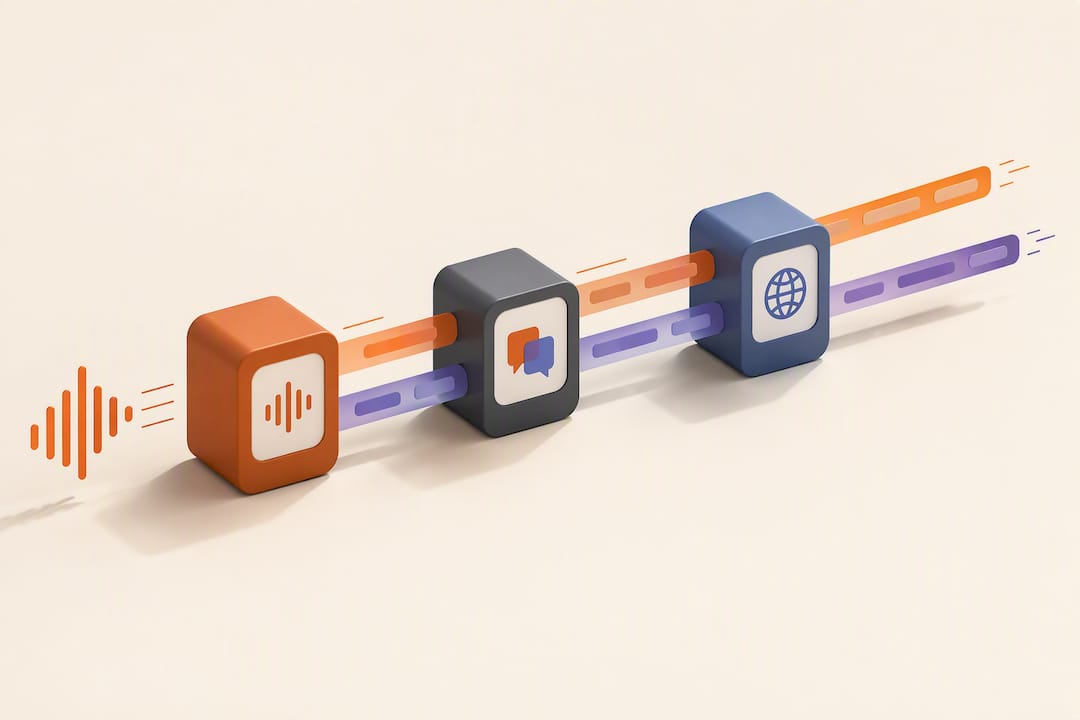
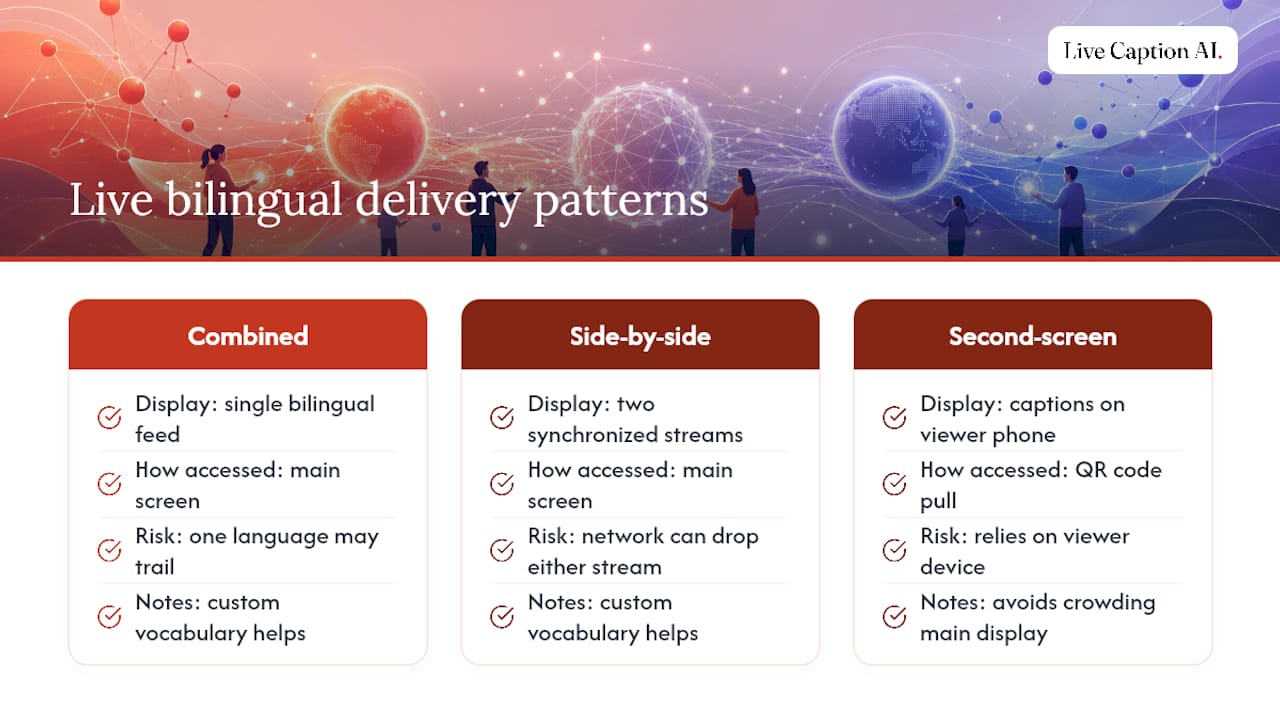
Three delivery patterns work in practice: combined live cues rendered as a single bilingual feed, two synchronized streams displayed side by side, or a second-screen approach where viewers pull captions to their own phone via a QR code rather than crowding the main display. Preparing custom vocabulary in advance, names, technical terms, acronyms, cuts down on the errors that generic speech-to-text produces under pressure. For events where accuracy and low latency actually matter, a managed live captioning service is worth the cost over a DIY setup. You can find more on distribution patterns in posts tagged multilingual live captions.
What Should You Test Before Publishing or Going Live?
A bilingual captions screen that looks fine on your editing monitor can fail completely on the device most of your audience actually uses. Test on the smallest screen size you expect, and check the layout from a real viewing distance, not six inches from a laptop.
-
Confirm neither language line covers faces, graphics, or lower-third text
-
Verify sync holds after seeking, changing playback speed, or entering full-screen
-
Check line length, contrast, and margins against the frame edges
-
Validate that speaker labels and sound cues survived into both language tracks
-
Keep a fallback: a single-language caption file ready if live translation degrades mid-event
Testing after a seek or speed change matters more than it sounds. Cue timing is often the hidden failure point. A file that syncs perfectly on first playback can drift the moment a viewer jumps ahead or speeds up playback, and that drift shows up worse on a bilingual screen because you now have twice as much text that can fall out of step. For more on timing checks specific to live formats, see posts tagged timing captions for live videos.
How Live Caption AI Fits Into a Bilingual Captioning Workflow
Live events are where the workflow above gets hard to execute manually, and that’s the gap Live Caption AI is built to close. Instead of running two synced displays on a shared screen, Live Caption AI turns any phone into a caption receiver through a QR code, so each audience member picks their own language on their own device without touching the main video frame or projector output.
For specialist settings, domain-specific models handle medical, legal, and event terminology that generic speech-to-text tools routinely miss, and you can add custom vocabulary per session for names or jargon specific to that talk. Medical and legal deployments can run with no audio storage. If you’re testing this for the first time, start small: a single service, class, or short event is enough to see how the domain model handles your specific vocabulary before you commit to a paid plan.
The Author’s Take: What Actually Works for Creators
Stacked bilingual captions are my default recommendation for nearly everyone reading this. They hold up across phones, tablets, and desktop, and they don’t force a tradeoff between accessibility and translation. Side-by-side has its place, but it’s a specialist layout, not a general one.
For large live events, don’t try to build a two-screen system by hand under time pressure. A managed platform like Live Caption AI earns its cost the moment latency or accuracy actually matters to the room. And whichever layout you pick, watch how your specific audience reads it. If they’re skipping the translated line entirely, swap which language leads.
— Ryan
Try Live Caption AI for Your Next Bilingual Event
A QR receiver system can put captions on every attendee’s own phone, domain-specific models catch terminology generic tools miss, can keep sessions audio-free by design.
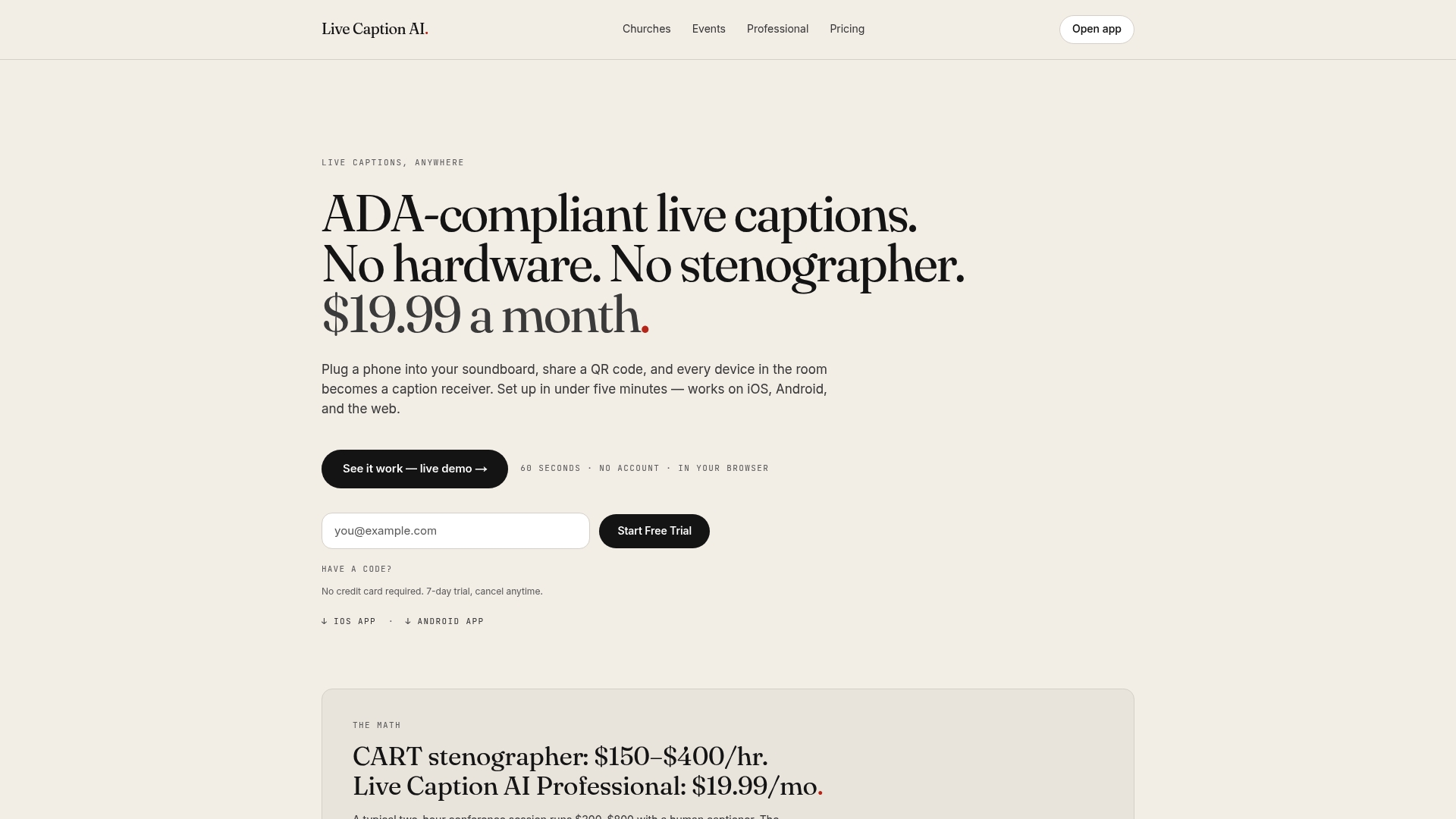
Start with the Free plan to test a small event or a short prerecorded clip, then move to the Professional plan once you need cloud-based translation and broadcasting at scale. Larger organizations running multiple simultaneous sessions can consider the Business plan, which is priced higher. Check current plans and pricing, sign up, run a short test session, and review the custom vocabulary settings before your first real event.
Sources
For deeper technical reference: the WebVTT specification for timed-text format, W3C technique H95 on captions and <track>, the MDN WebVTT API docs, and the eye-tracking study on bilingual subtitles.
FAQ
How Do I Display Two Subtitles at the Same Time?
Combine both languages into a single set of timed cues in one WebVTT file, since browsers typically show only one selected <track> at a time. Alternatively, build a custom renderer with the WebVTT text tracks API to display two separate tracks together on screen.
Can CapCut Generate Bilingual Captions Automatically?
Video editing apps can auto-generate single-language captions and translate them, but most don’t natively render two languages stacked together as one bilingual cue. You’ll typically need to export both language files and merge them by timestamp using the workflow described above, or use a dedicated live captioning tool for real-time bilingual output.
How Do I Get Two-Language Subtitles on Netflix?
Streaming platforms like Netflix generally restrict playback to one subtitle track at a time by design, and there’s no built-in setting to display two languages simultaneously. Viewers who want a bilingual view usually rely on third-party browser extensions rather than a platform feature.
How Do I Add Live Captions to My Screen?
For prerecorded video, export merged bilingual cues as WebVTT for web embedding or SRT for desktop players. For live events, a QR-based receiver system like Live Caption AI lets each viewer pull captions to their own phone in their chosen language without altering the main display.
Should I Put the Original Language or the Translation First?
Put the audience’s strongest language first when the goal is accessibility, since that’s the position viewers read most reliably. For language learning, eye-tracking research shows viewers tend to skip whichever language sits in the secondary position, so put the target language first if learning is the point.