July 23, 2026 · 9 min read
Vimeo Live Captions: ADA Compliance Guide for Pros
Discover how Vimeo live captions enhance accessibility with real-time AI-generated closed captions and multiple language options for your streams.

Vimeo live captions are AI-generated, automatic closed captions that display spoken content as text during live video streams. They work by processing audio in real time and rendering text through WebVTT directly in Vimeo’s web player. Viewers control captions via the [CC] toggle and can select from multiple translated languages through the language menu without reloading the stream. One critical detail: language settings lock once the broadcast starts, so all configuration must happen before you go live.
Here is what Vimeo’s live captioning system supports out of the box:
-
Automatic closed captions generated by AI during live events
-
Real-time translation into many languages, selectable by viewers
-
Multiple simultaneous translated caption tracks per stream
-
Viewer-controlled [CC] toggle and language menu
-
WebVTT format for caption rendering and download
Table of Contents
-
What are the real benefits and limits of Vimeo’s automated live captions?
-
How do you keep captions accessible after your live event ends?
-
Best practices for getting the most out of Vimeo live captions
-
How does Vimeo’s captioning compare to dedicated live captioning services?
-
What caption customization and viewer controls does Vimeo offer?
What are the real benefits and limits of Vimeo’s automated live captions?
Vimeo’s AI-driven captions deliver genuine value for most professional streaming scenarios. They reduce the time and labor costs tied to manual stenography, and they extend your reach to multilingual audiences without extra production overhead. For churches, universities, and corporate events, that combination of speed and scale is hard to beat.
Where Vimeo’s captions shine:
-
Broad accessibility for deaf and hard-of-hearing viewers, supporting ADA compliance goals
-
Automated captions reduce time and labor costs compared to manual stenography
-
Support for 99 languages in automatic captions, with up to 10 simultaneous translated tracks
-
Captions are retained in archived video-on-demand versions post-event
Where they fall short:
-
Accuracy drops with heavy accents, fast speakers, or dense technical terminology
-
Captions appear only in Vimeo’s web player by default; mobile apps and external players require HLS with manual captions
-
Advanced broadcast features like scrolling text or wipe animations are not supported
-
Manual RTMP caption injection is possible, but Vimeo converts all incoming captions to WebVTT, limiting broadcast-quality customization
For medical depositions, legal proceedings, or any setting where a misheard word carries real consequences, automated captions alone are not enough. Human oversight or a specialized solution is necessary.
Pro Tip: Vimeo’s enhanced speech detection lets you add up to 50 custom terms to improve accuracy for names, product names, and technical jargon. Use it every time.
How do you keep captions accessible after your live event ends?
Archiving captions is not optional if you care about ADA compliance. Vimeo retains both automated and manual captions in archived video-on-demand versions, so viewers who missed the live event can still access fully captioned recordings. Translated captions are automatically regenerated on the archived VOD, which saves you from manually re-uploading language tracks.
Key points for post-event caption management:
-
Download captions in WebVTT format to edit for accuracy before the archive goes public
-
Upload multiple language files to the archived VOD for multilingual audiences
-
Verify that captions display correctly in the Vimeo player before sharing the recording link
-
Note that captions may not display on mobile apps or third-party players without HLS support
Retaining captions in archived videos maximizes ADA compliance and keeps your content accessible well beyond the live window. If your organization publishes event recordings for ongoing training or reference, this step is non-negotiable.
Vimeo’s built-in captions cover a lot of ground, but they have real gaps, especially for organizations operating in medical, legal, or high-stakes professional environments. Live Caption AI fills those gaps directly.
Here is what sets it apart:
-
Any device, no hardware. Share a QR code and any phone or tablet becomes a caption receiver instantly.
-
Domain-specific accuracy. Specialized speech models for medical, worship, and finance vocabulary, plus custom terminology for legal and other specialized fields.
-
Multilingual in real time. Live translation into any of 29 languages, selected per session.
-
AI-powered summaries and exportable transcripts. Every session produces a record you can use immediately.
-
Unlimited device broadcasting. No cap on how many attendees can follow along.
On cost: a traditional stenographer can run hundreds of dollars per session. Live Caption AI’s plans start at a monthly fee of $19.99, a fraction of that expense for organizations running regular events.
For churches, AV teams, universities, and medical practices that need consistent, compliant captioning without the overhead, Live Caption AI is a practical, proven option.
Best practices for getting the most out of Vimeo live captions
Getting Vimeo’s captioning right takes preparation. Because language settings lock at stream start, every decision about caption and translation configuration must be made beforehand.
-
Set all languages before going live. You cannot change caption or translation language settings mid-stream.
-
Test privately first. Run a private test stream to verify captions display correctly before your public event.
-
Add custom terms. Use Vimeo’s enhanced speech detection to enter up to 50 domain-specific terms for better accuracy.
-
Configure translation tracks. Select all languages your audience needs before the broadcast begins.
-
Plan for mobile viewers. If attendees will watch on phones, confirm your HLS setup supports manual captions.
-
Download and edit post-event. Pull the WebVTT file after the event, correct any errors, and re-upload before publishing the recording.
-
Use browser-level tools as a backup. Browser-based captioning solutions can process audio locally and serve as a fail-safe when native caption support is incomplete.
Pro Tip: For events where accuracy is critical, pair Vimeo’s automated captions with Live Caption AI’s QR code system. Attendees get captions on their own devices, independent of the Vimeo player, with domain-specific accuracy Vimeo’s generic model cannot match.
How do you set up live captions on Vimeo?
Setting up Vimeo live captions is straightforward if you follow the sequence. Log into your Vimeo account and open the live event settings. Under the “Captions” tab, enable automatic closed captions and select your primary caption language. If you want translated tracks, add up to 10 languages in the translation settings at this stage.
Once your encoder is connected and you are ready to stream, start the broadcast. From that point, caption and language settings are locked. Viewers will see the [CC] button in the player and can select their preferred language from the menu. After the event, navigate to the video’s settings to download the WebVTT caption file, make any edits, and re-upload the corrected version.
For manual RTMP caption injection, Vimeo accepts incoming caption data and converts it to WebVTT automatically. Advanced broadcast caption features like animations or custom positioning are not available in this workflow.
How does Vimeo’s captioning compare to dedicated live captioning services?
Vimeo’s built-in captions are convenient and cost-effective for general use. They require no third-party integration and work well for standard corporate events, webinars, and public broadcasts where near-real-time accuracy is acceptable.

Dedicated live captioning services operate differently. They are built specifically for accuracy and compliance, often using AI integration in streaming platforms to deliver domain-specific terminology recognition that a general-purpose model cannot replicate. They also tend to support more devices and environments, including in-person rooms where no video stream exists at all.
| Feature | Vimeo built-in captions | Dedicated captioning service |
|---|---|---|
| Setup complexity | Low | Low to moderate |
| Accuracy for technical terms | Moderate | High (with domain models) |
| Not offered | Available (select providers) | |
| Device reach | Vimeo web player only | Any device via QR code |
| Pricing | Included in Vimeo plan | From $19.99/month |
| Exportable transcripts | WebVTT download | Full transcript export |
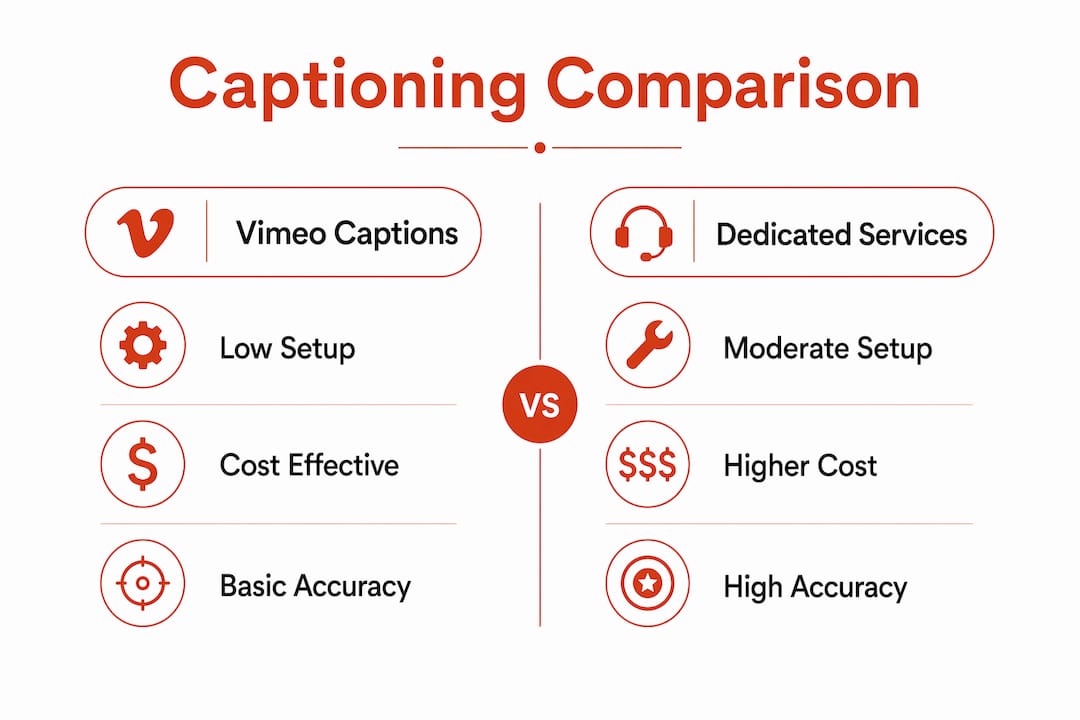
For organizations where compliance and accuracy are the priority, a dedicated service is the stronger choice.
What caption customization and viewer controls does Vimeo offer?
Viewers watching a Vimeo live stream can toggle captions on or off using the [CC] button in the player. If multiple translated languages are enabled, they can switch between them instantly from the language menu without interrupting the stream. Translations derive from the primary automatic caption feed, so the quality of translated tracks depends directly on the accuracy of the source captions.
On the organizer side, customization options are limited. Caption positioning, font styling, and animation effects are not configurable in Vimeo’s WebVTT-based workflow. What you can control is the list of languages offered and the custom terminology fed into the enhanced speech detection field. For organizations that need branded or highly styled captions, a third-party captioning layer is the practical path.
Live Caption AI is built for exactly this situation
Vimeo’s live captions are a solid starting point.
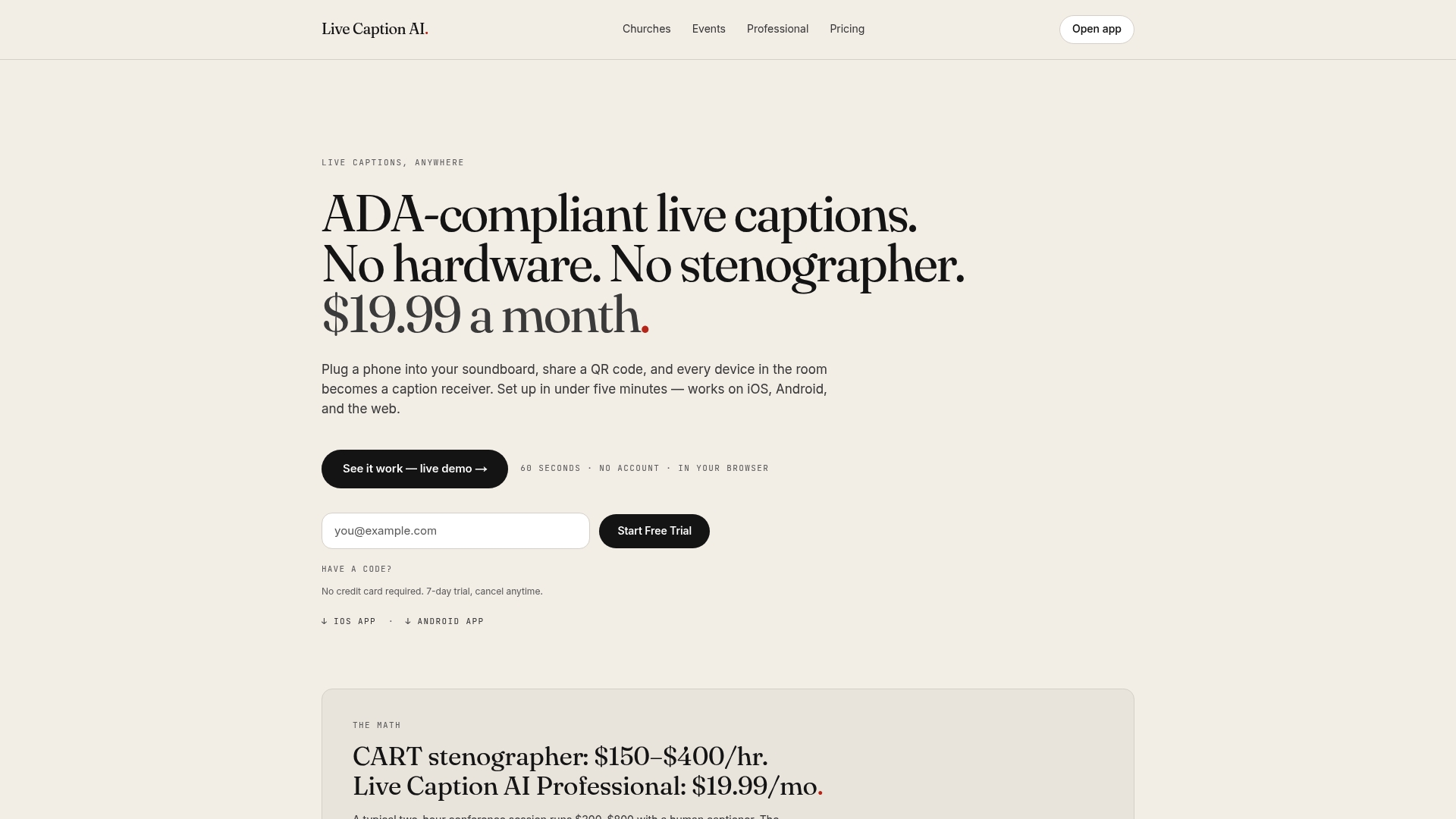
No hardware. No stenographer. Just share a QR code, and captions appear on any device in the room. Plans start at $19.99/month. Whether you run weekly church services, corporate training sessions, or legal proceedings, Live Caption AI gives you reliable, compliant captioning without the overhead. Start your 7-day free trial today. No credit card required.
Key Takeaways
Vimeo live captions provide a strong accessibility baseline, but dedicated solutions like Live Caption AI are necessary for high-stakes or multi-device professional environments.
| Point | Details |
|---|---|
| Language settings lock at stream start | Configure all caption and translation languages before going live — no mid-stream changes are possible. |
| Up to 99 languages supported | Vimeo supports automatic captions in 99 languages with up to 10 simultaneous translated tracks per stream. |
| Captions archive automatically | Vimeo retains automated and manual captions in VOD recordings, supporting ongoing ADA compliance. |
| Web player only by default | Vimeo captions appear in the web player; mobile and third-party players require HLS with manual captions. |
| Live Caption AI starts at $19.99/month | Live Caption AI delivers an ADA-focused experience, Works on any device via QR code, at a fraction of stenographer costs. |