September 9, 2026 · 10 min read
Save Google Meet Captions When Transcripts Take Hours, Keep Them Local
Start with native transcripts when the organizer has Business Standard. If not, capture captions locally with extensions or recordings, or try Live...

If the organizer has Google Workspace Business Standard or higher, native Meet transcripts are your safest bet for google meet captions save results. Without that tier, record the meeting with captions embedded, or run a local browser extension that watches the caption box in real time. Either way, expect a processing delay, and check host permissions first since not every method works for every attendee.
TL;DR:
- Native transcripts are only available to organizers on Google Workspace Business Standard or higher, with processing delays of a few hours.
- Recording meetings with embedded captions creates large files and captions can lag hours behind the video playback in Drive.
- Browser extensions offer real-time caption capture for attendees without admin rights, but they break if Google updates the Meet interface.
- Manual copy-pasting or OS-level live captions work in emergencies but are unreliable for full transcripts or lengthy recordings.
- Transcripts stored in Google Drive may be deleted after 30 days unless explicitly archived, and access is limited for meetings with over 200 invitees.
Table of Contents
- Quick Ways to Save Meet Captions: A Decision Checklist
- How to Download Google Meet Transcripts the Native Way
- Recording With Captions: Getting Subtitles From a Saved Video
- Do Browser Extensions Really Capture Live Captions Accurately?
- Manual Workarounds When You Have No Time to Set Anything Up
- What About Privacy and How Long Do Transcripts Stick Around?
- What I’ve Learned Watching People Try to Save Meet Captions
- Live Caption AI: A Steadier Option When Captions Can’t Fail
- Key Official Docs and Technical Links
- Sources
Quick Ways to Save Meet Captions: A Decision Checklist
Your best option depends on your role in the meeting and what you’re trying to protect. A host on a paid Workspace plan has it easiest. An attendee with no admin rights has to work around that.
- Native transcript: Best when you’re the organizer on Business Standard or higher. Slower (hours of delay) but the cleanest, most accurate file.
- Record with captions: Good when you need video and text together. Storage-heavy, and captions can lag the video file by hours.
- Browser extension: Best for attendees without admin access who want real-time capture. Fast and private, but breaks if Google changes its interface.
- Manual copy-paste or OS captions: Fine for short quotes or emergencies. Not reliable for a full transcript.
If you’re a host with Workspace access, start with native transcripts. If you’re an attendee in a privacy-sensitive meeting (legal, medical, HR), a local extension usually beats anything cloud-based.
How to Download Google Meet Transcripts the Native Way
Google Meet’s built-in transcription is the most direct path if your account qualifies. It’s not universal, and that trips up more people than any other part of this process.
Eligibility comes down to one thing: the organizer’s Google Workspace edition. Business Standard, Business Plus, Enterprise, and Education tiers with the right add-on get access. Free personal Google accounts and lower Workspace tiers don’t. That single rule is the source of most “why can’t I find the transcript button” confusion.
Here’s how to enable captions in Google Meet and generate a transcript:
- Start or join the meeting as the organizer (or a user with transcription rights).
- Click Activities, then Transcripts, then Start transcript.
- Let the meeting run. Meet transcribes speech in the background.
- Click Stop transcript when you’re done, or let it end automatically when the meeting closes.
- Open Google Drive and look in the Meet Recordings folder, or check the calendar event for the meeting. The file lands there once processing finishes.
Pro Tip: Give it time before you panic. Transcript files can take a couple of hours to fully process and appear in Drive, and that delay is normal server processing, not a broken feature.
Once it shows up, the transcript downloads Google Meet transcriptions as a Google Doc, which you can then export as PDF or plain text from the File menu. One catch worth knowing: for meetings with more than 200 invitees, only the host, co-hosts, and whoever started the transcript can access it, according to Google’s own transcript documentation. If your organization handles compliance archiving and wants a lighter footprint than full video, native transcripts are generally the first choice when the account tier allows it.
Recording With Captions: Getting Subtitles From a Saved Video
When you need the video and the words together, whether for training footage or a record of exactly what was shown on screen, recording with captions turned on solves that in one pass.
- Click Activities, then Recording, then Start recording.
- Before or during the recording, turn on Record captions in the recording settings so subtitles get baked into the video file.
- Everyone in the meeting gets a notification that recording has started. That’s automatic and can’t be skipped.
- Stop the recording when the meeting wraps. It saves to the organizer’s Google Drive, usually in the same Meet Recordings folder as transcripts.
There’s a timing quirk worth knowing: according to Google Meet’s help documentation, the caption track can take hours to become playable even after the video file itself shows up in Drive. You can watch the raw video immediately; the captions just aren’t baked in yet.
Once both pieces are ready, Drive’s built-in player shows captions if you toggle them on. For offline use, download the file and open it in VLC or QuickTime, both of which read embedded subtitle tracks. One hard limit to plan around: recordings stop automatically at the 8 hour mark, no exceptions.
Do Browser Extensions Really Capture Live Captions Accurately?
Reasonably well, and often better on speed than native transcripts, but they depend entirely on Google Meet’s interface staying stable. That dependency is both their strength and their biggest weak point.
Most caption-capture extensions work the same way under the hood: they attach a MutationObserver to the caption container inside Meet’s page and watch for text changes as they happen. According to the technical notes behind one open-source Meet caption tool, this approach lets an extension log captions live and export them later as TXT, SRT, or JSON, often without ever touching an external server or API key.
That local-only design is the real advantage over cloud transcription. Nothing gets uploaded anywhere. For a legal deposition prep call or a therapy session recap, that’s a meaningful difference, not a nice extra.
The fragility comes from the same mechanism. If Google tweaks the caption container’s structure, and it happens periodically, the extension stops seeing text until someone patches the selector. The same source documentation points to DOM changes as the most common reason capture breaks.
Troubleshooting checklist when captions stop saving:
- Turn on captions in Meet before you start capturing, not after.
- Refresh the tab, then re-toggle the extension.
- Check whether the extension has a pending update.
- Open the browser console (F12) to see if it’s throwing an error.
- Use the extension’s manual save shortcut as a backup instead of waiting for auto-export.
Pro Tip: Keep captions on from the very first minute of the meeting. Extensions that start observing mid-meeting sometimes miss the first exchange entirely because there’s no caption text yet for the observer to attach to.
Manual Workarounds When You Have No Time to Set Anything Up
Sometimes you just need one quote saved and there’s no time to install anything.
- Select and copy: Meet’s caption text is selectable in most browsers, so highlight and copy works for short snippets. It fails when captions render in a canvas or overlay element that blocks selection.
- OS-level live captions: Windows Live Captions transcribes audio locally on the device, without sending anything to an external server, according to Microsoft’s own documentation. It works independent of Meet’s own caption system.
- Screen record, then transcribe after: If real-time text capture isn’t an option, record your screen and run the audio through a speech-to-text tool afterward.
What About Privacy and How Long Do Transcripts Stick Around?
Every participant gets notified the moment a host starts recording. There’s no silent recording in Meet, which matters for consent in regulated fields like health care and law.
Transcripts and recordings both land in the meeting organizer’s Google Drive, not yours, even if you’re an attendee. That means access control rests with whoever holds that Drive account. According to Google’s developer documentation, transcript entries retrieved through the Meet API may be deleted around 30 days after the conference ends unless retained under separate Drive policy.
- Local-only extensions keep audio off third-party servers entirely.
- Cloud transcription services introduce an extra step where audio or text passes through another company’s infrastructure.
- Transcripts double as accessibility documentation and, in many settings, should be archived as an official record rather than treated as disposable.
- If you need a transcript for legal or medical purposes, export and archive it yourself. Don’t assume Drive will hold it indefinitely.
What I’ve Learned Watching People Try to Save Meet Captions
Most of the frustration people hit isn’t a Meet bug. It’s a mismatch between what they assume their account can do and what their Workspace tier actually allows. Check the organizer’s plan before you build a workflow around native transcripts, because that single detail decides whether the feature even exists for you.
My honest recommendation: turn on captions the second the meeting starts, and lean toward local-only capture whenever the conversation touches anything sensitive. Cloud convenience isn’t worth much if the tradeoff is audio leaving the building. And if your organization needs transcripts that are reliable and auditable across dozens or hundreds of sessions, not just the occasional one-off, a managed captioning provider handles that scale far better than a patchwork of extensions ever will.
— Ryan
Live Caption AI: A Steadier Option When Captions Can’t Fail
Native Meet transcripts and browser extensions work well for a single meeting here and there. Live Caption AI is designed for organizations that can’t afford a gap: churches, clinics, law offices, and event teams that need captions to work every single time, not just when the Workspace tier and browser cooperate.
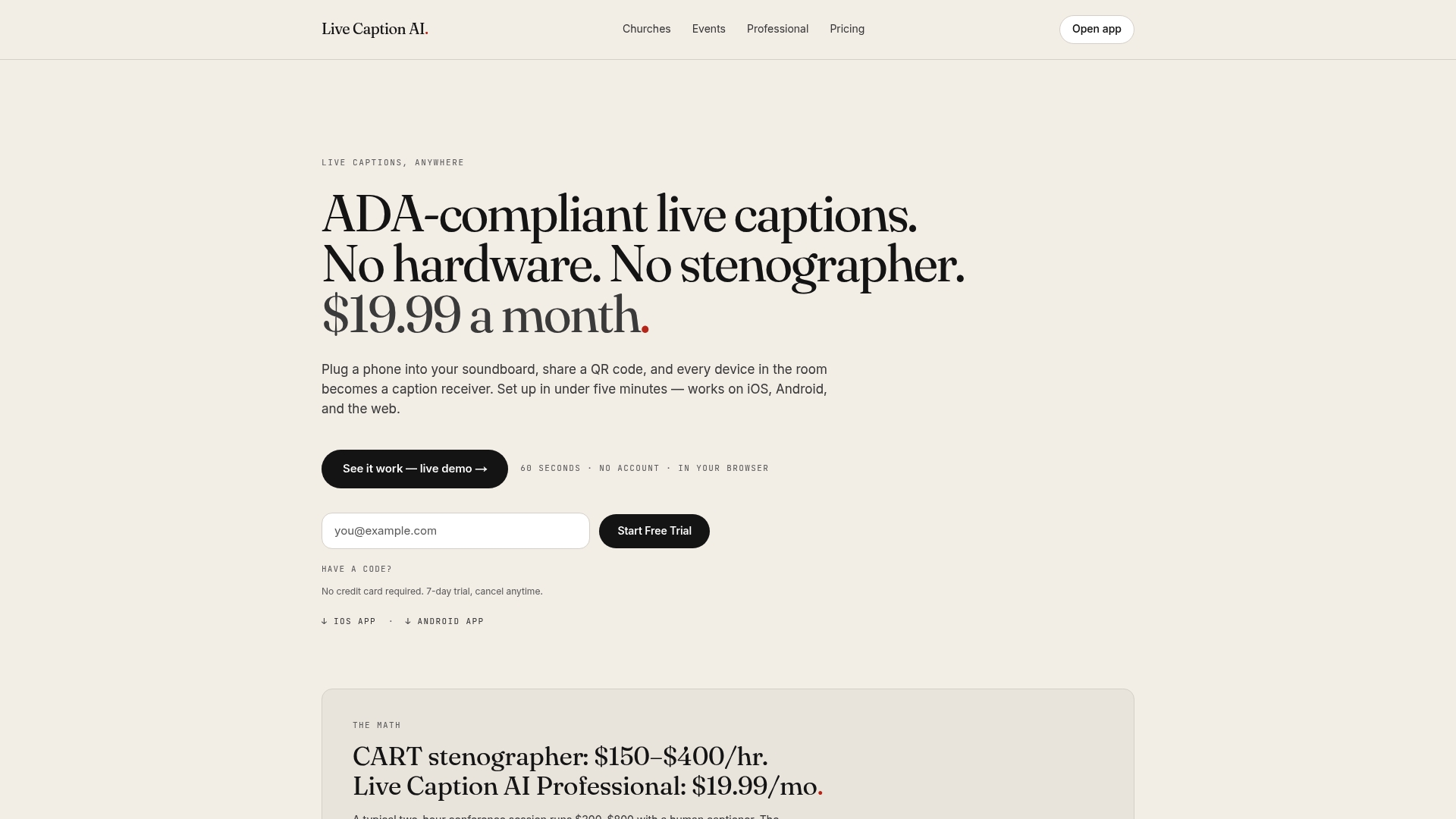
Live Caption AI turns any phone into a caption receiver through a simple QR code, so attendees don’t need an app, an admin-level account, or a specific Workspace plan to read live text in their own language. Transcripts export directly, accuracy is improved for industry-specific terminology compared to generic speech-to-text tools, and compliant deployment options are available for sensitive settings where a browser extension breaking mid-session simply isn’t an option. Where a stenographer might run into the hundreds of dollars per session, pricing plans are available on the provider’s website.
If your team is past the point of relying on caption extensions and native transcript delays, see how Live Caption AI’s real-time transcription approach compares and start a trial at Livecaptionai.

Key Official Docs and Technical Links

Verify feature access and troubleshoot with Google’s transcript support page, the Meet API artifacts guide, and this open-source caption-capture repo. For broader accessibility context, see how captions affect SEO and inclusion.
Sources
- Get a transcript in Meet - Google Workspace Admin Help
- yunho0130 / google-meet-cc-to-srt
- Work with artifacts | Google Meet | Google for Developers